Our Location
304 North Cardinal St.
Dorchester Center, MA 02124

1. Prepare the USB flash drive for purchase:Purchase address
2. Synology Search Assistant:Download address
3. Synology system PAT installation file:6.24 download link 7.2.1 Download address 7.2.2 Download address 7.3.2 Download address
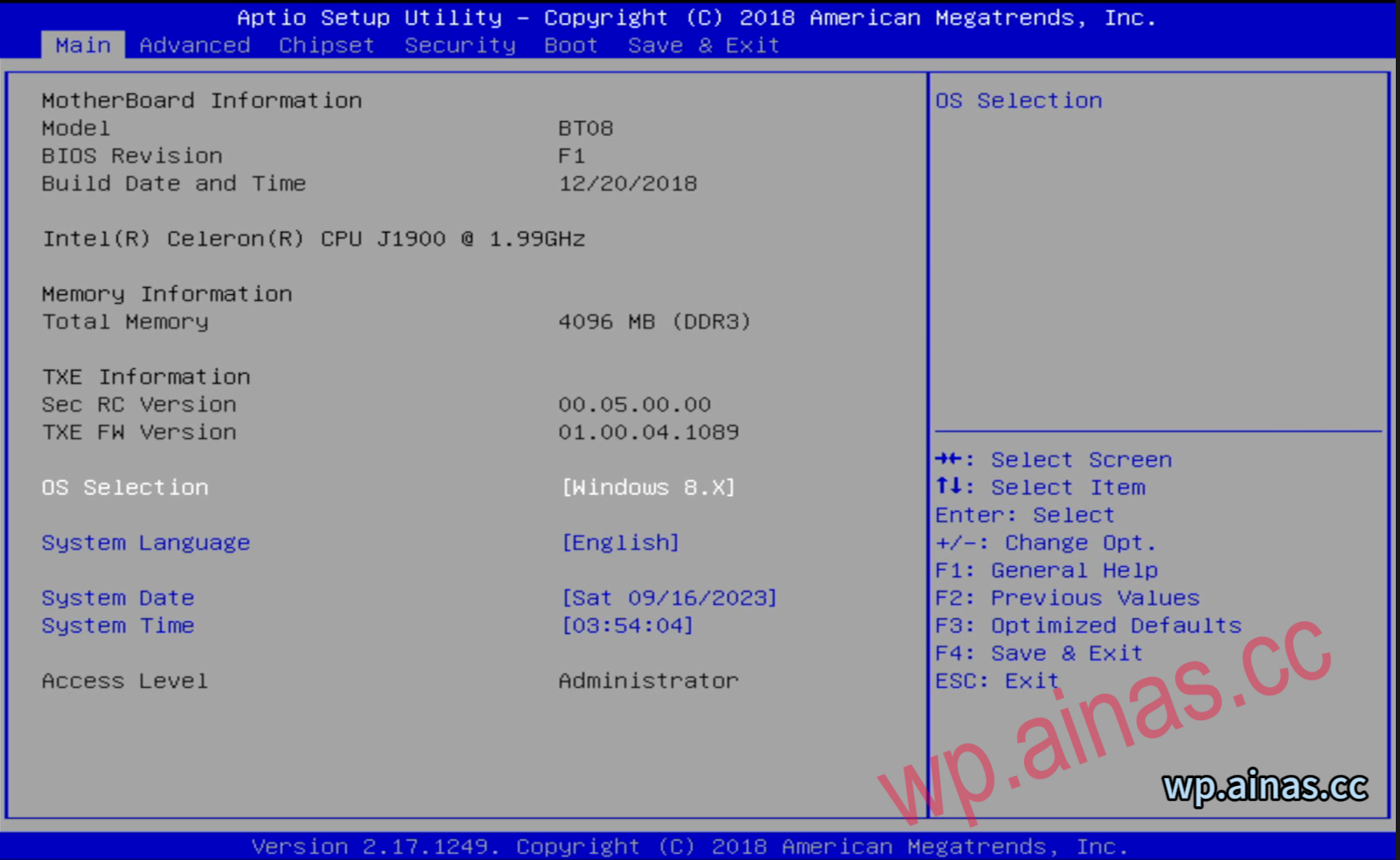
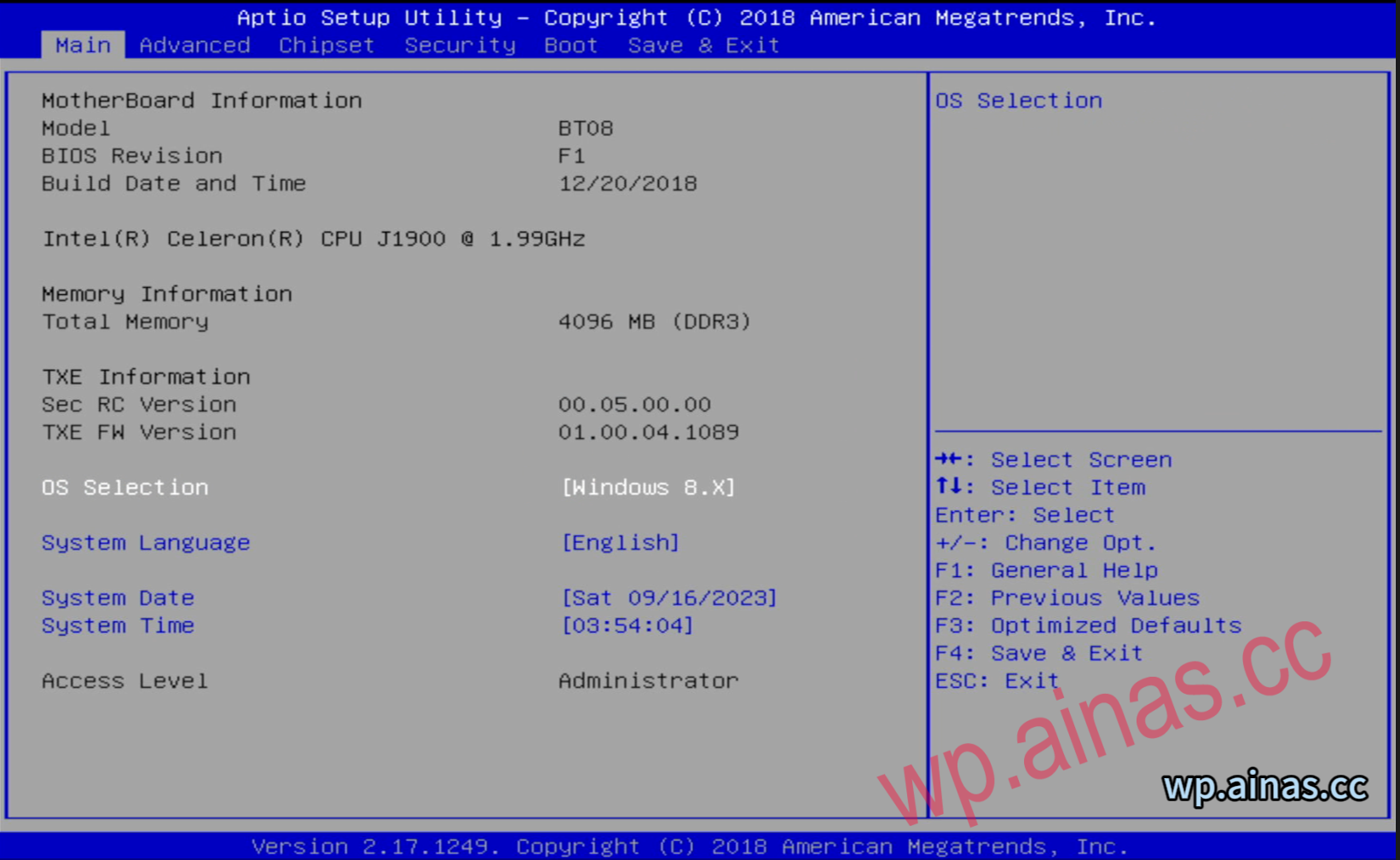
1. Insert the USB flash drive into the Synology host,Restart, DEL into Synology’s BIOS
1. Change OS Selection to Windows 8.x
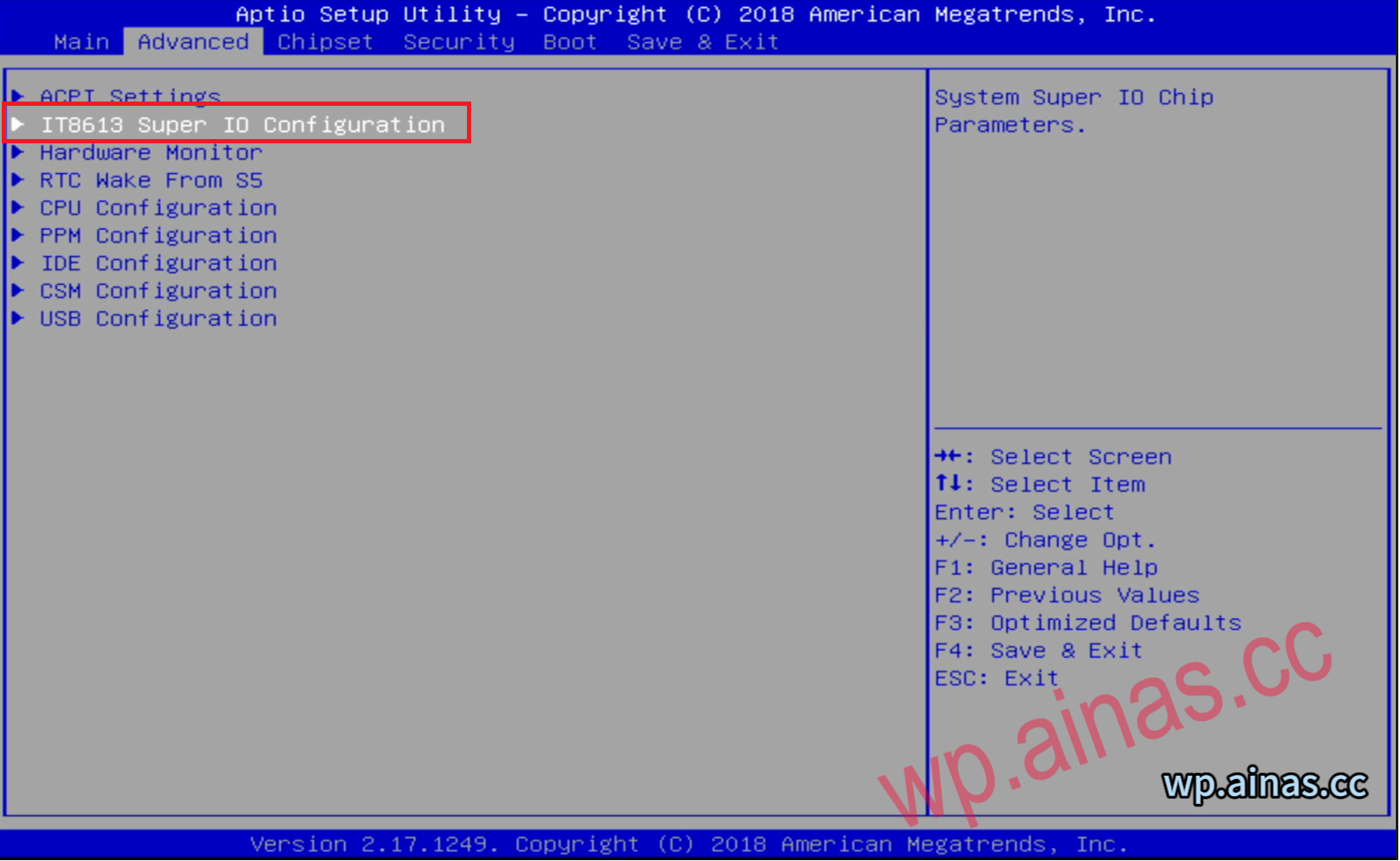
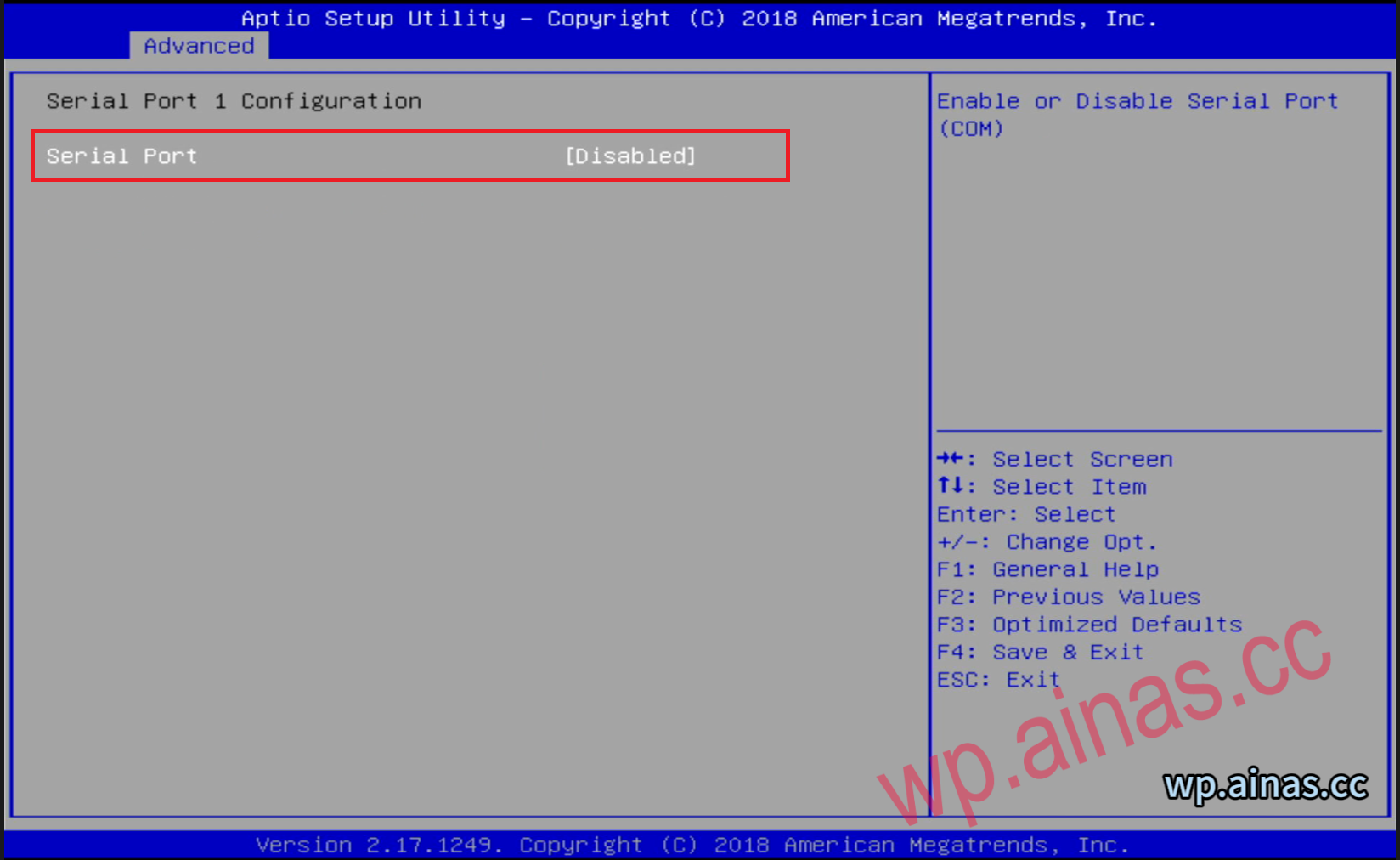
2. Turn off serial port 1 in the second item of advance
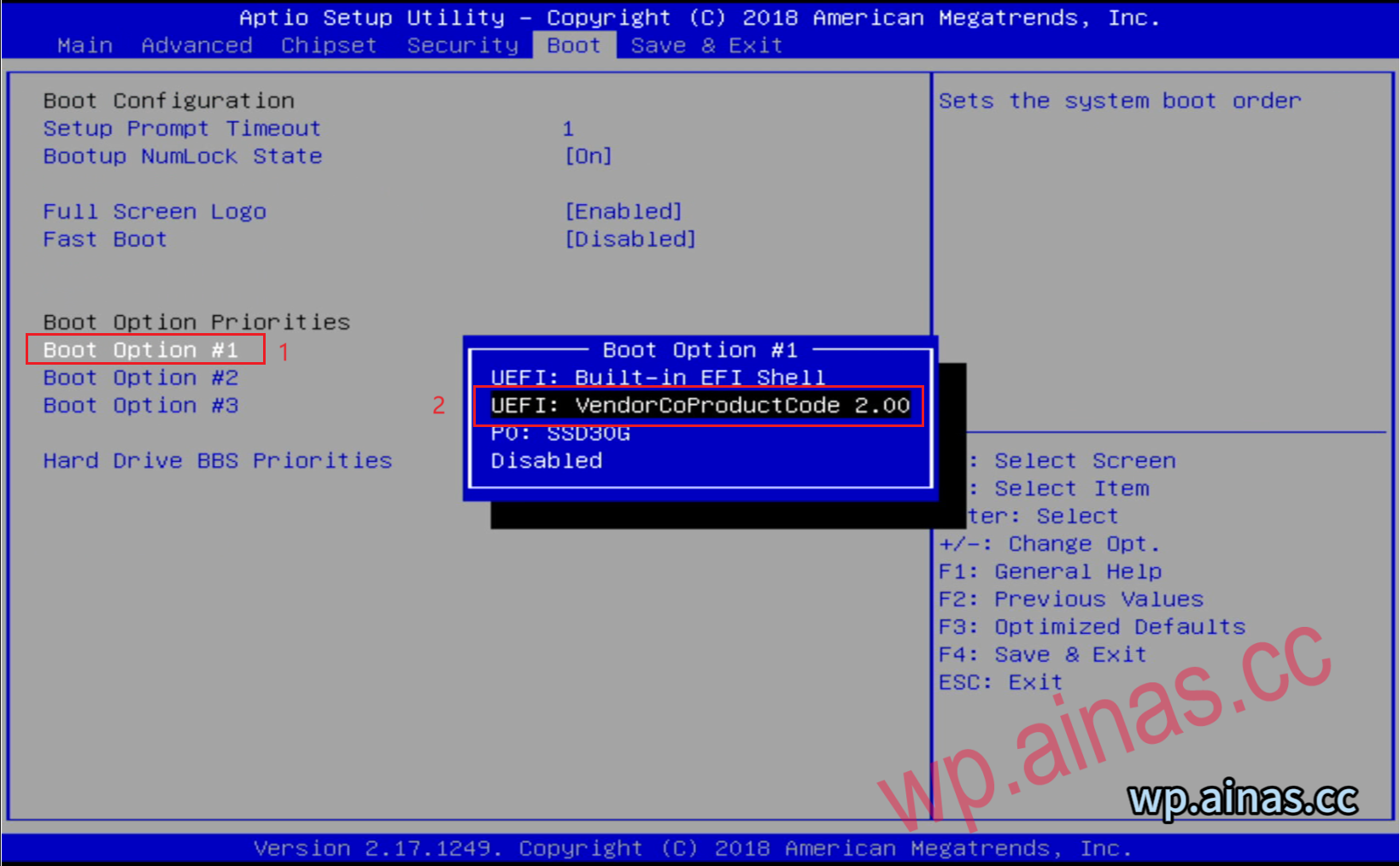
2. Select the boot option, press Enter at Boot Option #1, select our USB flash drive, press Enter, F4 (or F10) to save the changes, and the system will automatically restart.
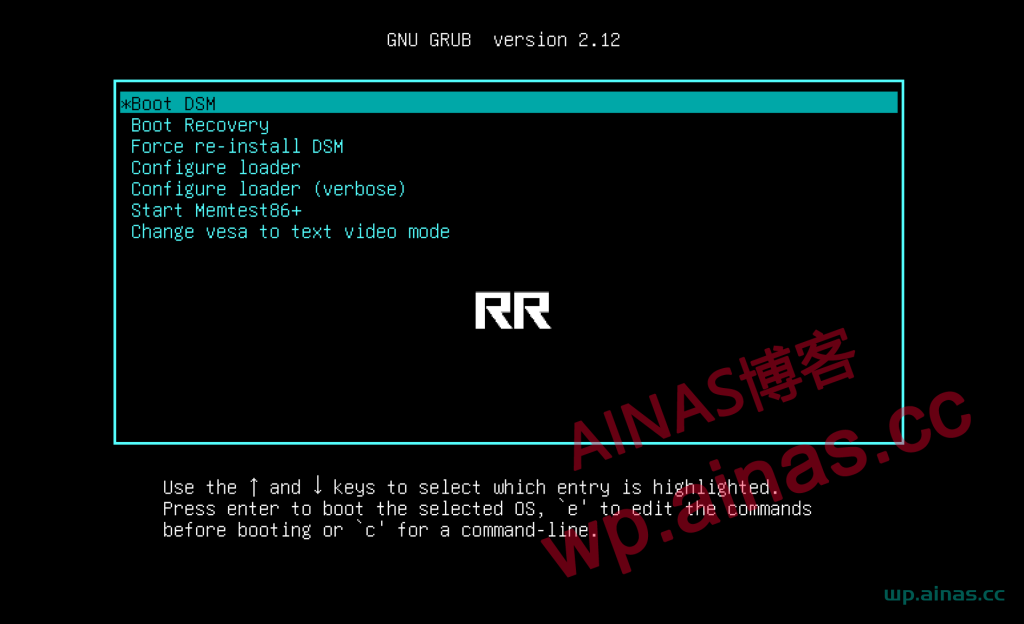
1. After saving the BIOS configuration, the Synology host will automatically restart and enter the USB boot interface. By default, you can enter the first one.
2. After the startup is completed, an IP address will be displayed. Use this IP address to enter on another computer on the same LAN, or search with Synology Search Assistant to enter the Synology installation interface.
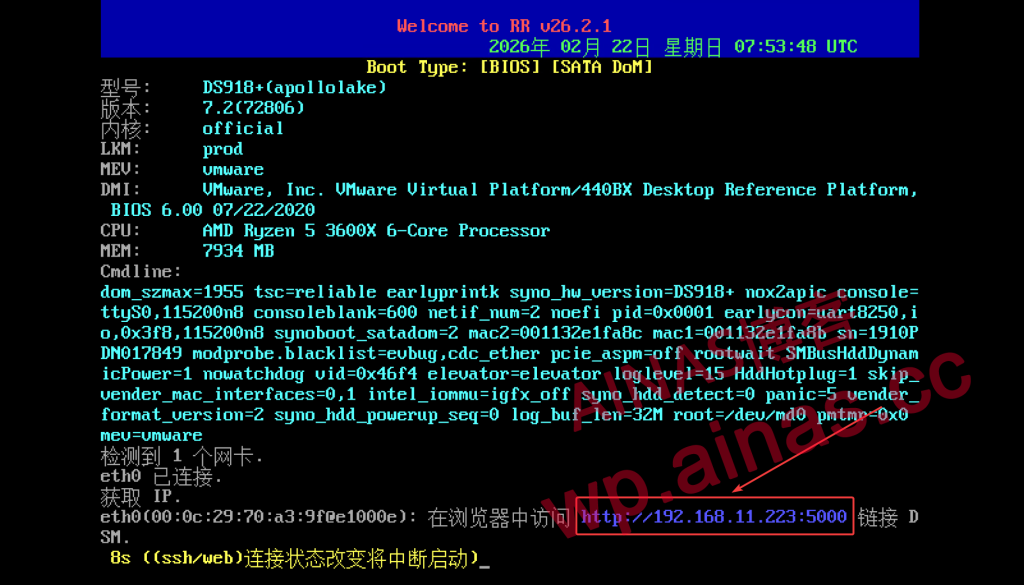
1. After about 3-5 minutes, directly enter the IP address displayed on the Synology screen on any computer browser in the LAN to enter the Synology installation interface.
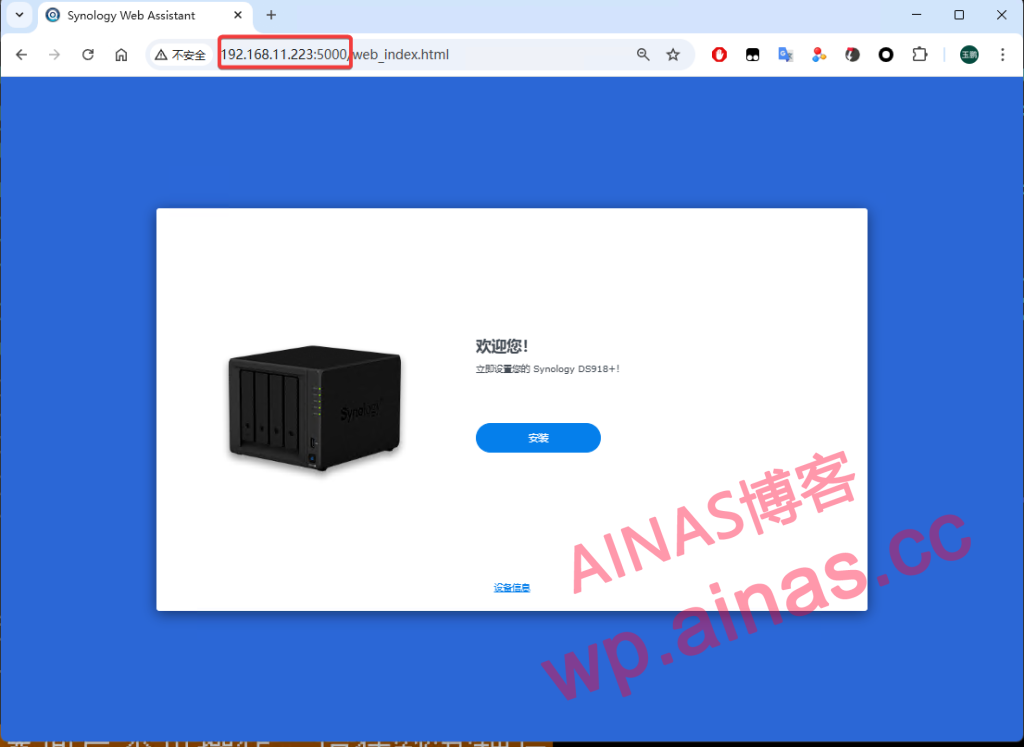
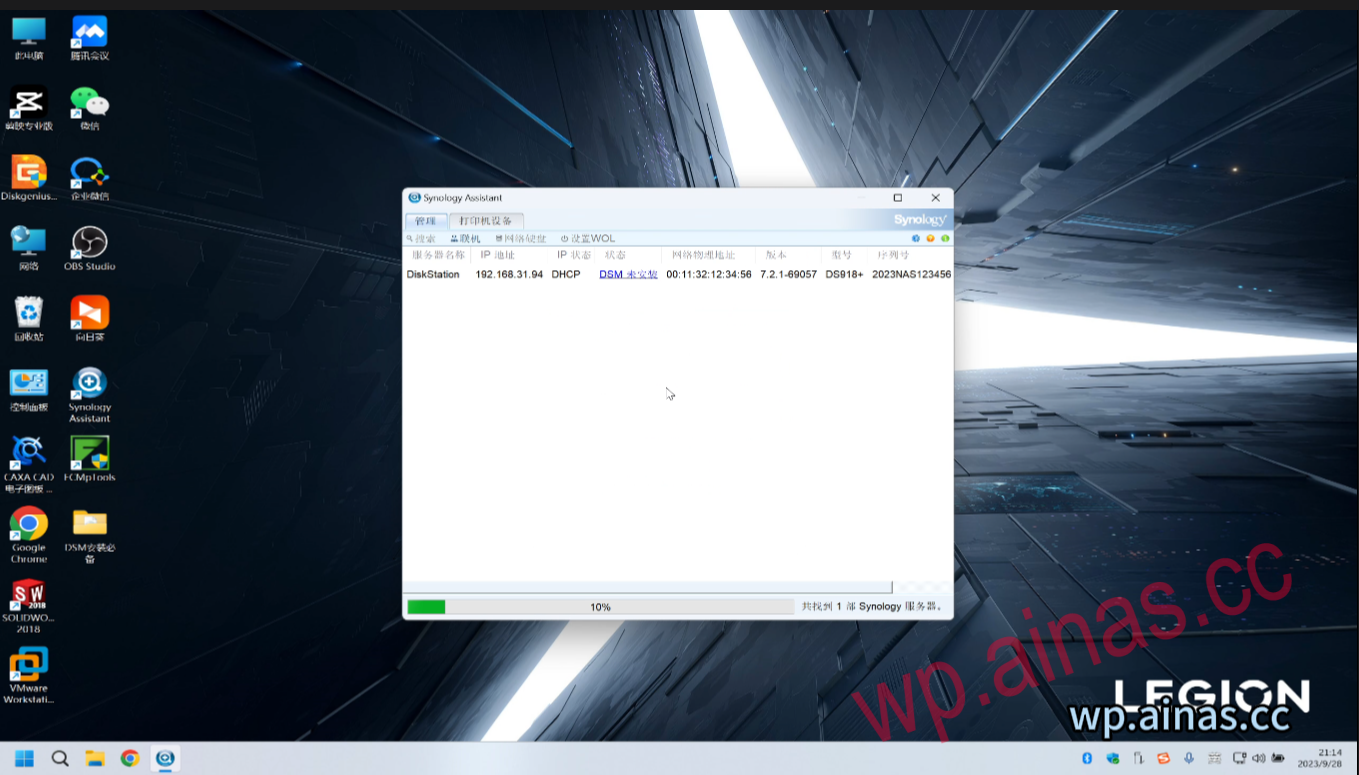
If the Synology screen does not display the IP address normally, you can also use Synology Assistant to search for the Synology IP address.
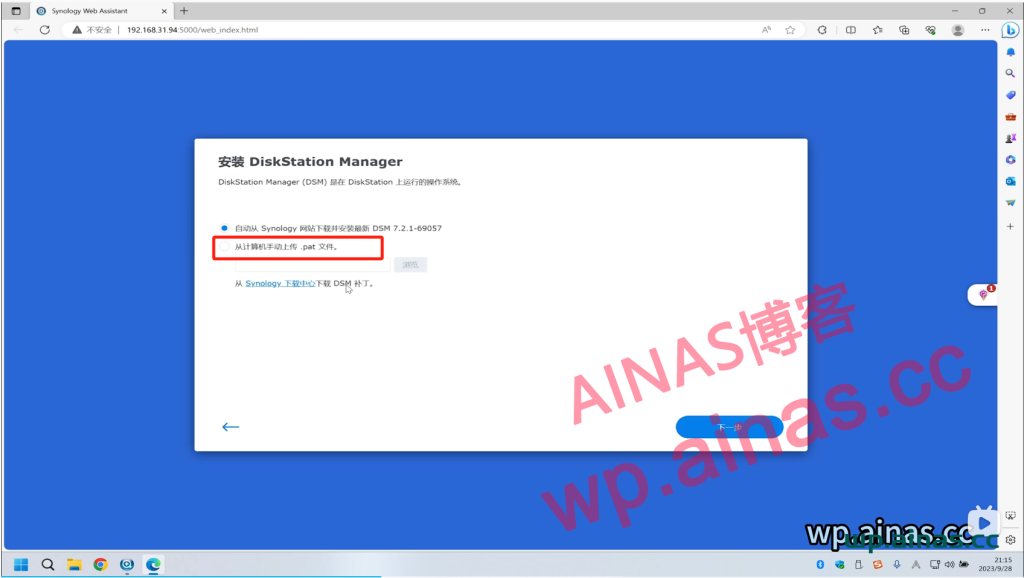
2. Enter the Synology installation interface, select Install, select manually upload the PAT file from the computer, and upload the downloaded PAT file according to the model.
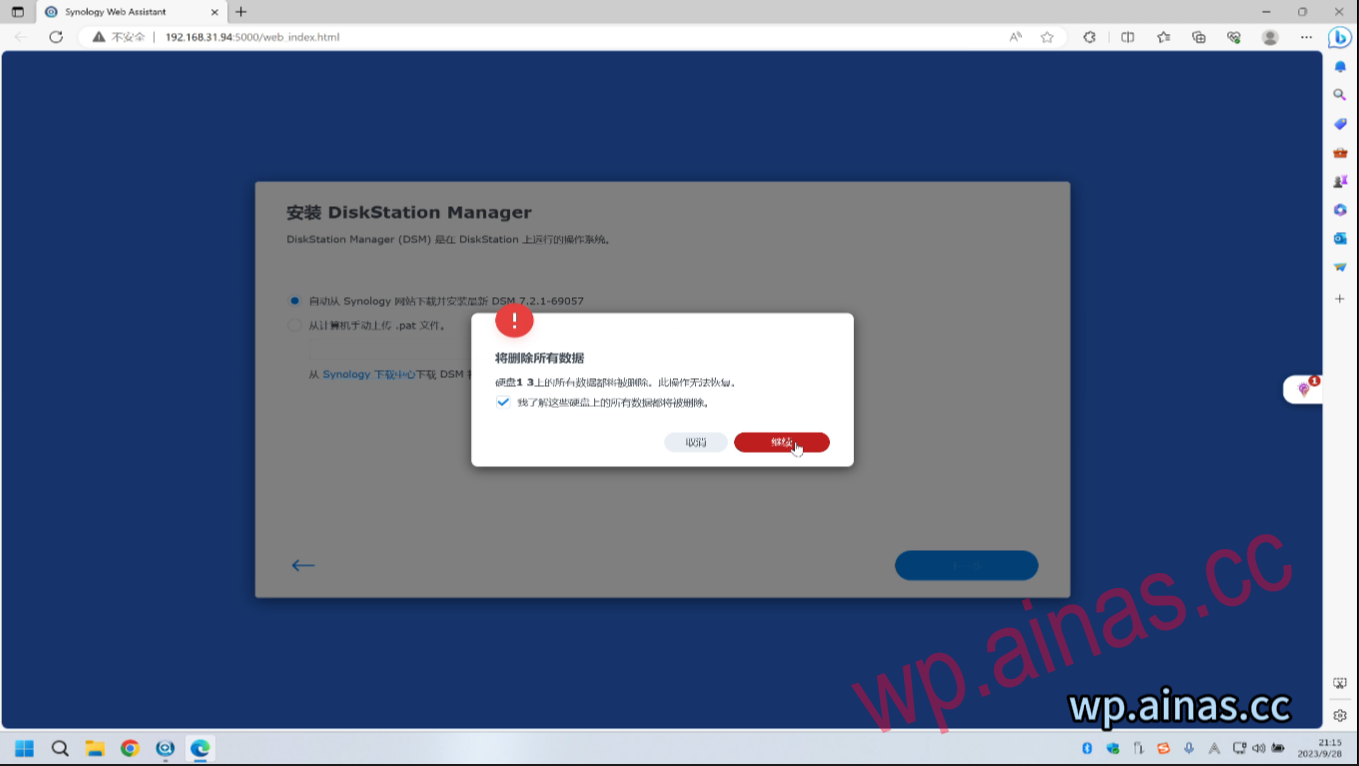
3. If it is a blank hard disk, you will be prompted to delete all data. Check the check box and click Delete.
4. Enter the product model here. Mine is DS918+. After entering, click Delete.
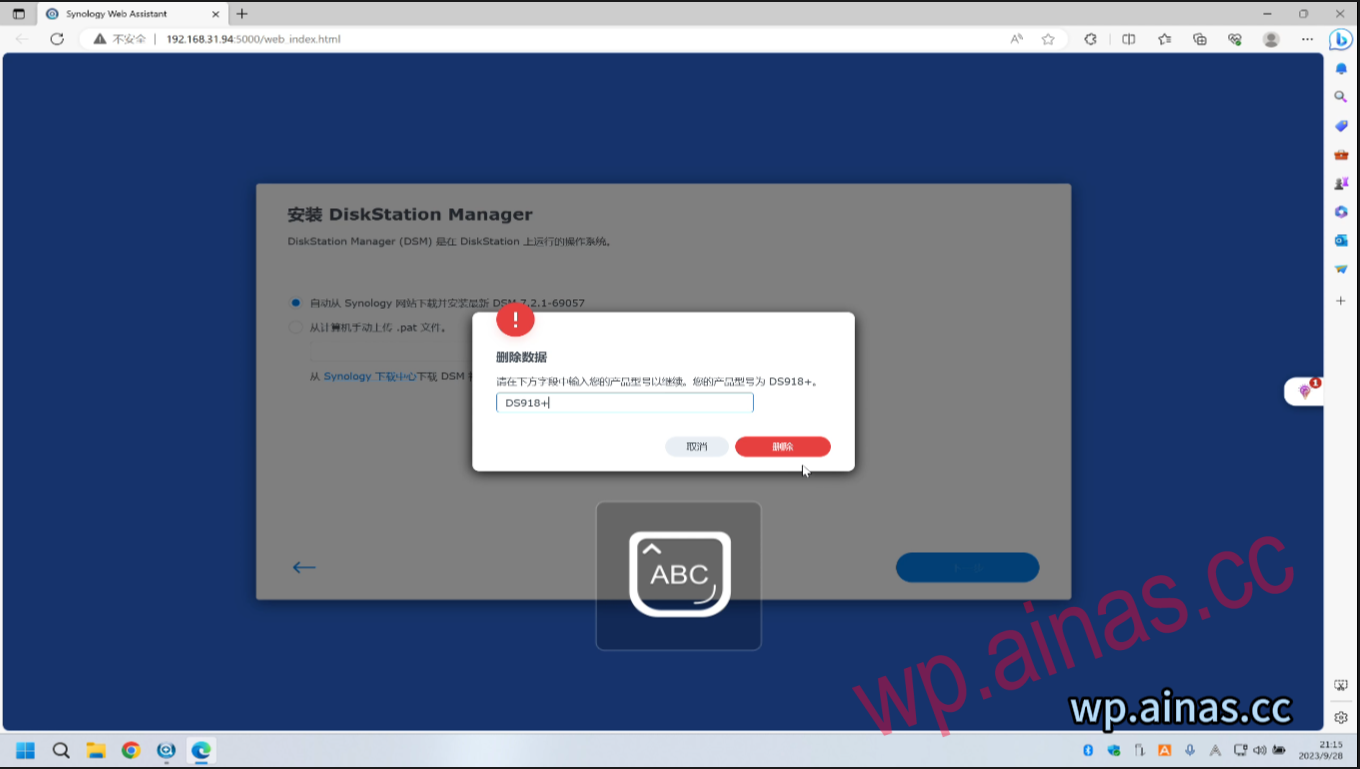
5. After clicking Delete, you will enter the Synology installation interface. After the installation is completed, Synology will automatically restart.
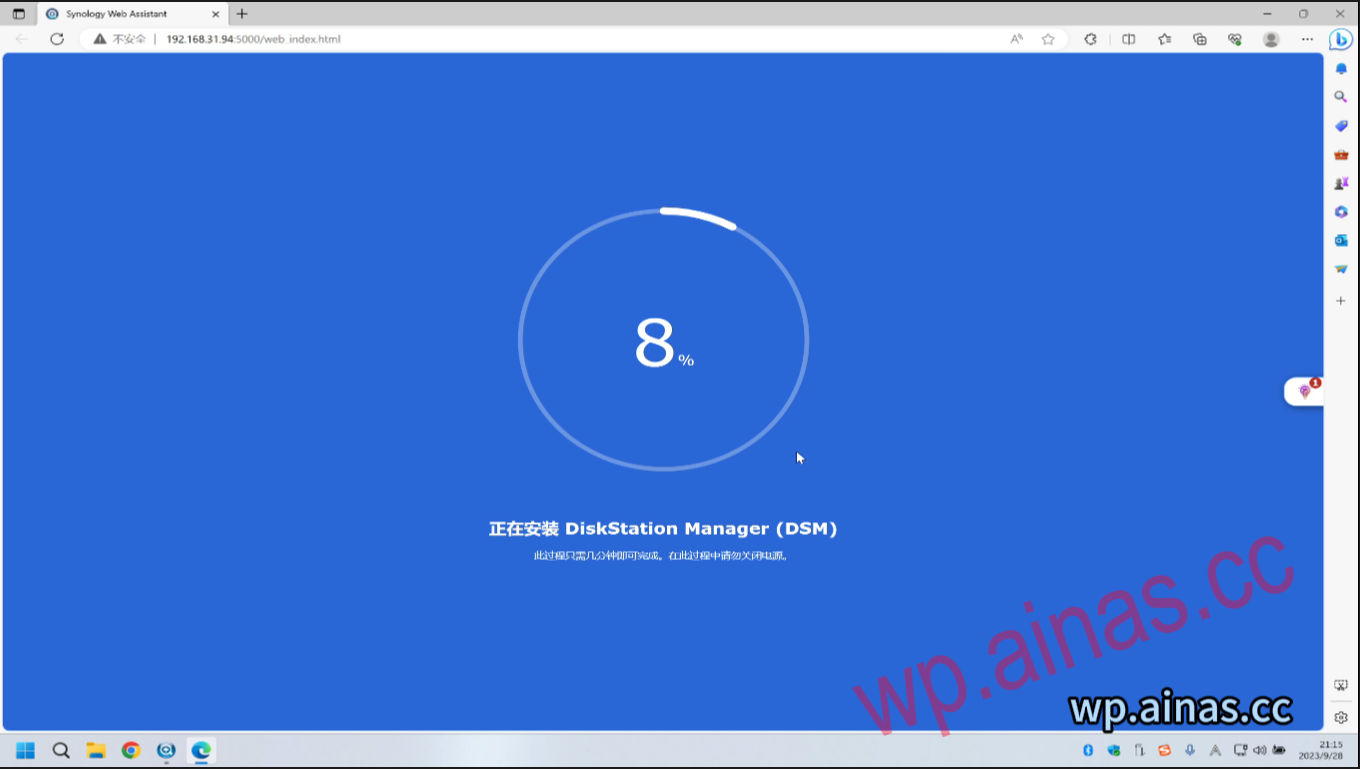
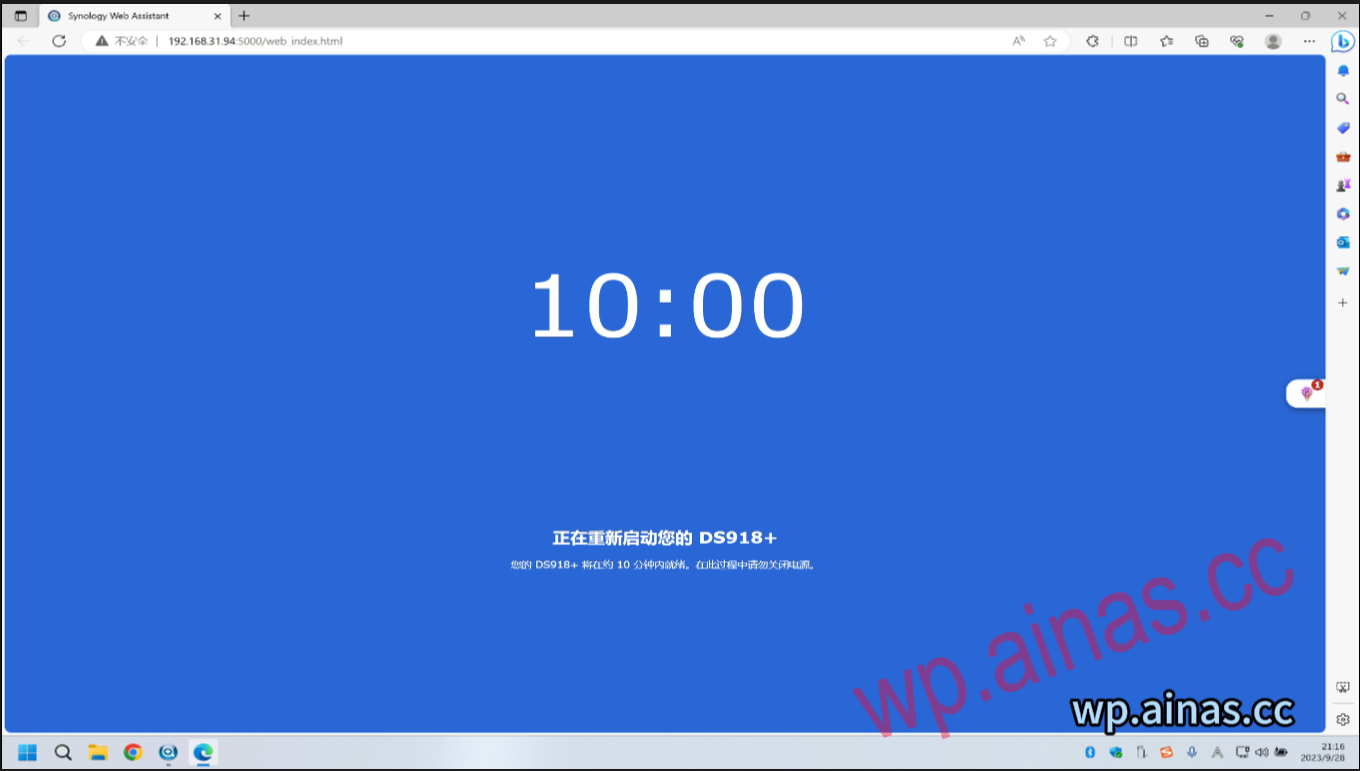
1. After restarting, it will take about 3-5 minutes. The specific time depends on the performance of Synology CPU. It will automatically enter the Synology account configuration interface. Click here to start.
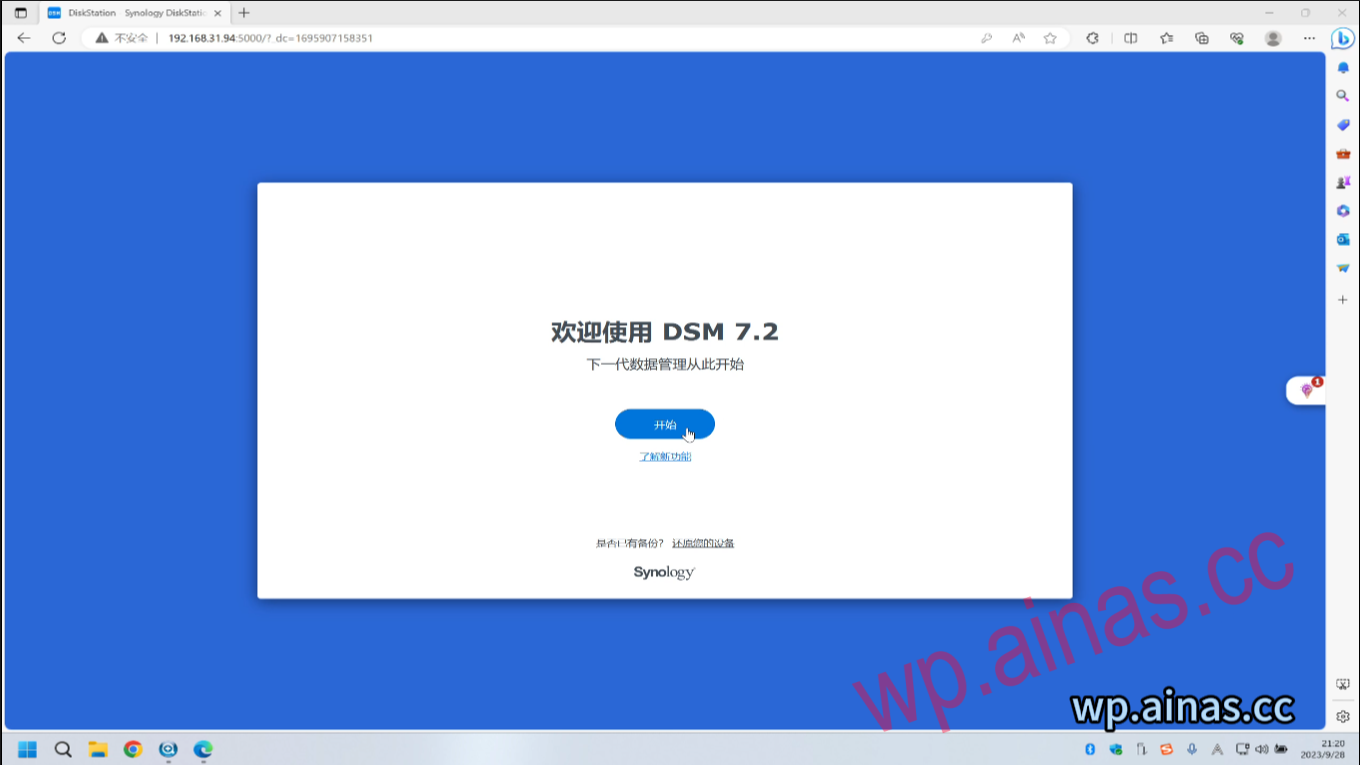
2. Enter Synology’s server name, account number, and administrator password. Note that the server account requires a hard disk and does not support special symbols. The administrator account cannot use root or admin. The administrator password must be uppercase and lowercase, at least 8 characters, and cannot have duplicate parts with the administrator account.
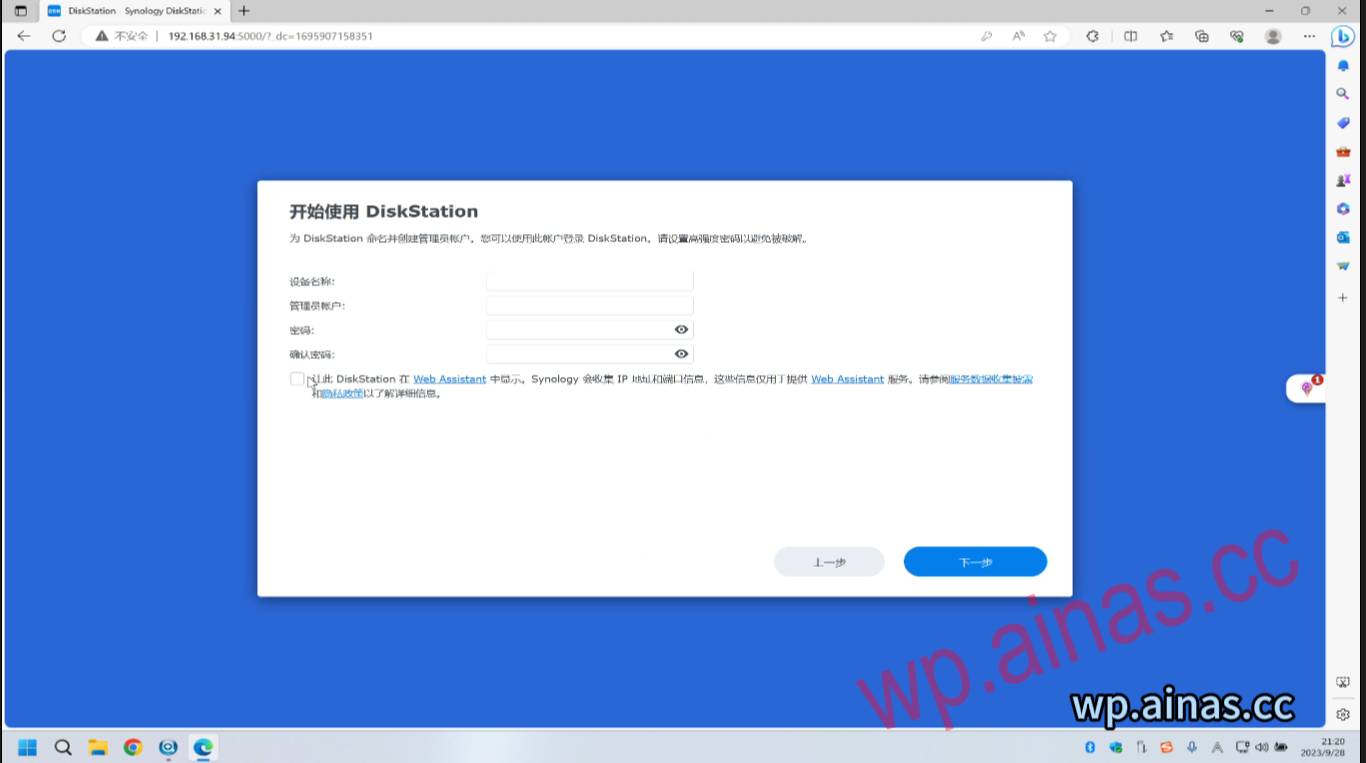
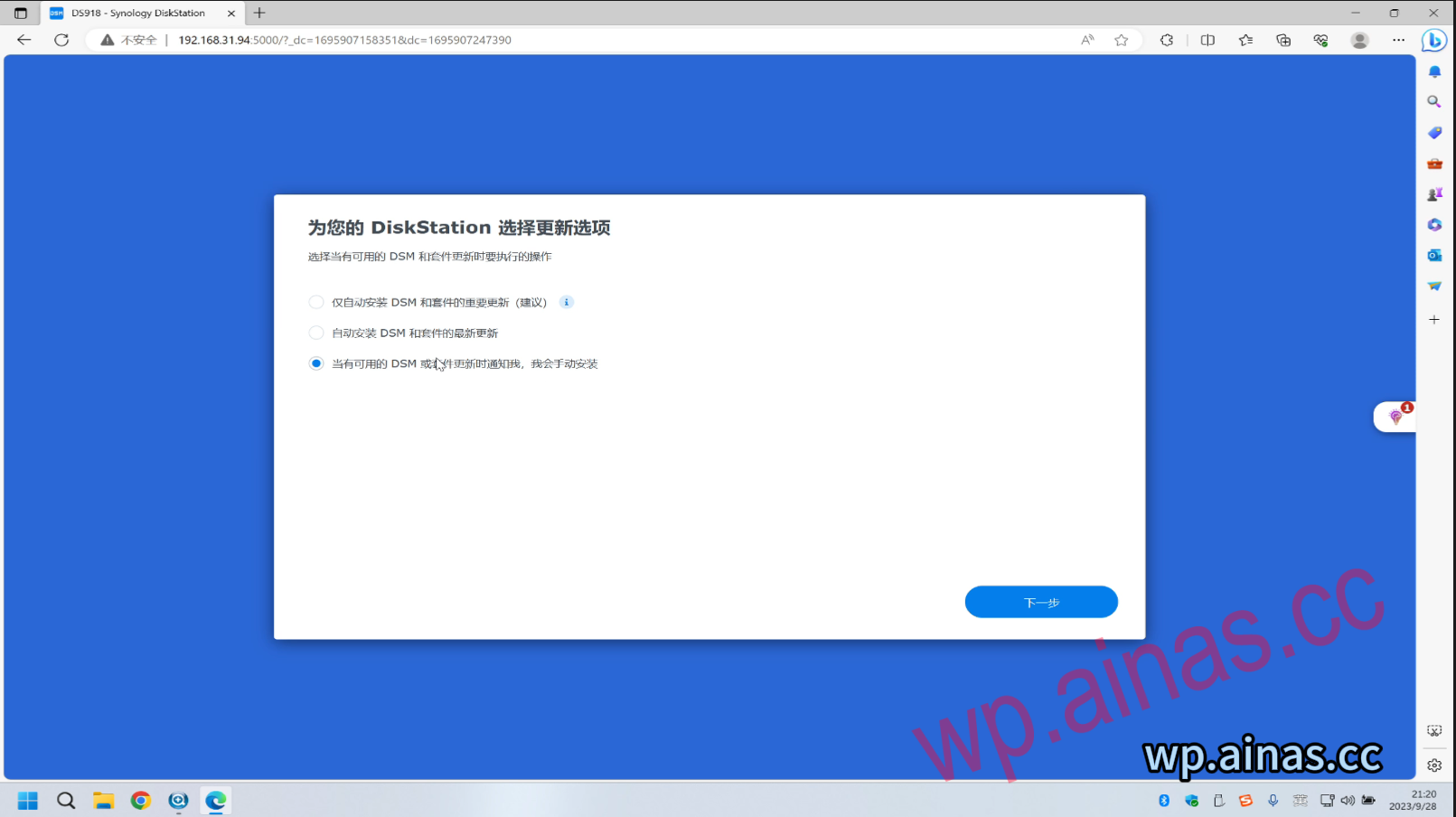
3. Select the third one and click Next
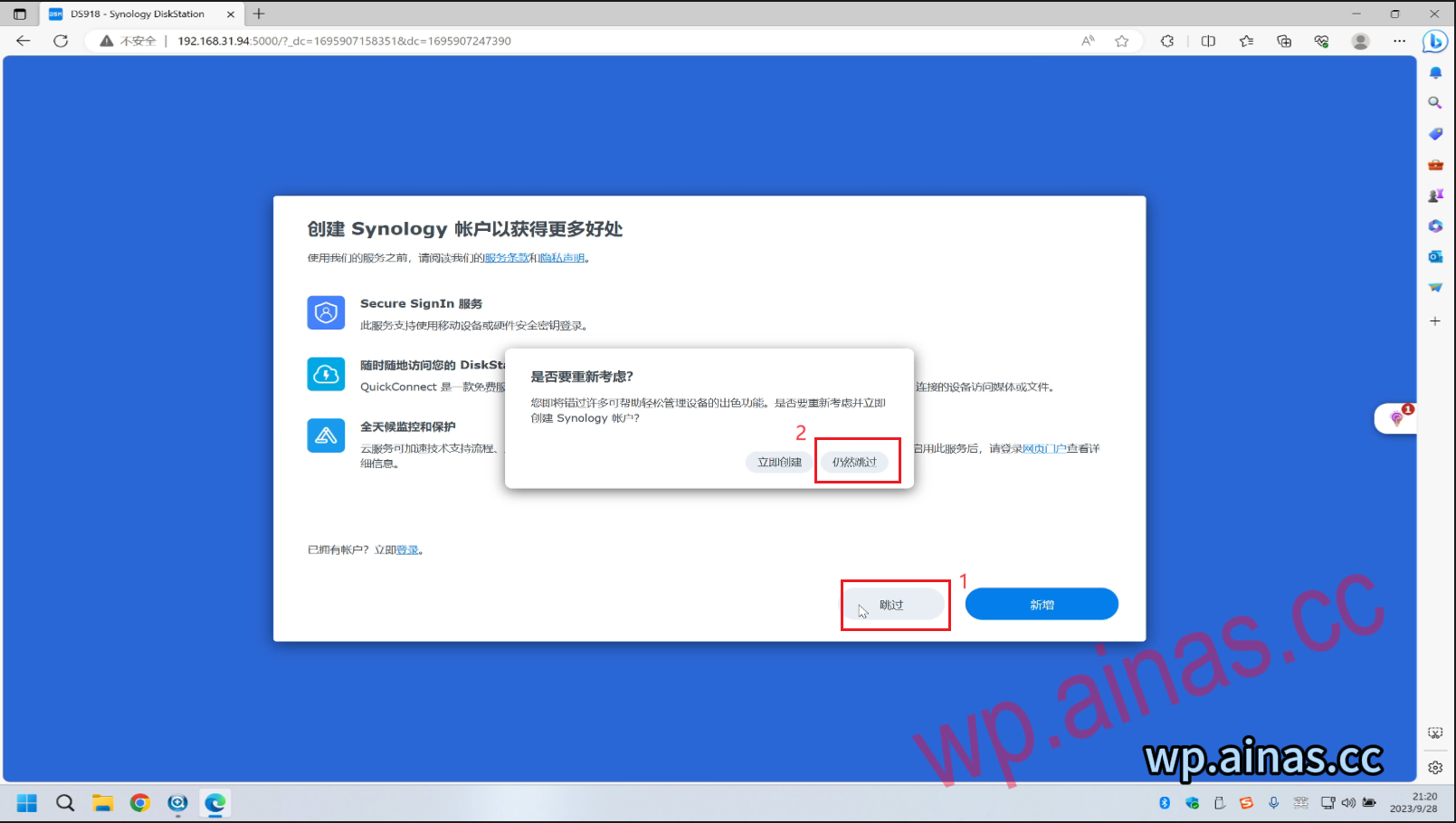
4. Skip – still skip
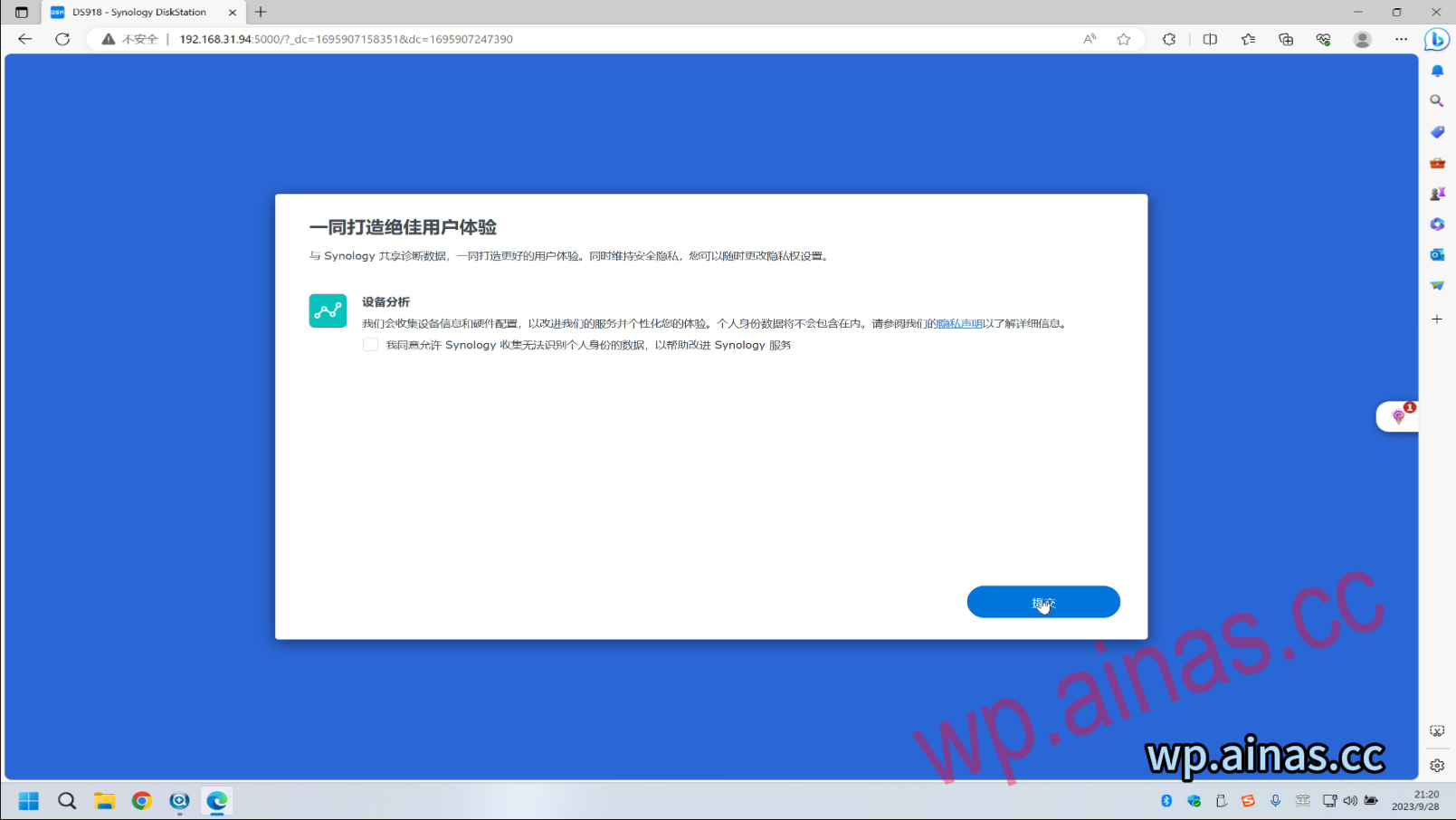
5. Click Submit
6. Operate according to your own needs. I click “No, thank you” here.
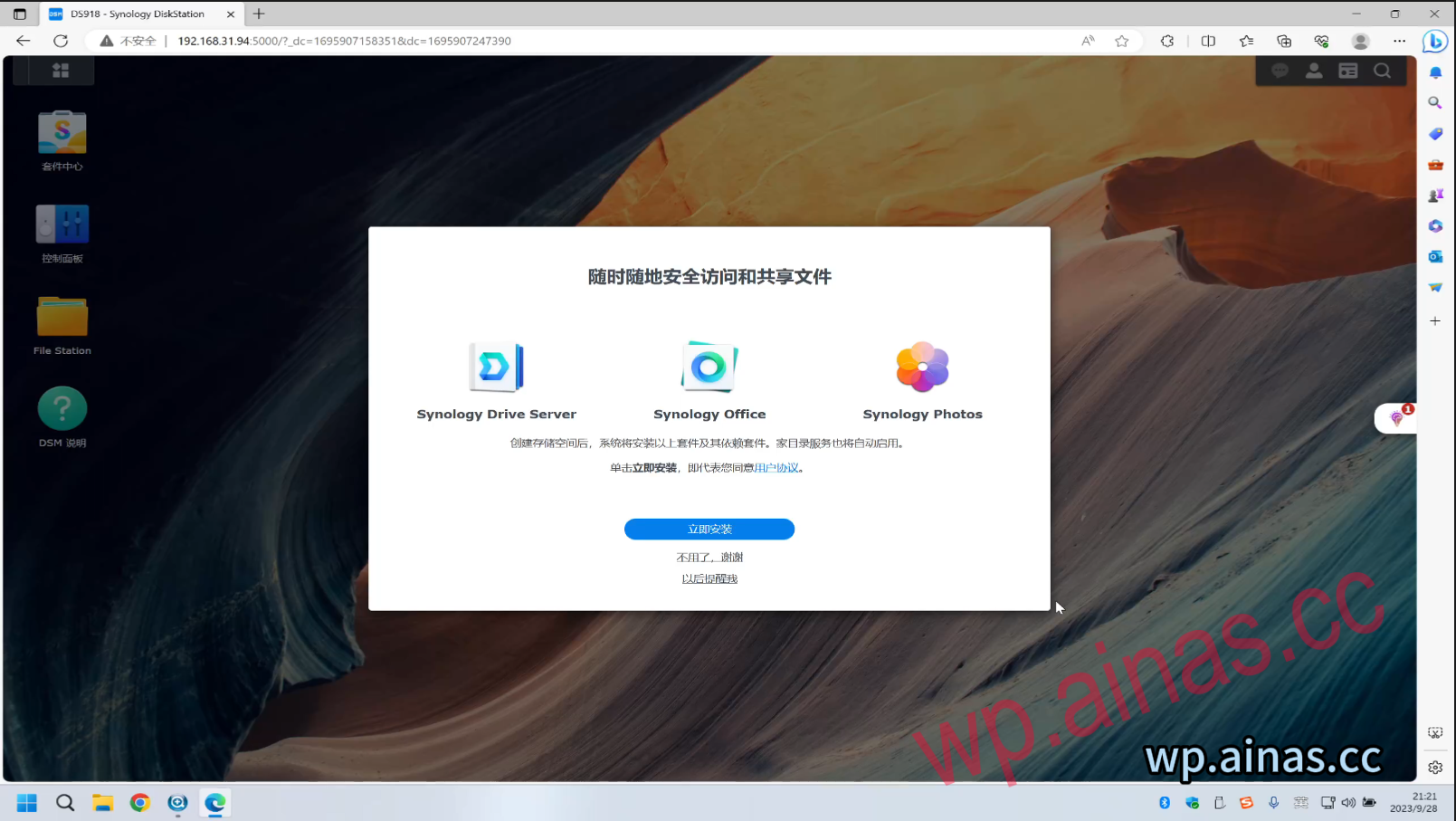
7. Click “No, thank you”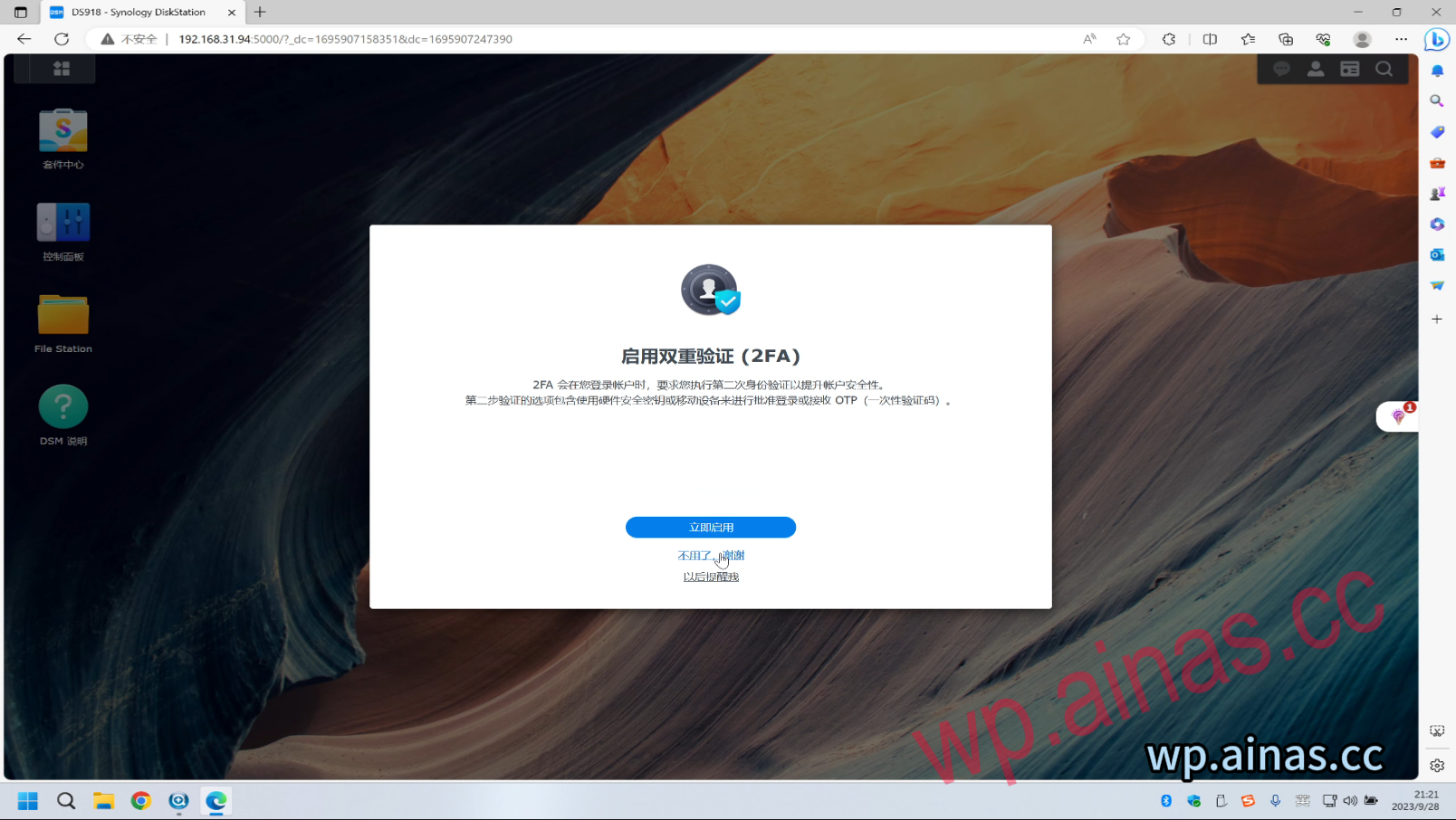
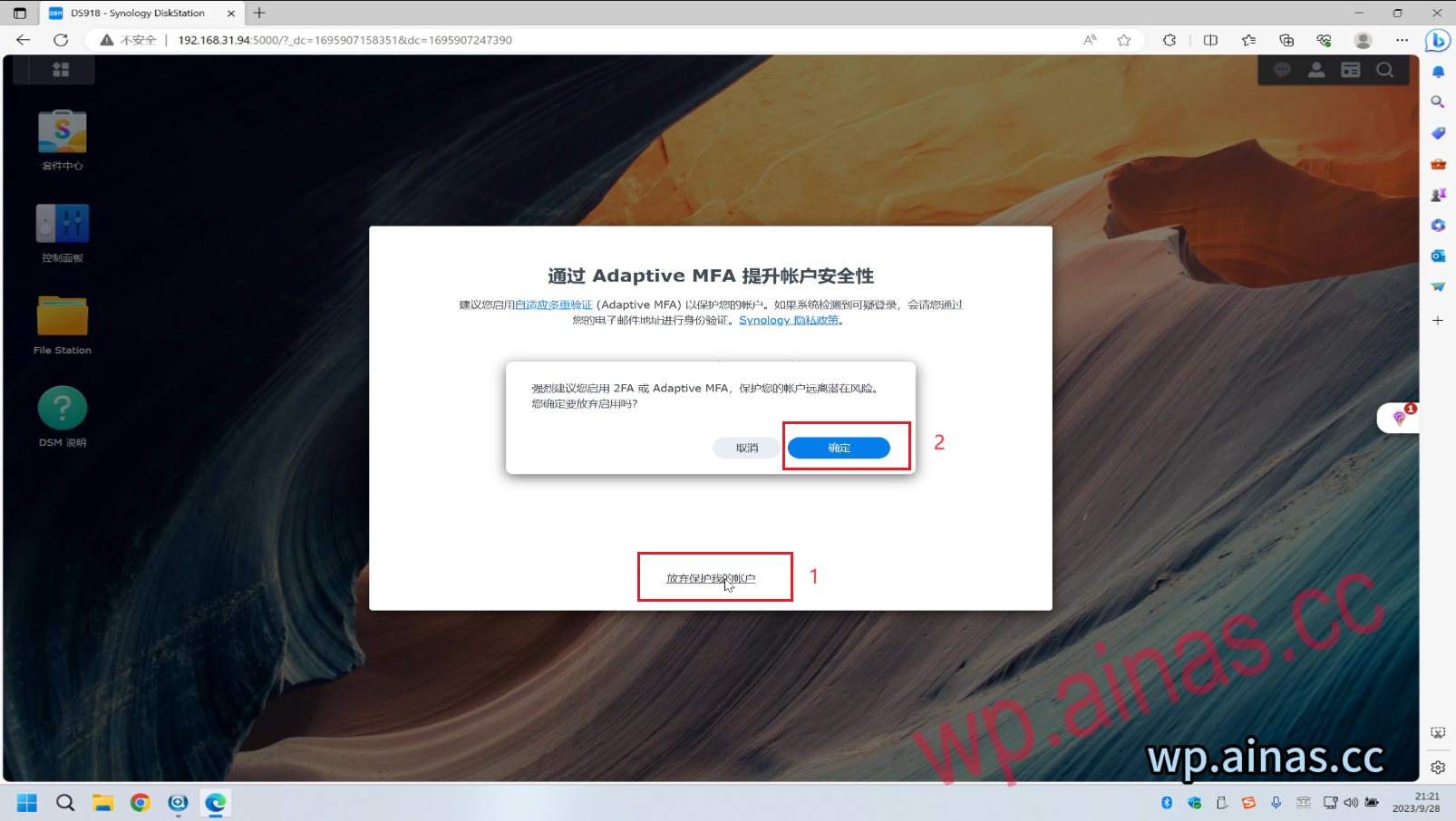
8. Click Give up protecting my account – OK
1. If the hard disk is empty, you will be prompted to create a storage pool and storage space. Click here to create it immediately.
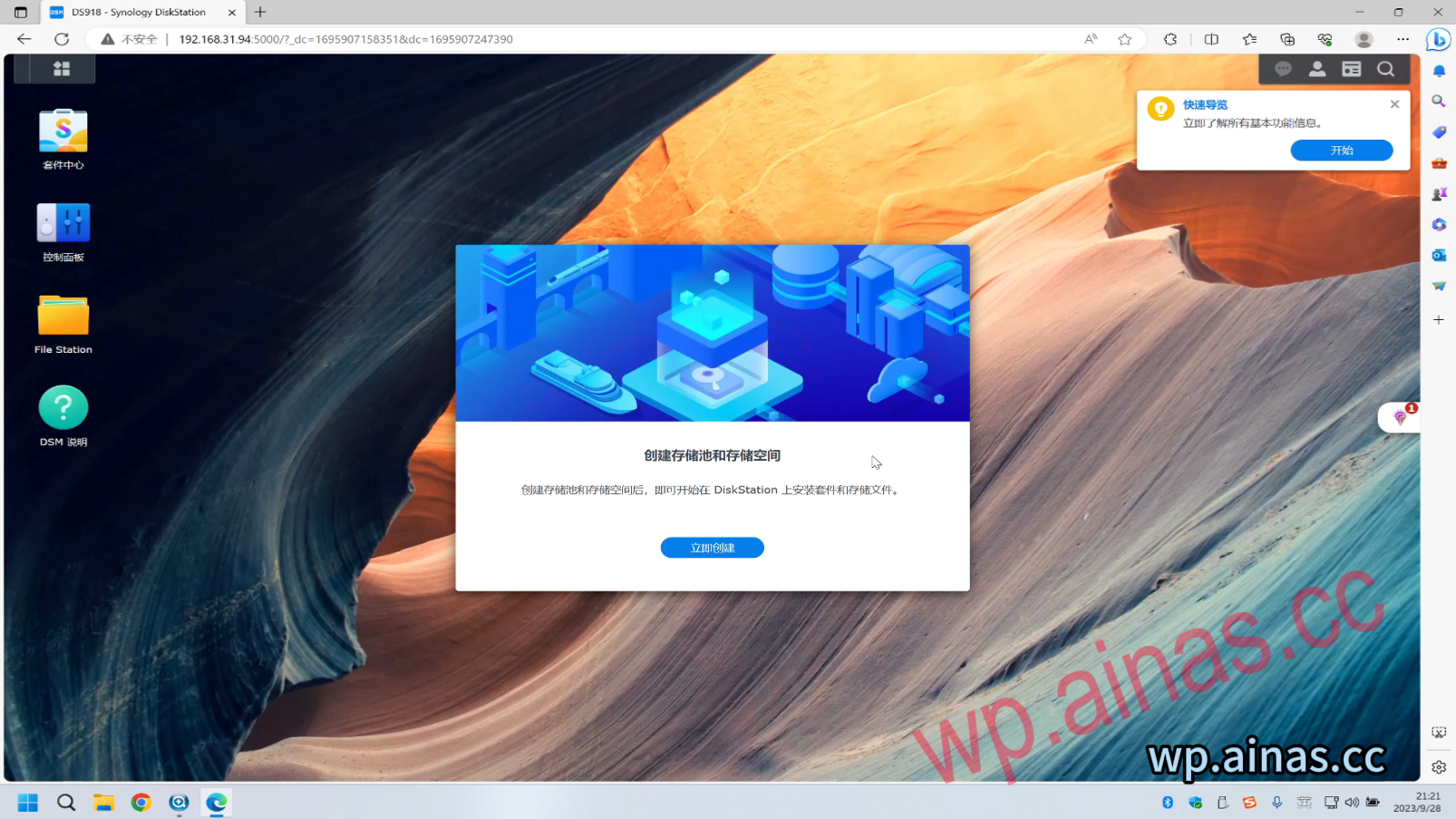
2. Click Start
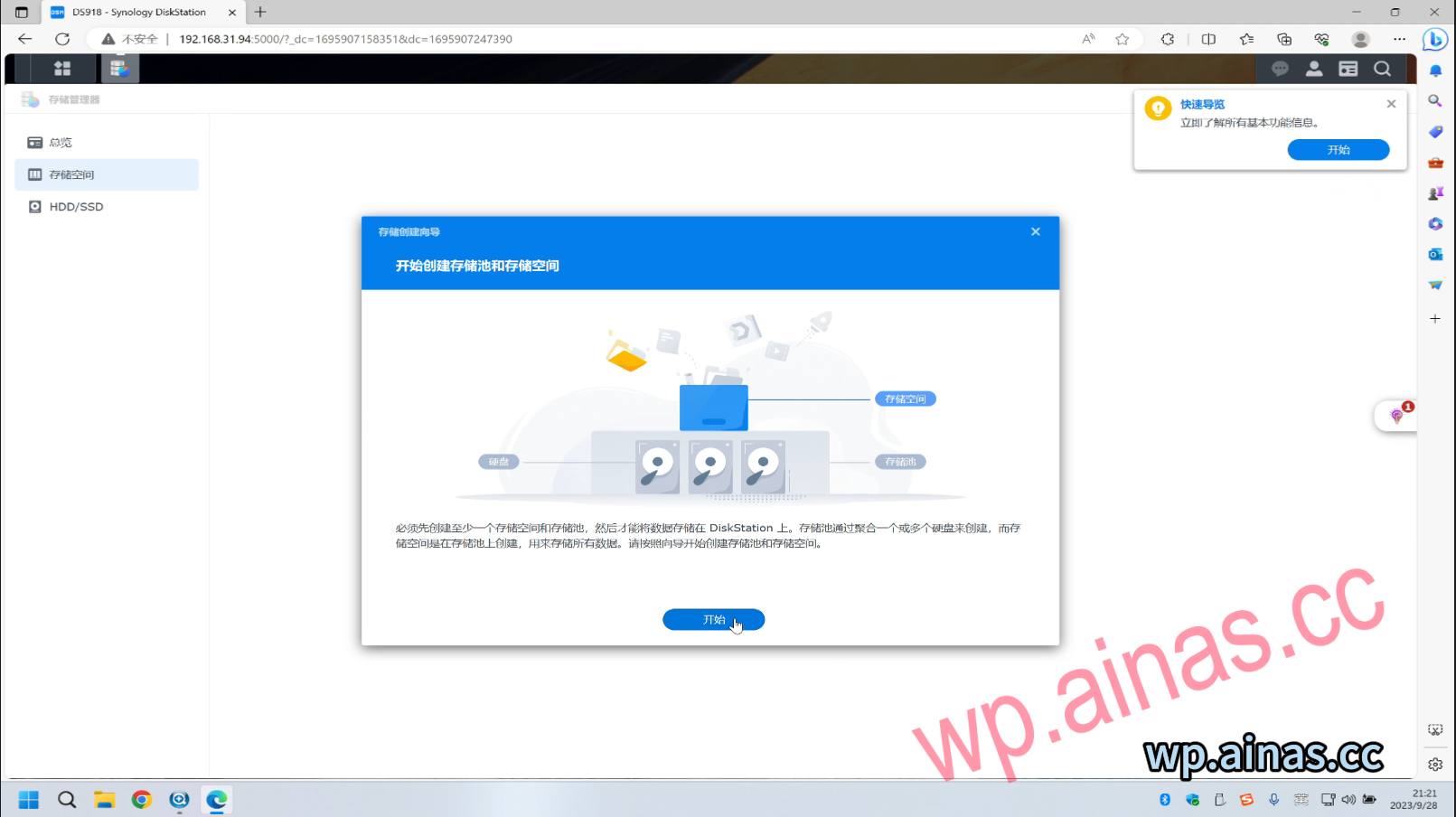
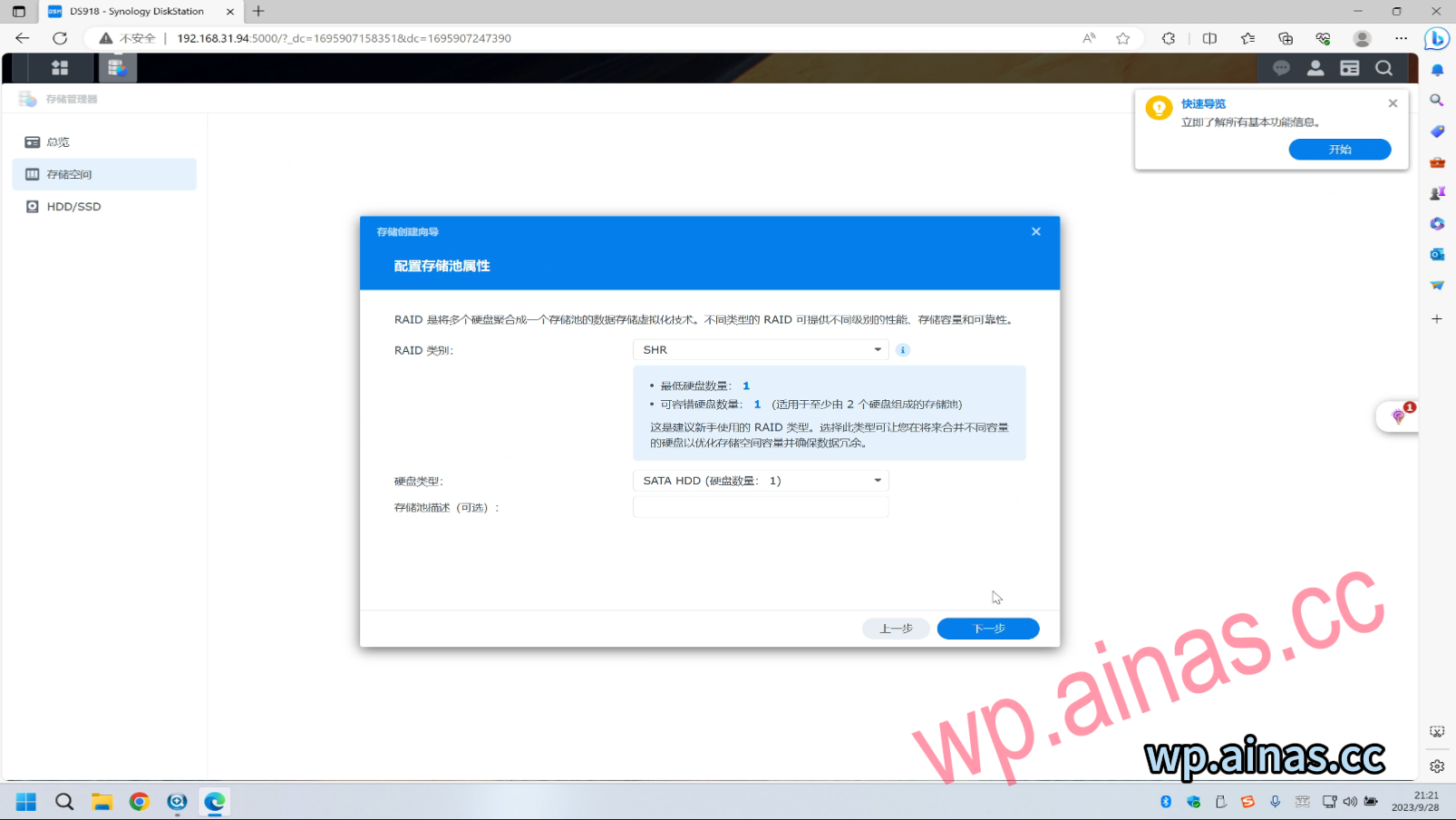
3. Click Next and leave everything else as default.
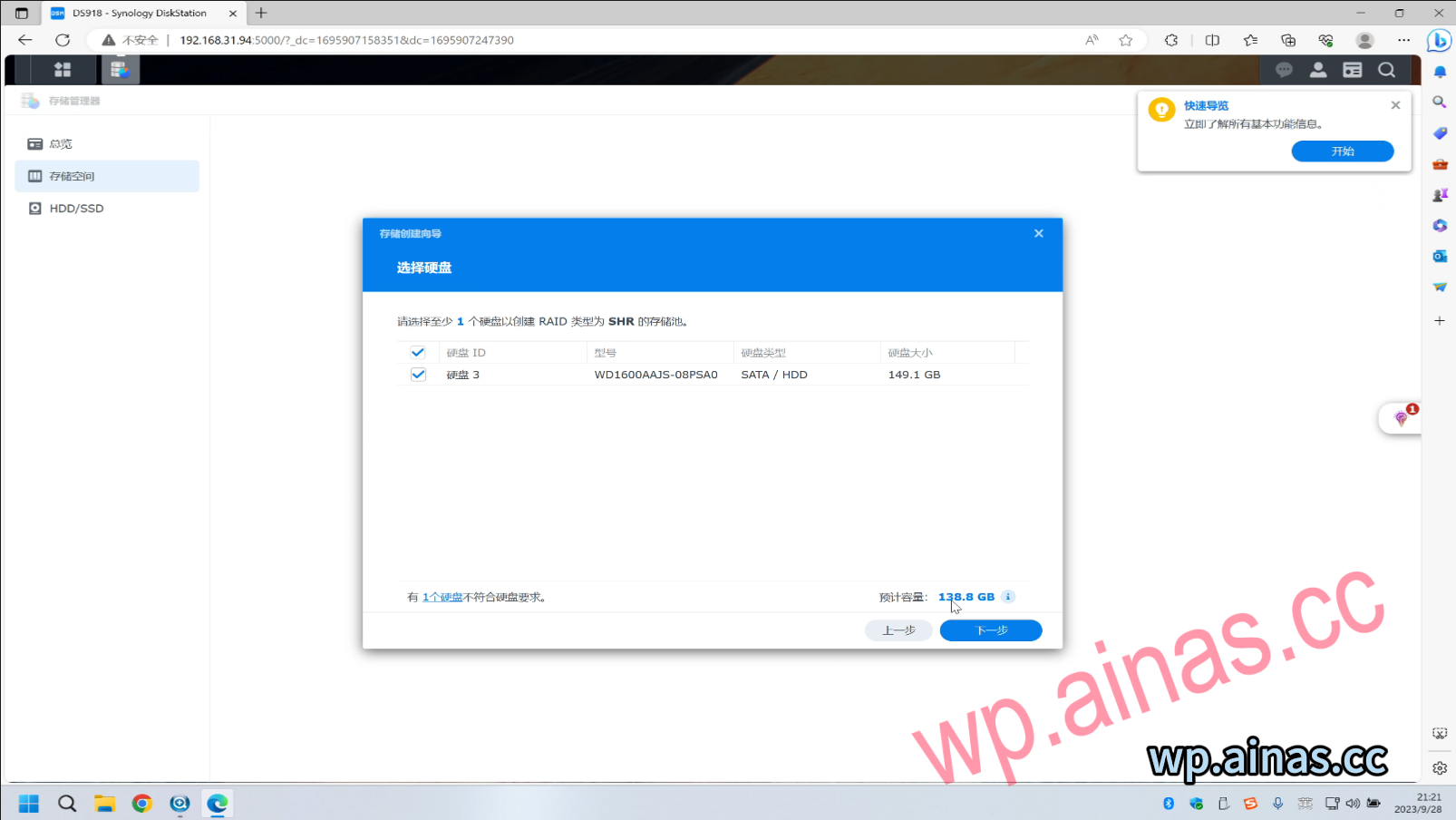
4. Select our hard drive and click Next
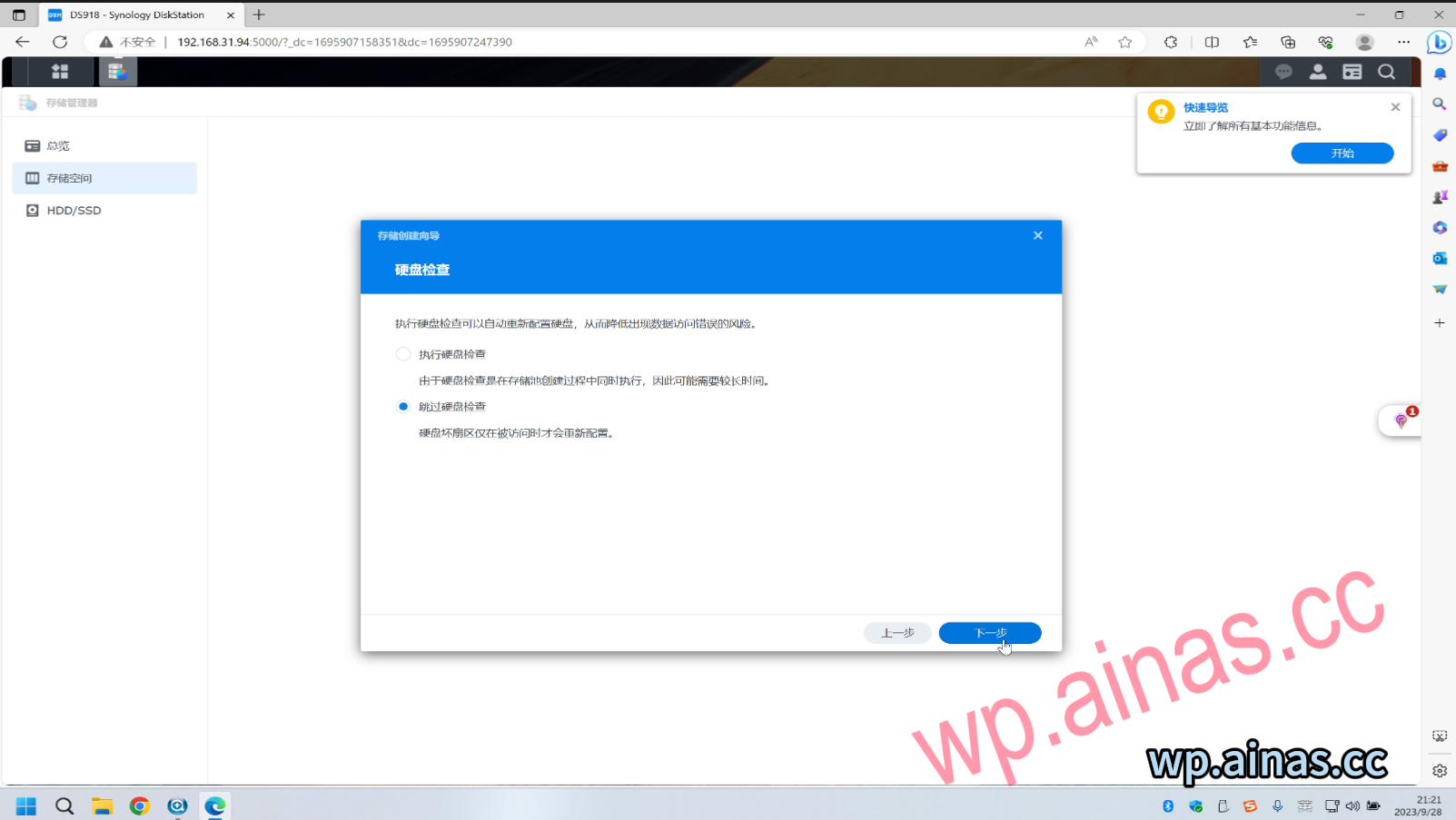
5. Skip disk check – next step
6. Select Maximize and then next step
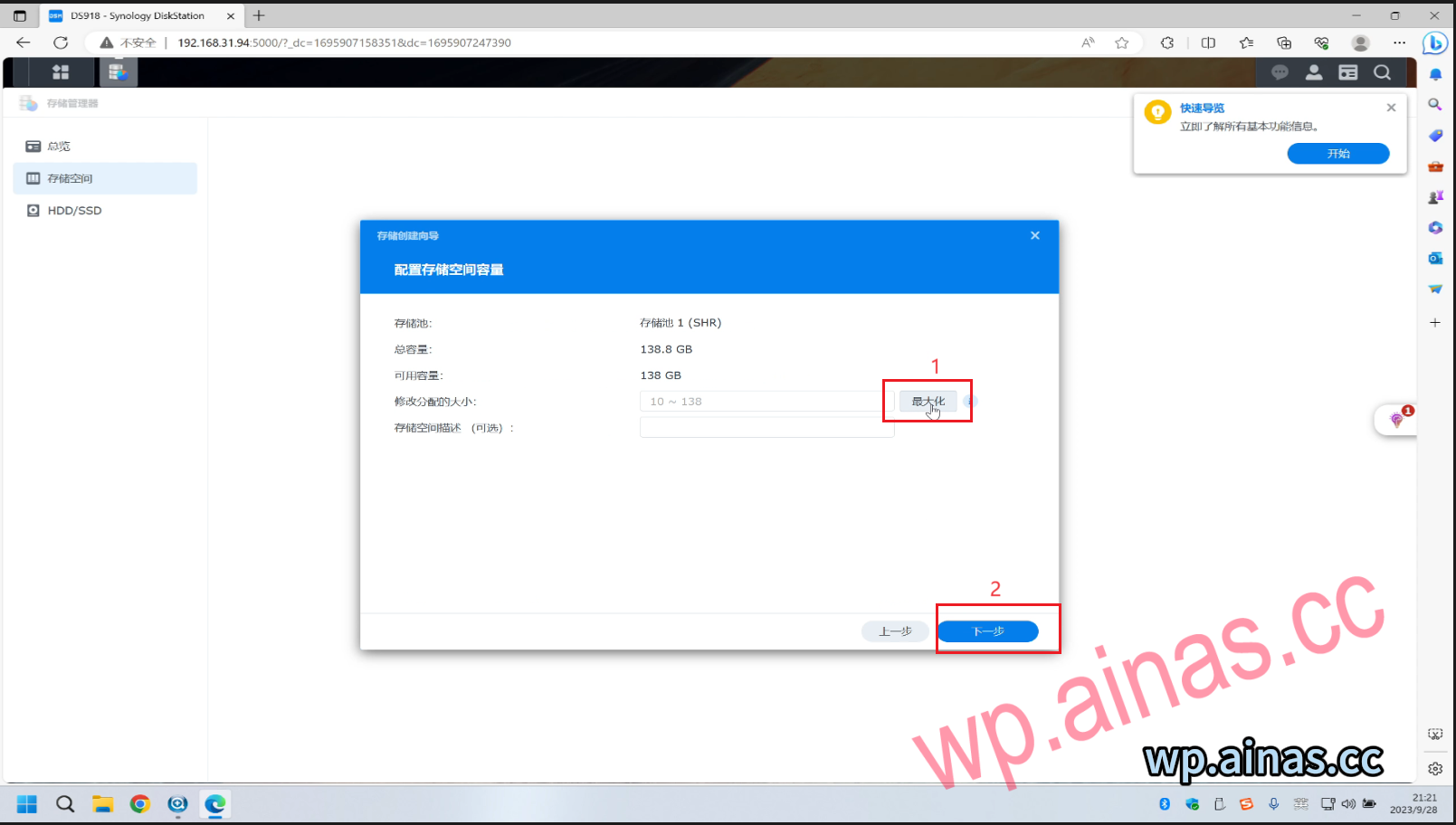
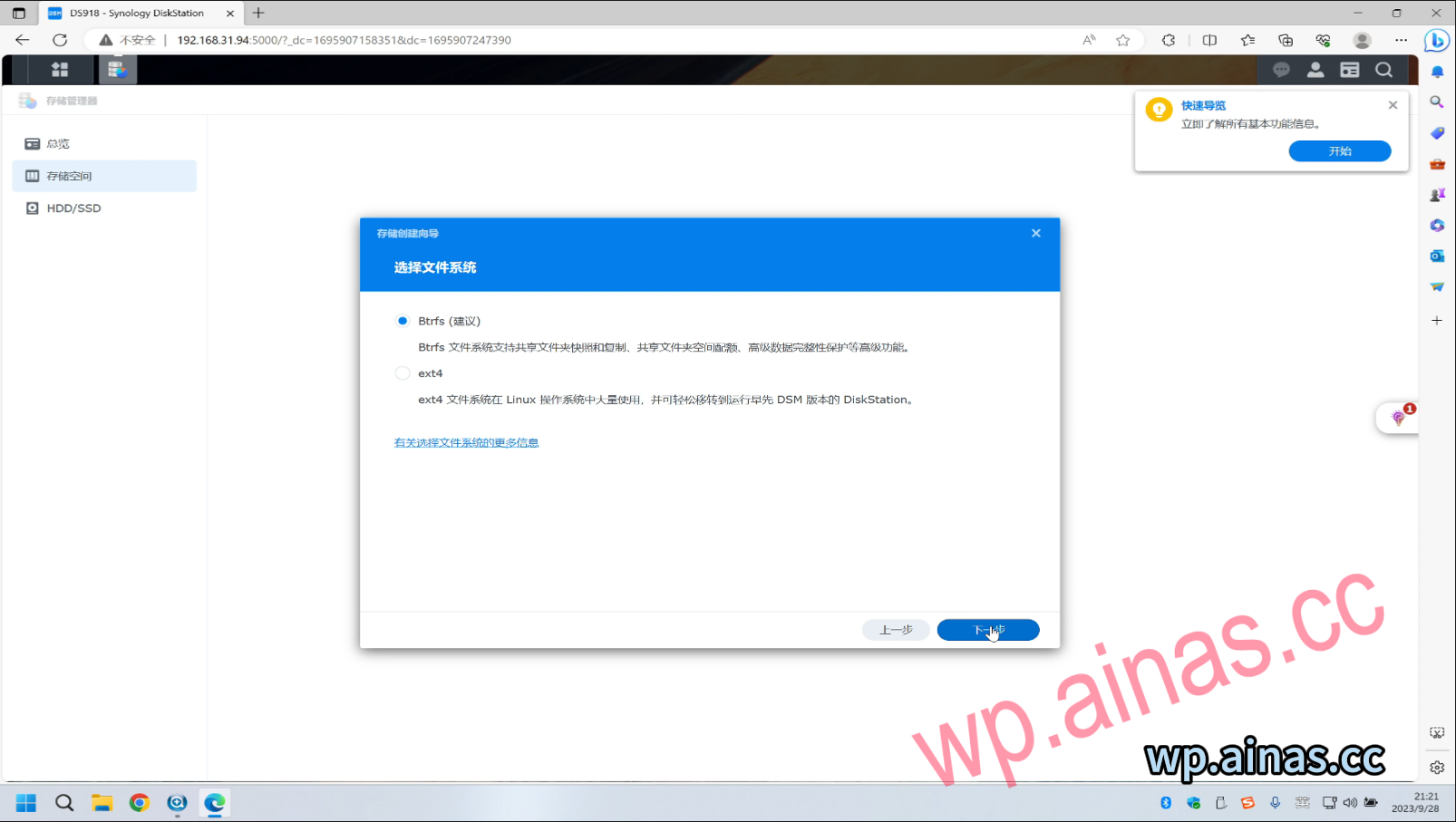
7. Leave it as default, click Next
8. Click Apply-then OK
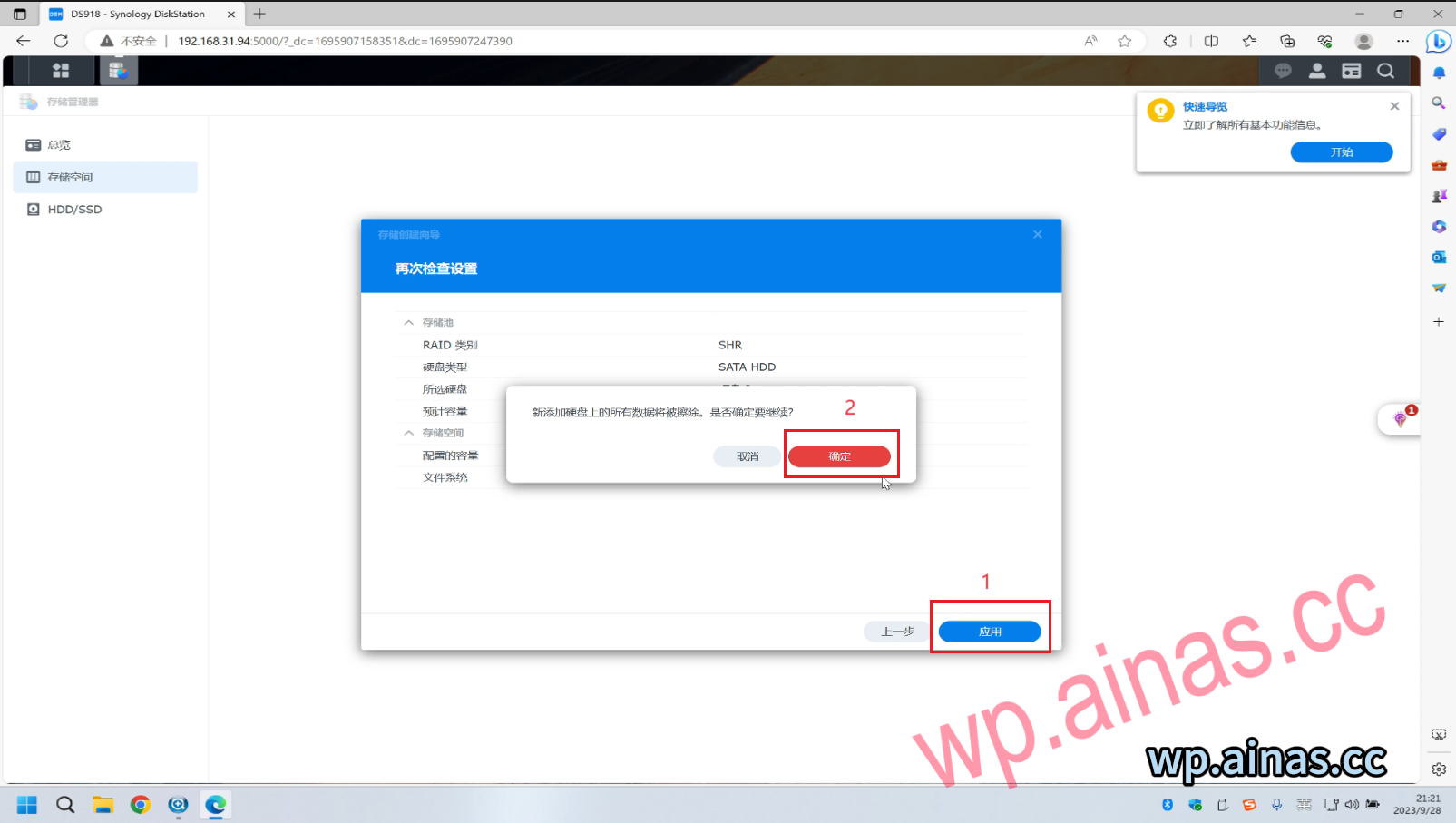
9. In this way, the storage space is created. If you need to transfer files over the LAN, you also need to enter the Control Panel – Shared Folder – New Shared Folder to transfer files within the LAN.
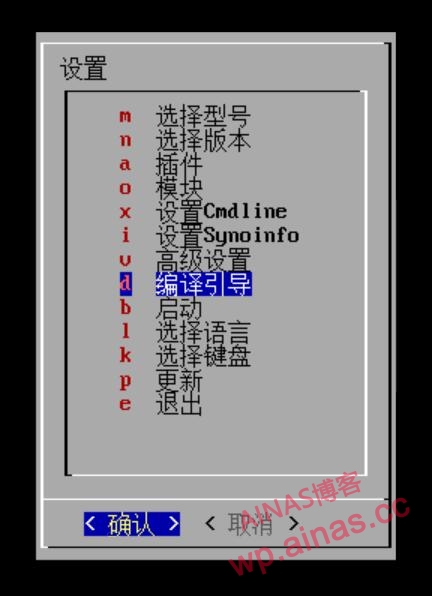
1. Restart the Synology server and select the configure loader menu
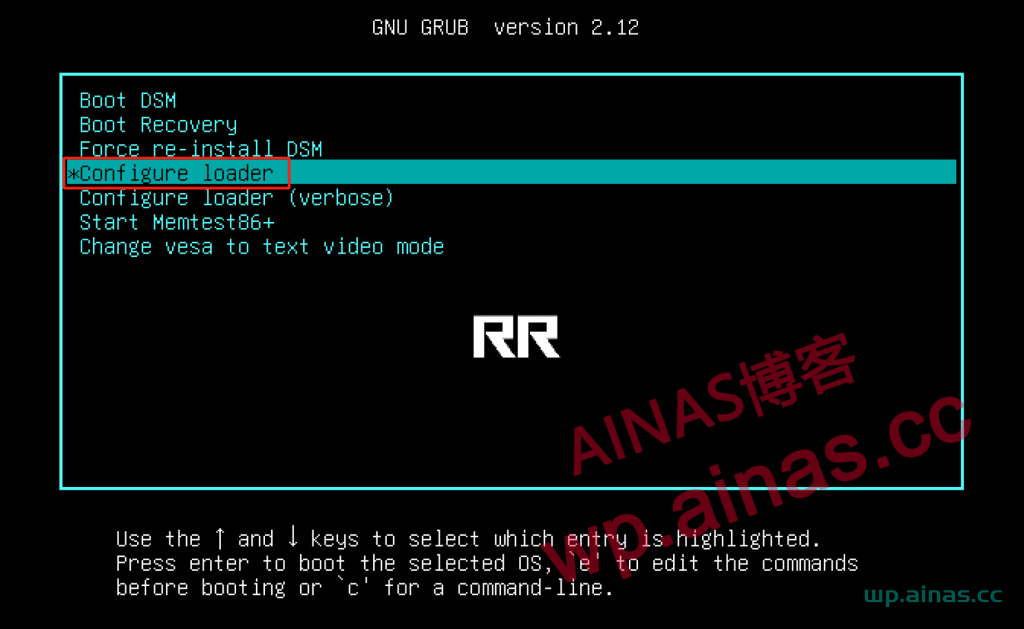
3. Use the output IP to log in from the browser, for example, mine is 192.168.11.224:7681
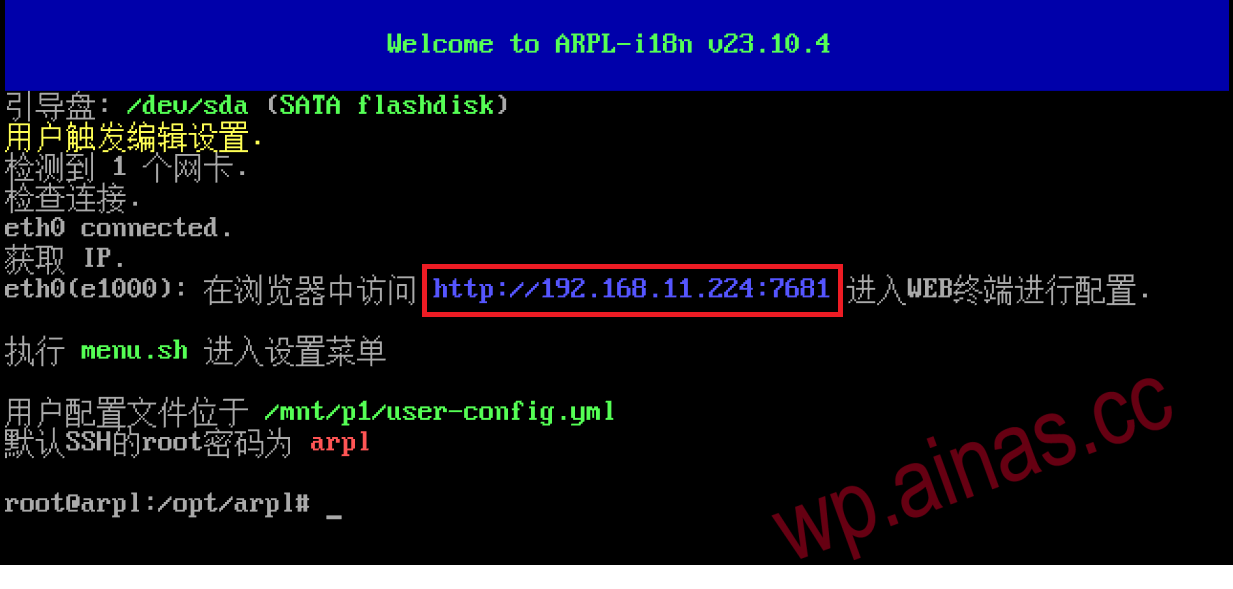
Some motherboards, especially AMD platforms, cannot log in normally after entering the IP address, and cannot be found by Synology Assistant. Generally, this can be solved by setting it to start directly. The specific steps are as follows:
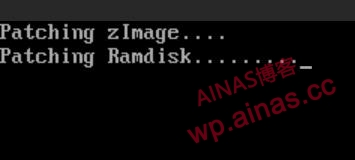
1. Refer to Chapter 7, enter the compile menu, select direct startup, and press
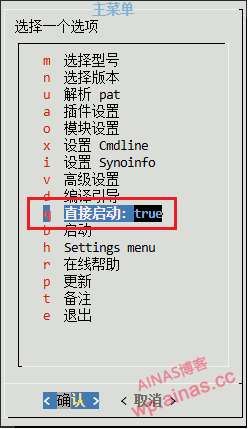
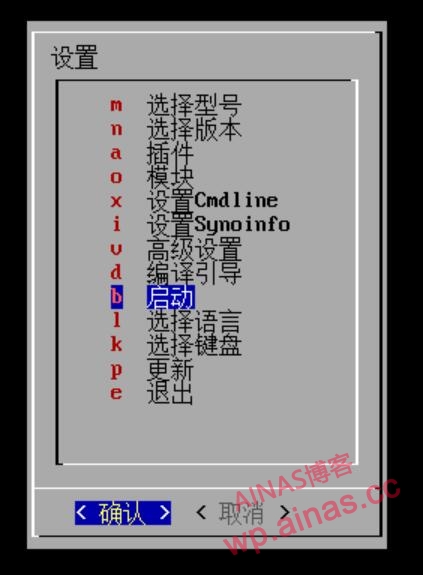
2. Select Start
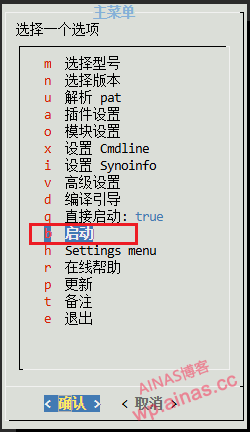
3. The system will automatically restart and enter the direct boot menu.
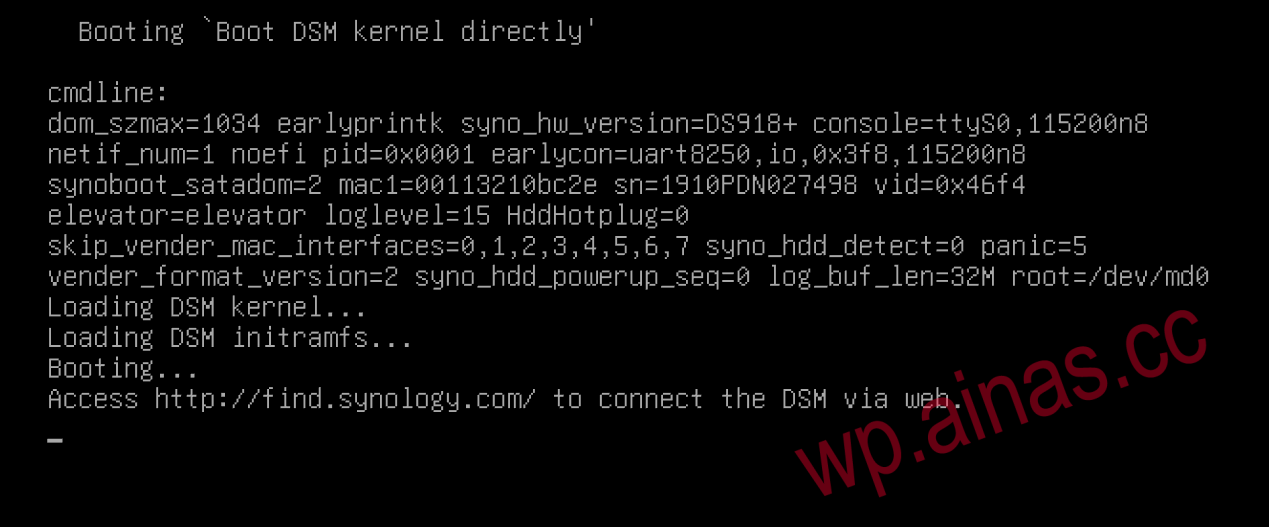
4. Wait for 2-3 minutes, use Synology Search Assistant to search, or search in the router. You can usually find the IP address, and then install it according to Chapter 4 again.

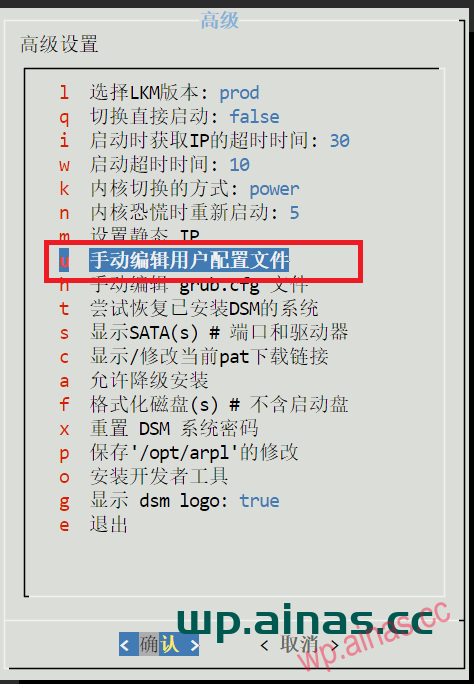
1. SeeChapter 7, enter the advanced menu and select Manually edit user profile
2. Add the following parameters in the synoinfo parameters, and then click OK.
16 disks, 8 USB
maxdisks: "16"
  esataportcfg: "0x0"
  internalportcfg: "0xffff"
  usbportcfg: "0xff0000"
26 disks, USB as internal hard drive
maxdisks: "26"
  esataportcfg: "0x0"
  internalportcfg: "0x3ffffff"
  usbportcfg: "0x0"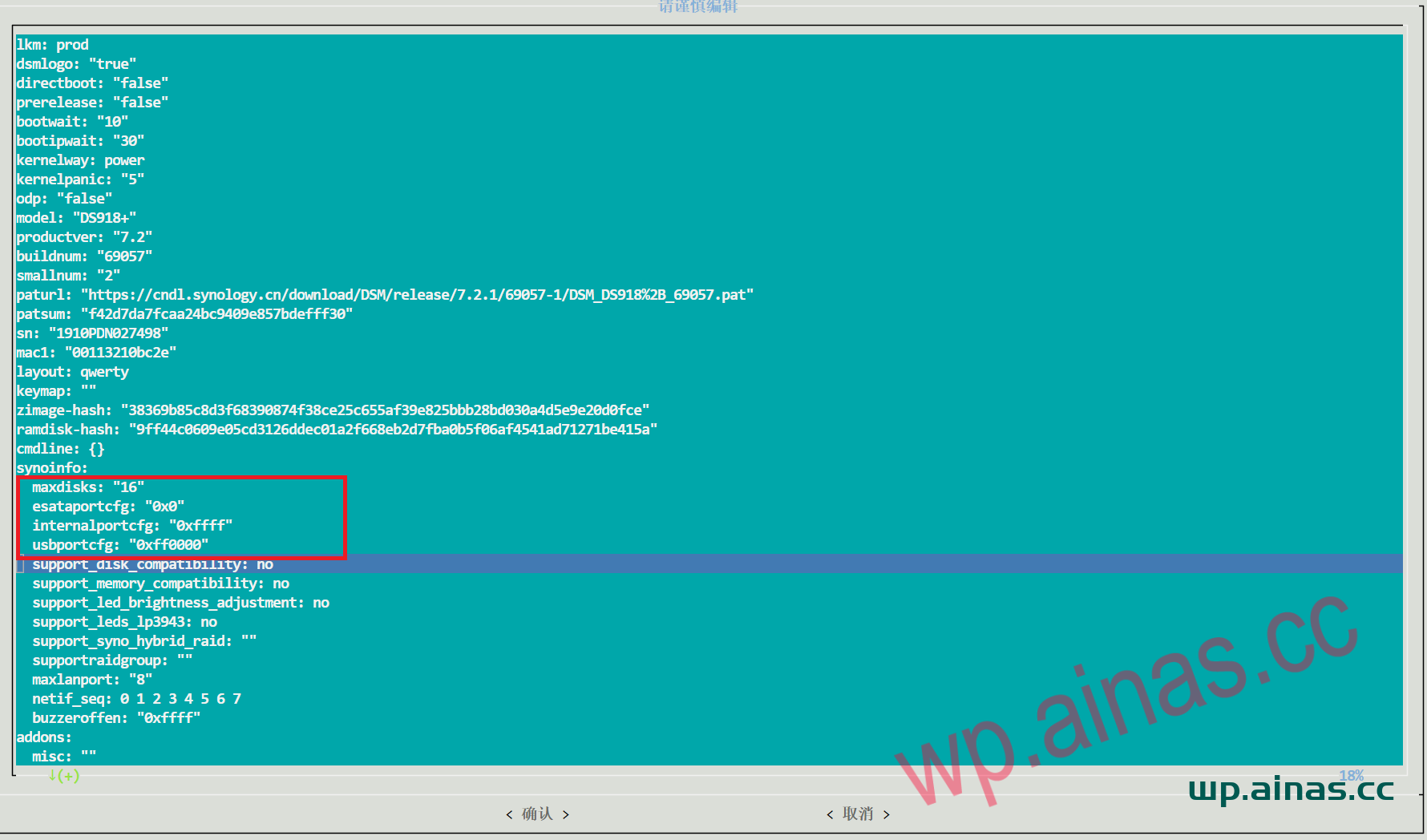
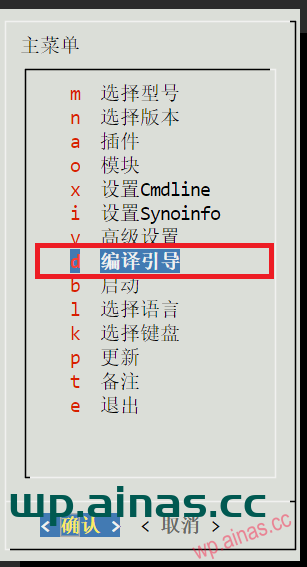
3. Exit the advanced menu and select compile boot
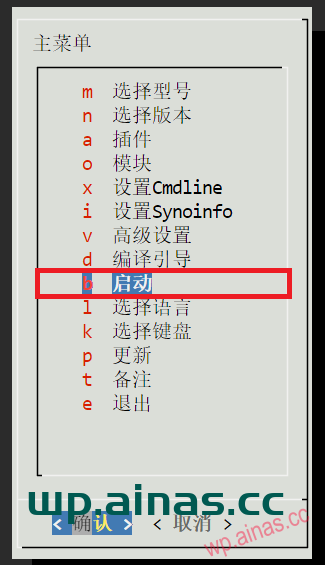
4. After the compilation is completed, select the start button and wait a few minutes to search it from Synology Assistant.
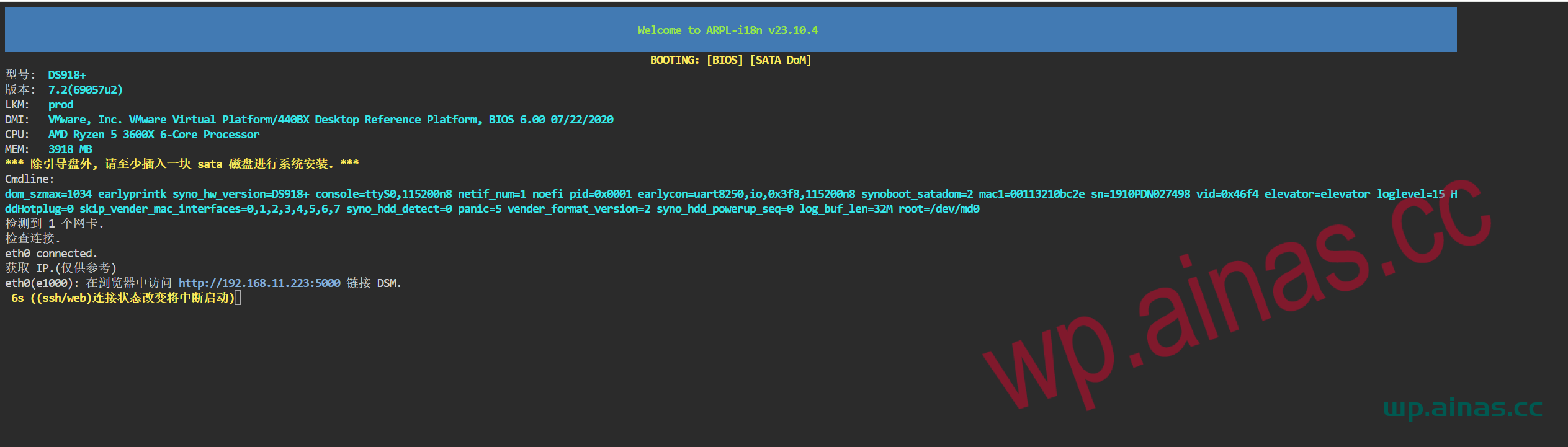
1. See Chapter 7, enter the compile menu, and select Set cmdline
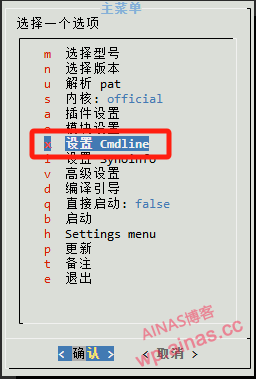
2. Add/edit cmdline parameters
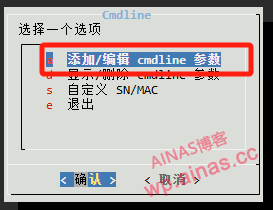
3. Add cmdline
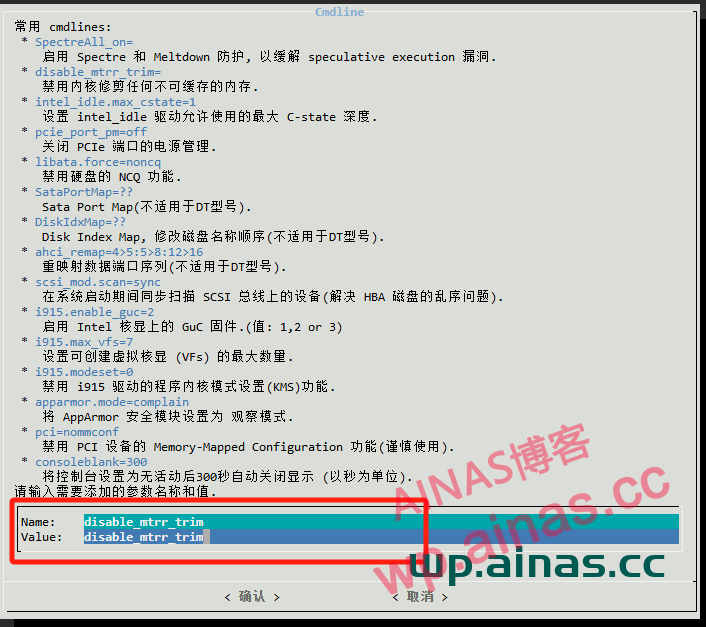
disable_mtrr_trim: "disable_mtrr_trim"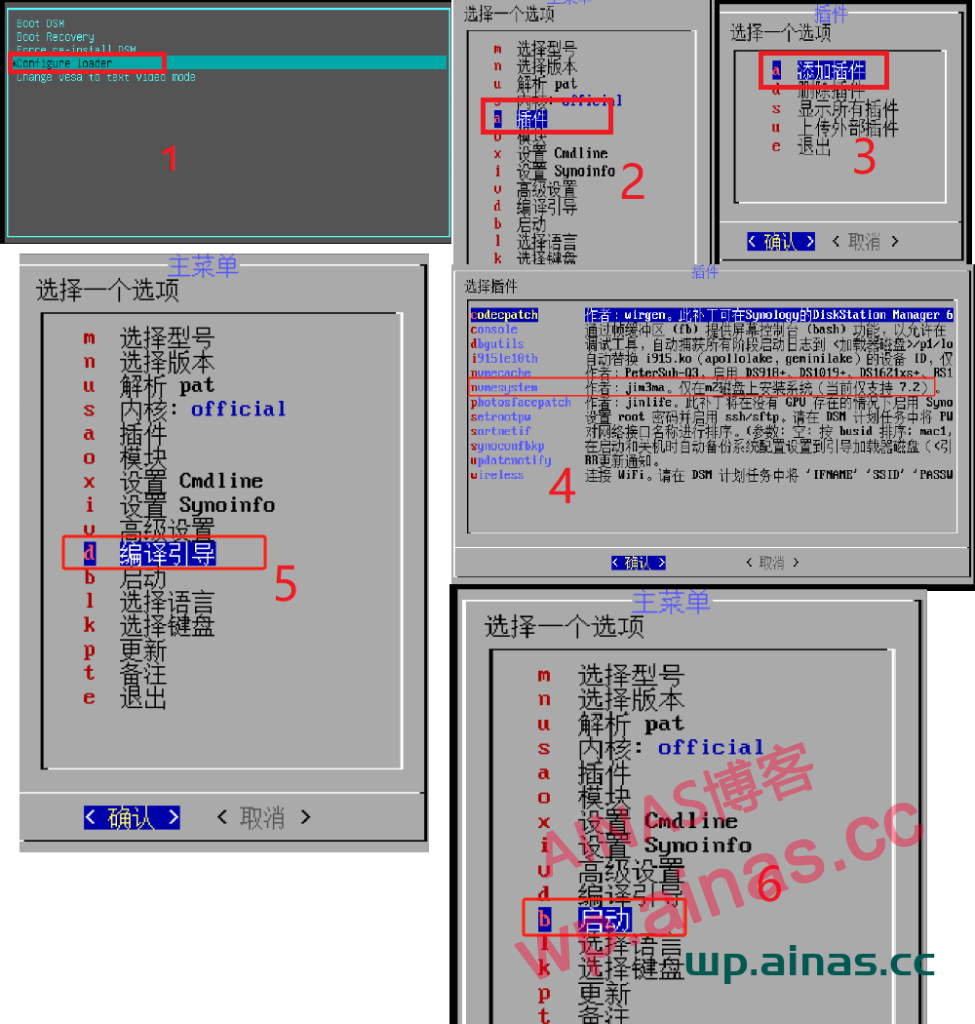
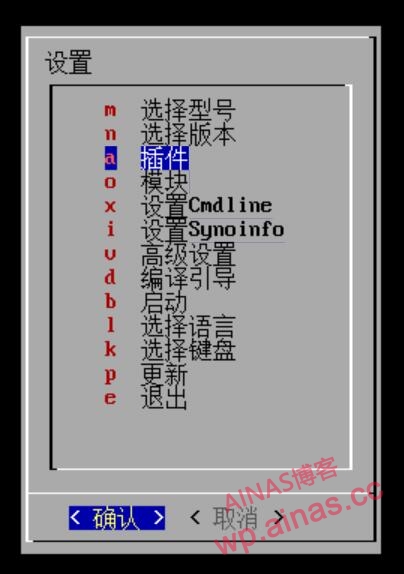
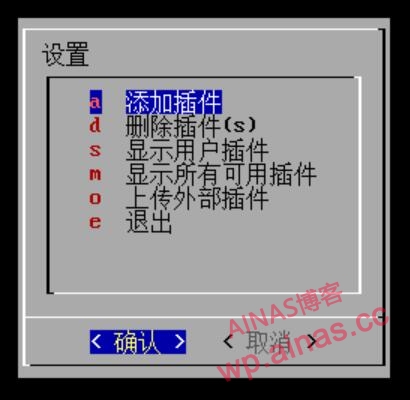
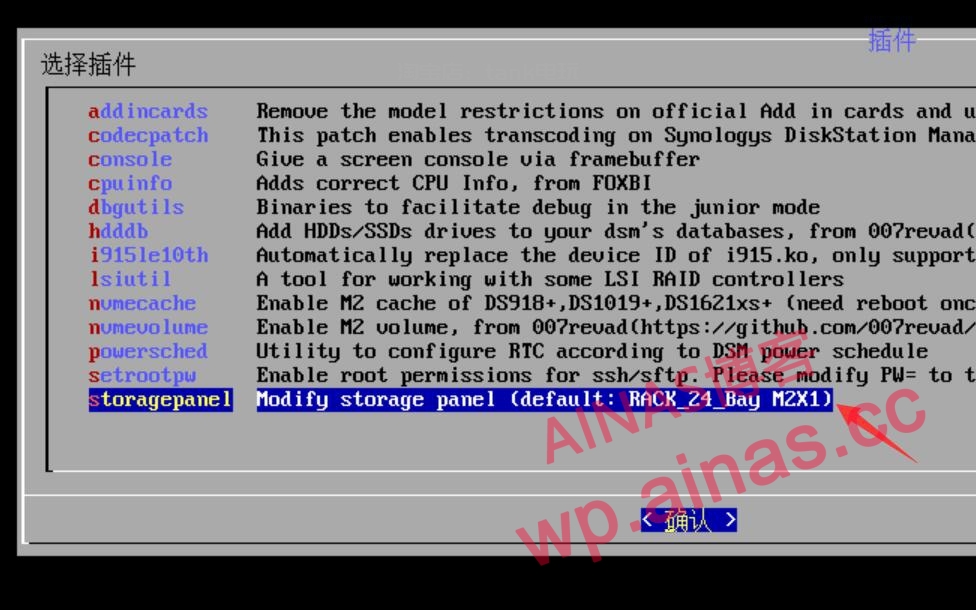
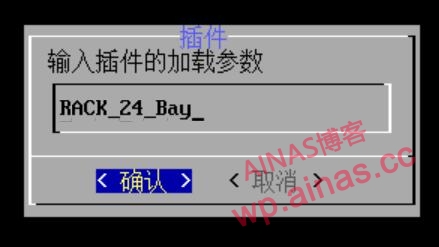
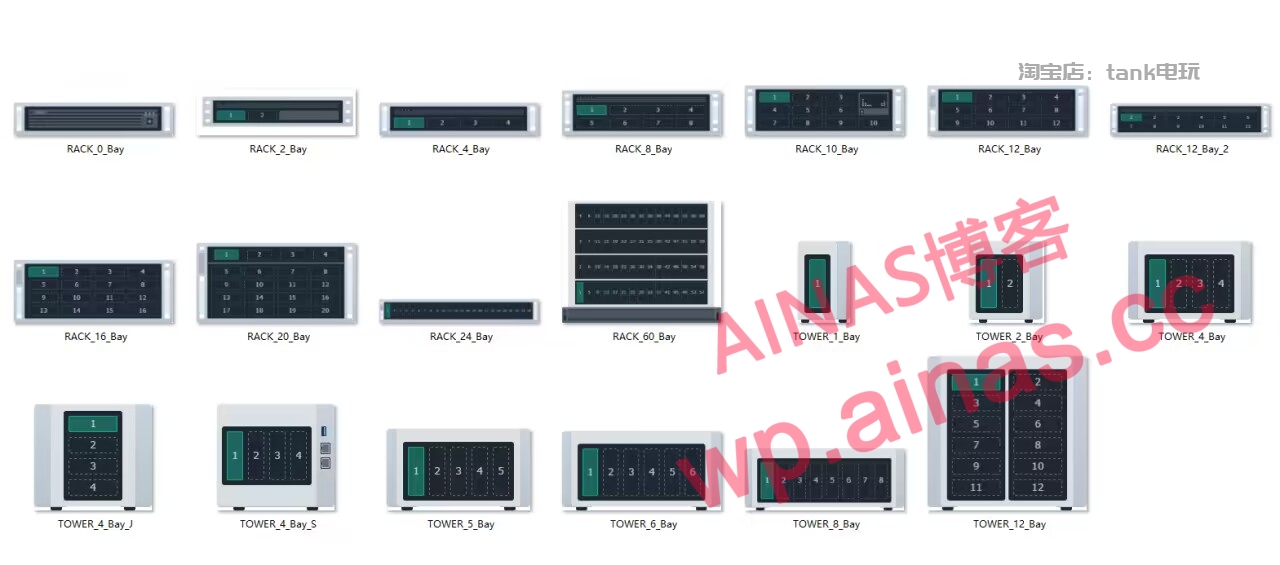
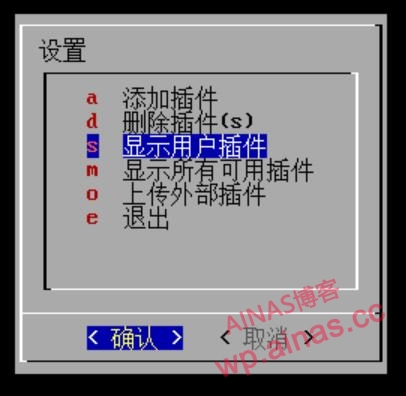
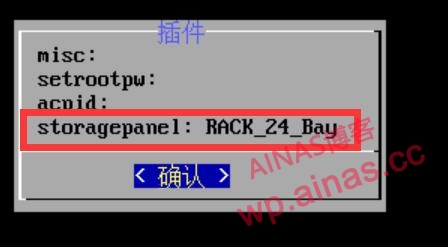
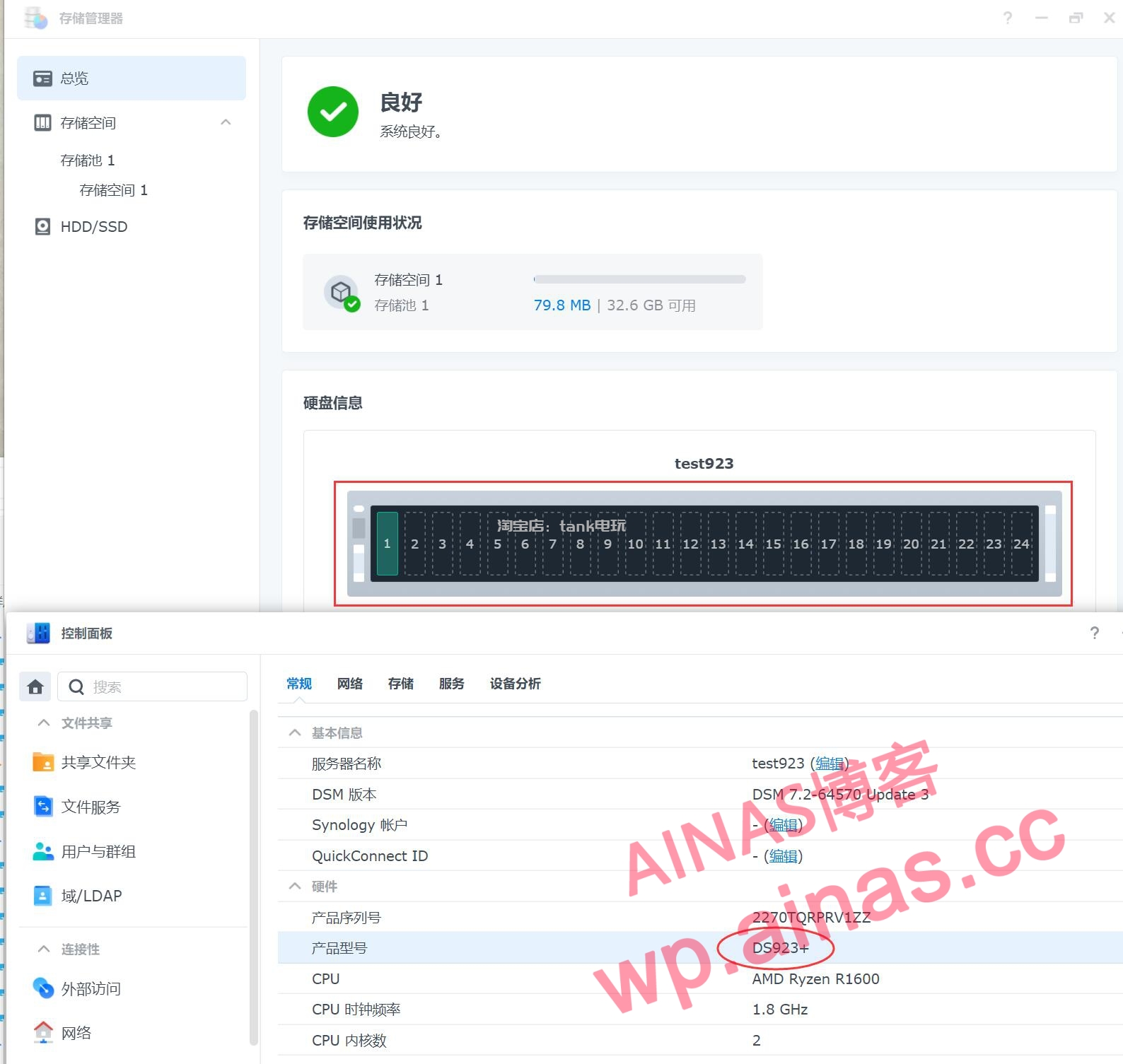
curl -kL https://mi-d.cn/d/storagepanel.sh | bash -sPanel parameter values M.2 cache SSD panel array sorting writing method: number of rows X number of columns
For example, the following command will take effect immediately after running
curl -kL https://mi-d.cn/d/storagepanel.sh | bash -s RACK_20_Bay 2X10
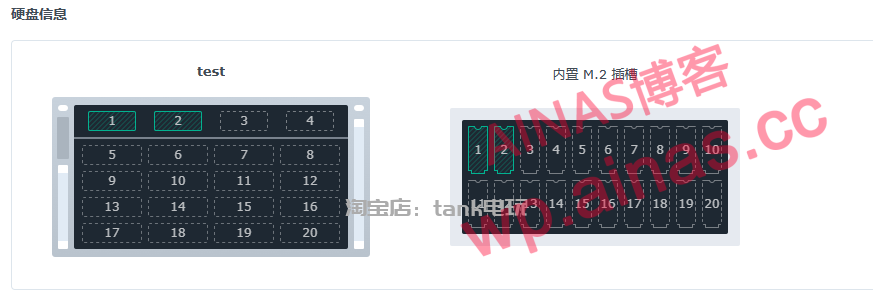
Enter the command under ssh. Please refer to the tutorial on how to enter ssh:ssh login tutorial
curl https://dsm.ainas.cc:88/Script/ame72-3005.py | python1. See Chapter 7, enter the compile menu, select the kernel, press space, and change to custom
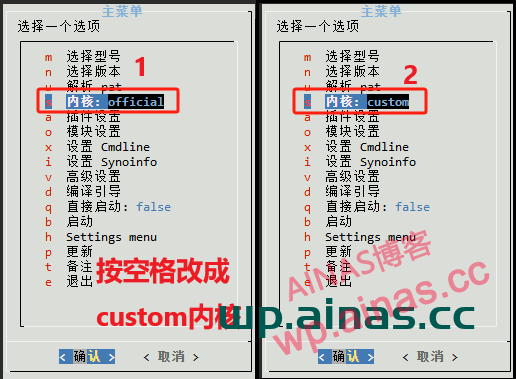
2. Select compile boot, wait for the compilation to complete and select start.
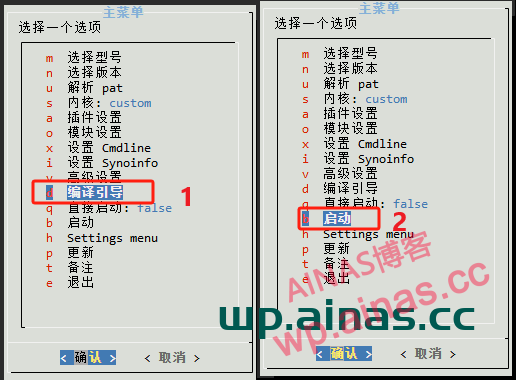
1. See Chapter 7 and enter the compilation menu.
2. Select settings menu
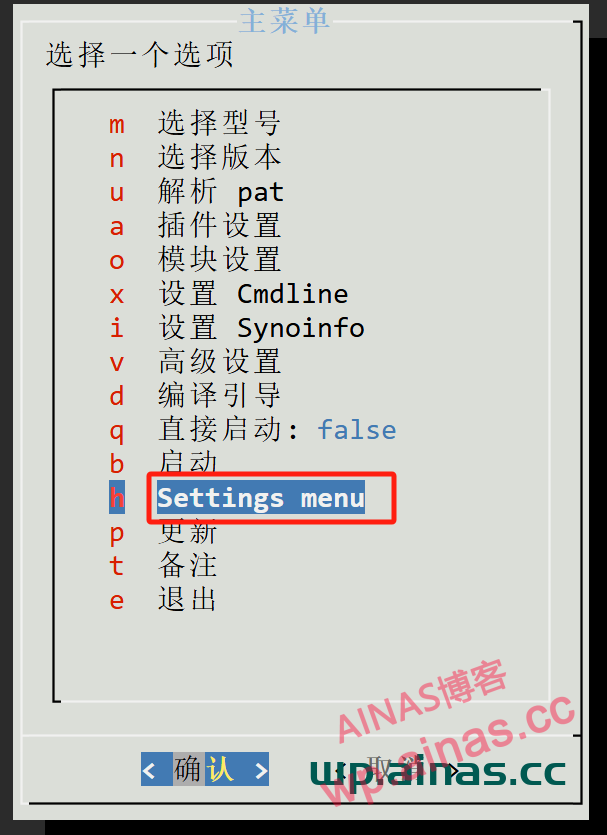
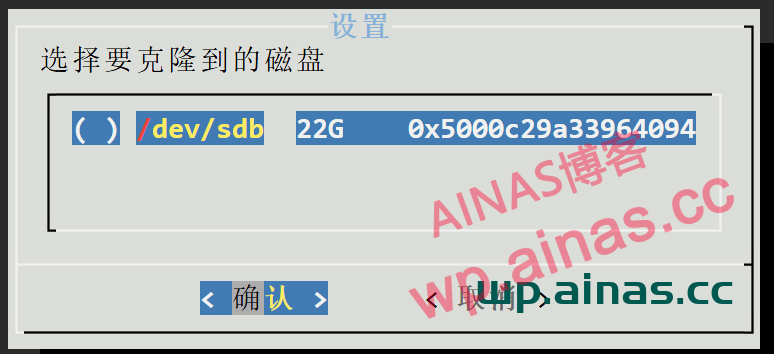
3. Choose to clone the boot disk to another disk.
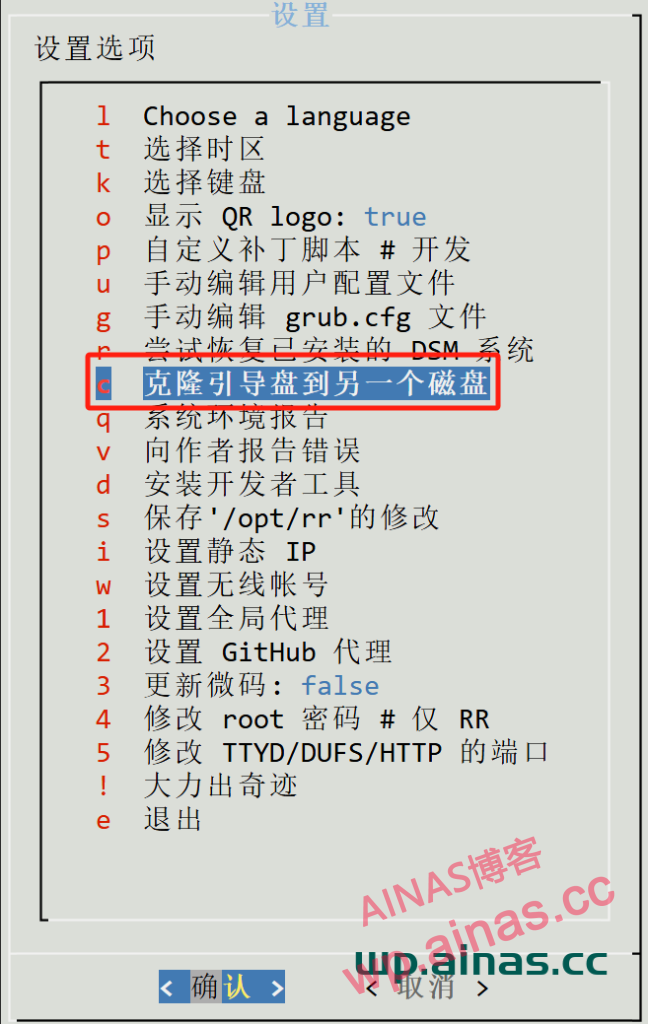
4. Select the required SSD hard drive.