Our Location
304 North Cardinal St.
Dorchester Center, MA 02124

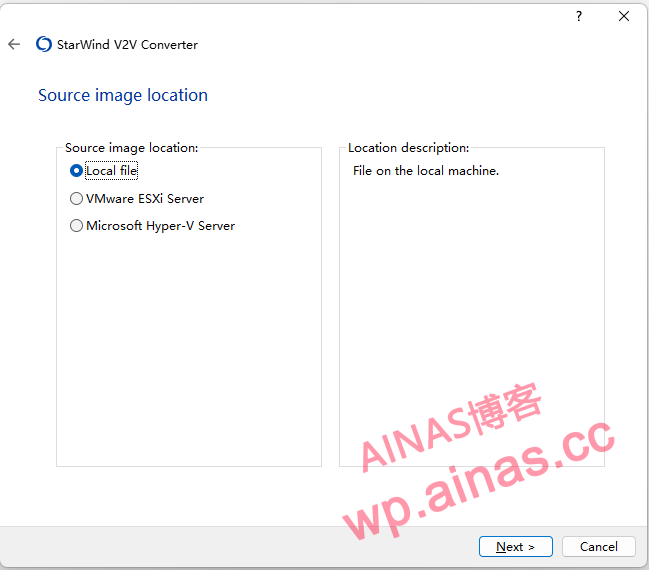
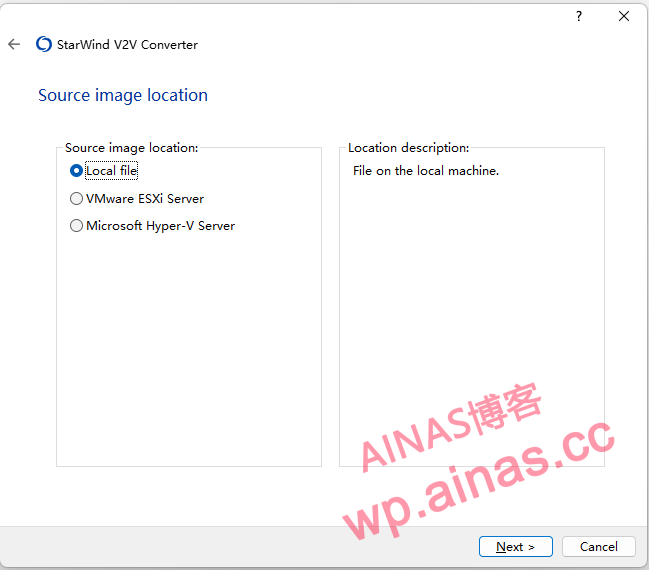
1. OpenStarWindConverter, select local file
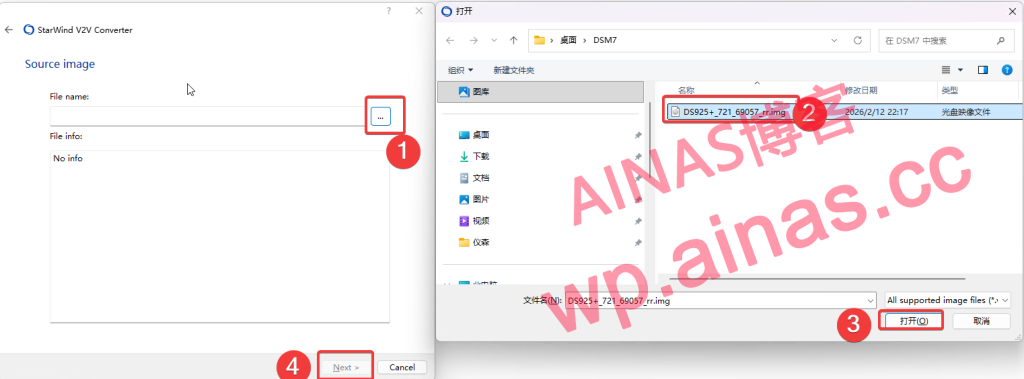
2. Select the downloaded img boot file, click to open, and then select next.
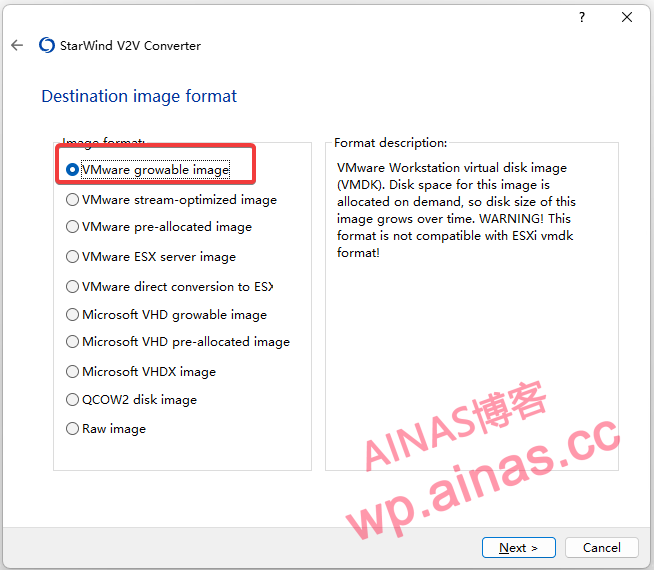
3. Select VMware growable image
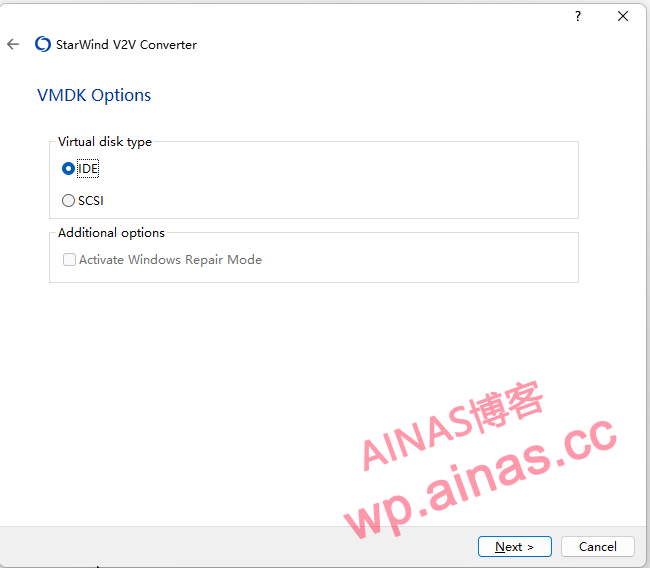
4. Select IDE and then next step
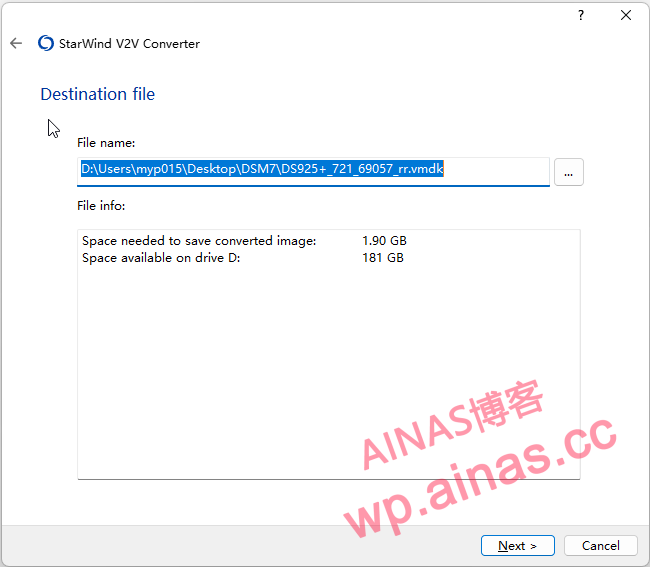
5. The default file location is sufficient, click Next.
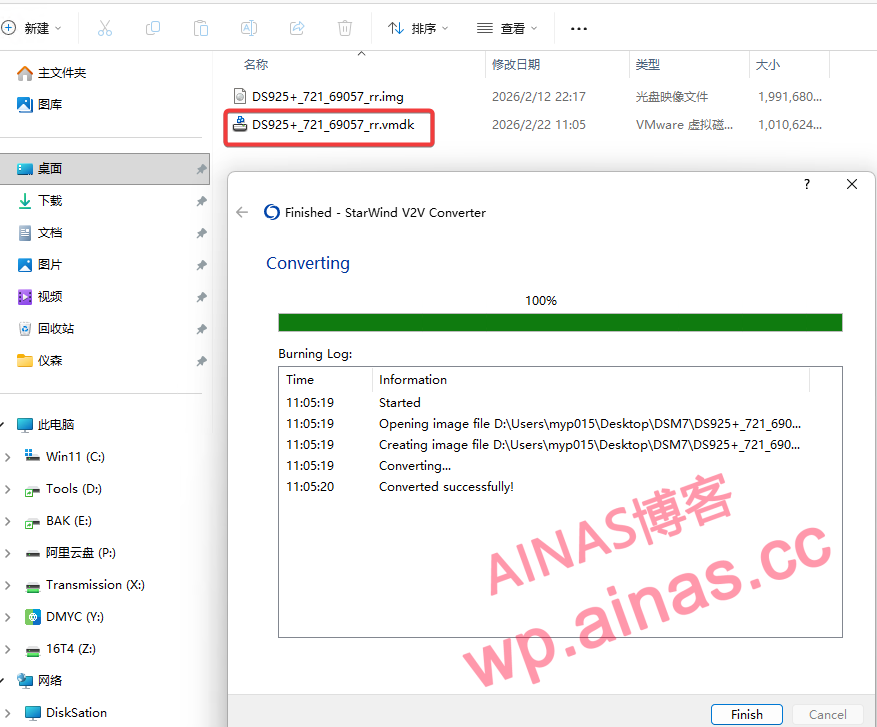
6. Wait for the conversion to complete and a vmdk file will be generated.
1. Select SATA as the virtual disk type.
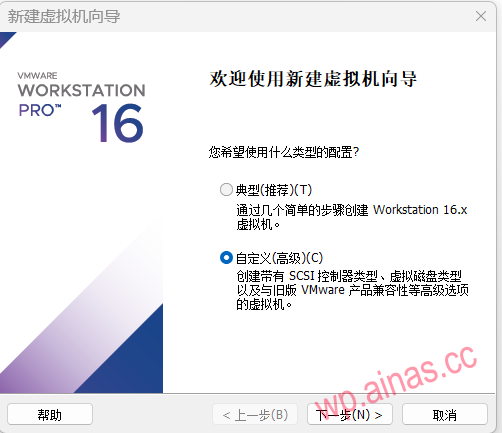
2. Default options, then next step
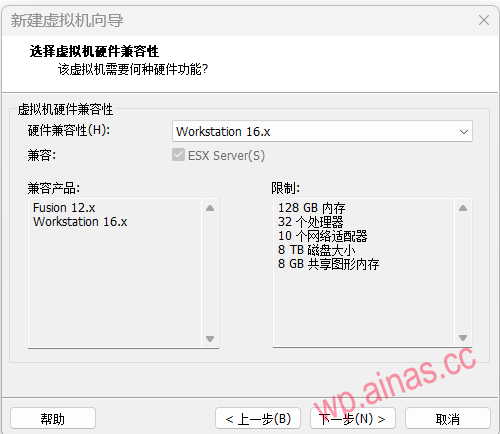
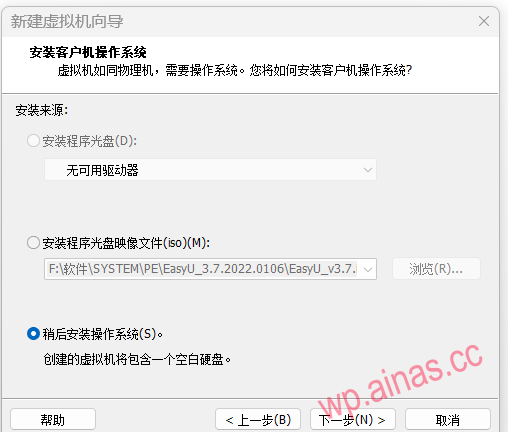
3. Select to install the operating system later and click Next.
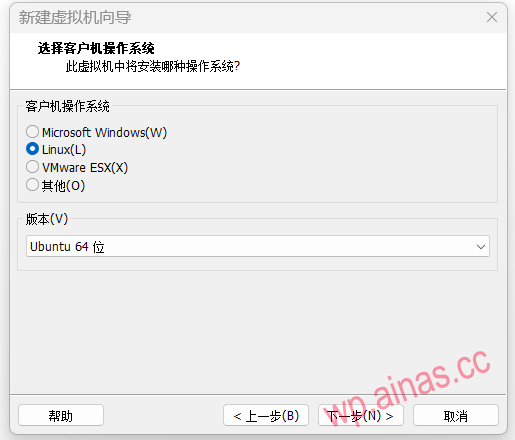
4. Choose linux-Ubuntu 64-bit
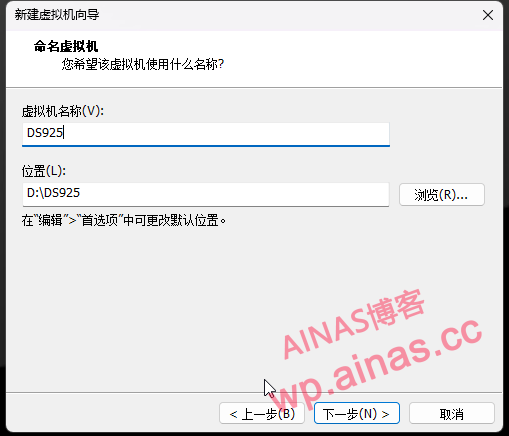
5. The name can be customized and you can choose the location to save the virtual machine.
6. Set the number of cpu cores
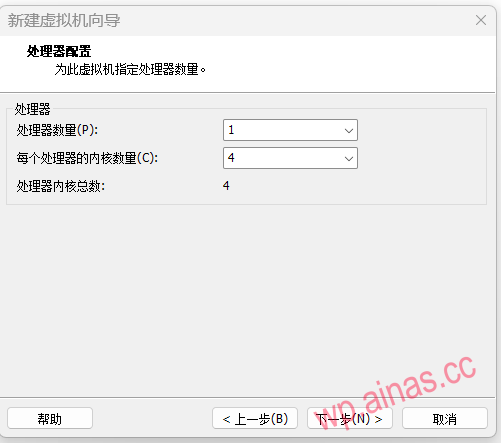
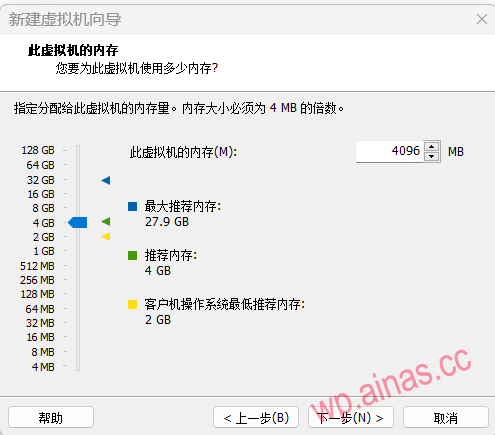
7. Set the memory size, the minimum is 4G, which can be set according to the actual situation.
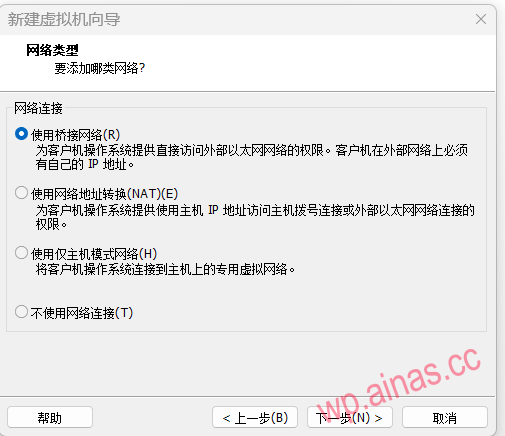
8. Choose to use a bridged network
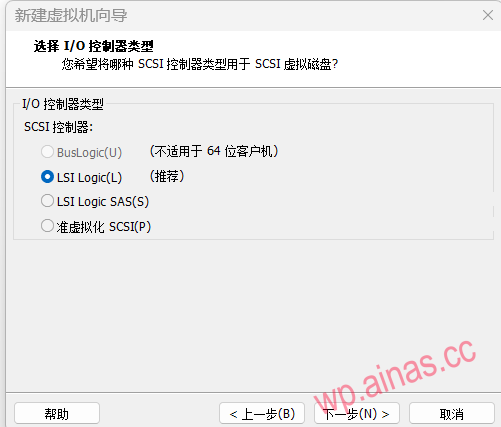
9. Controller selects default options
10. Select SATA mode
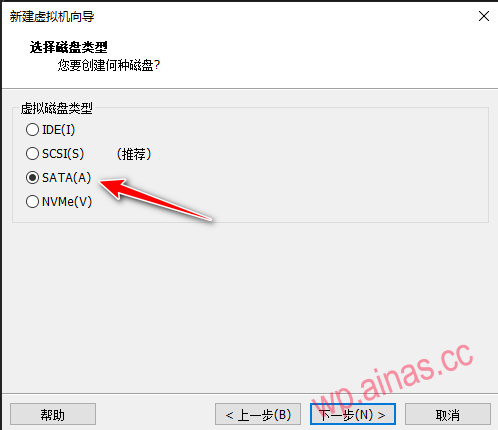
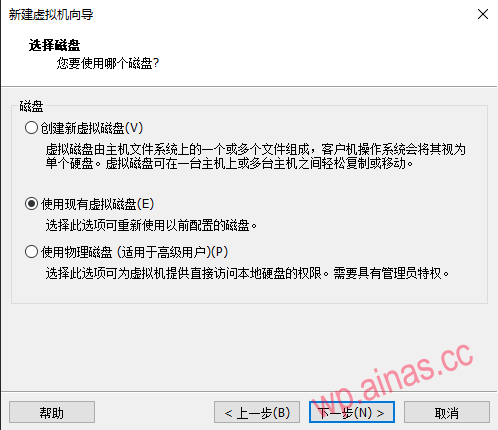
11. Choose to use an existing virtual disk and select the vmdk file you just converted.
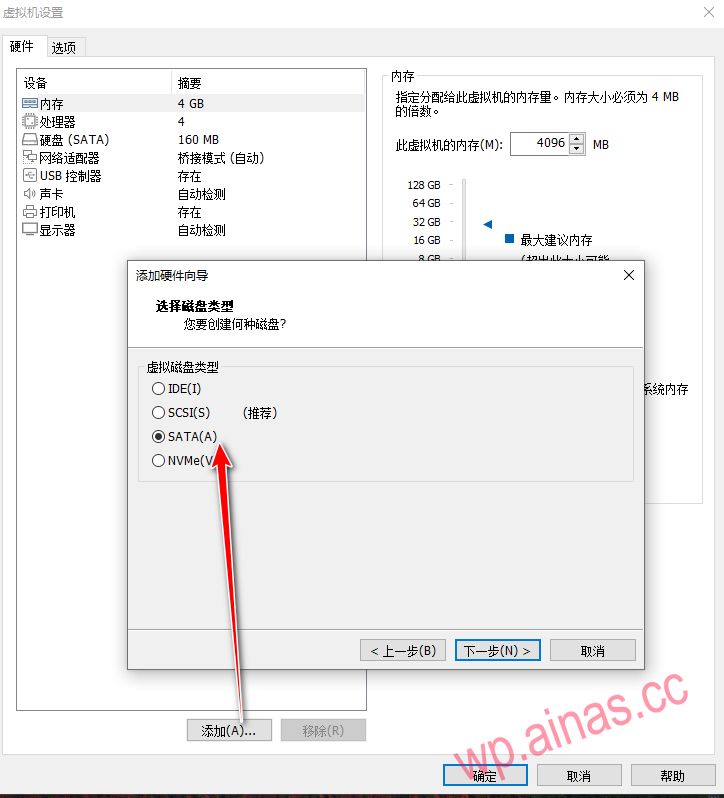
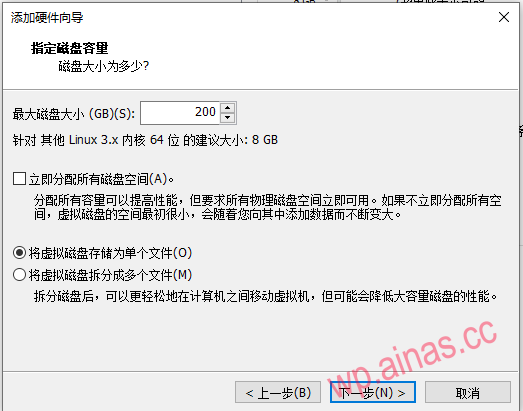
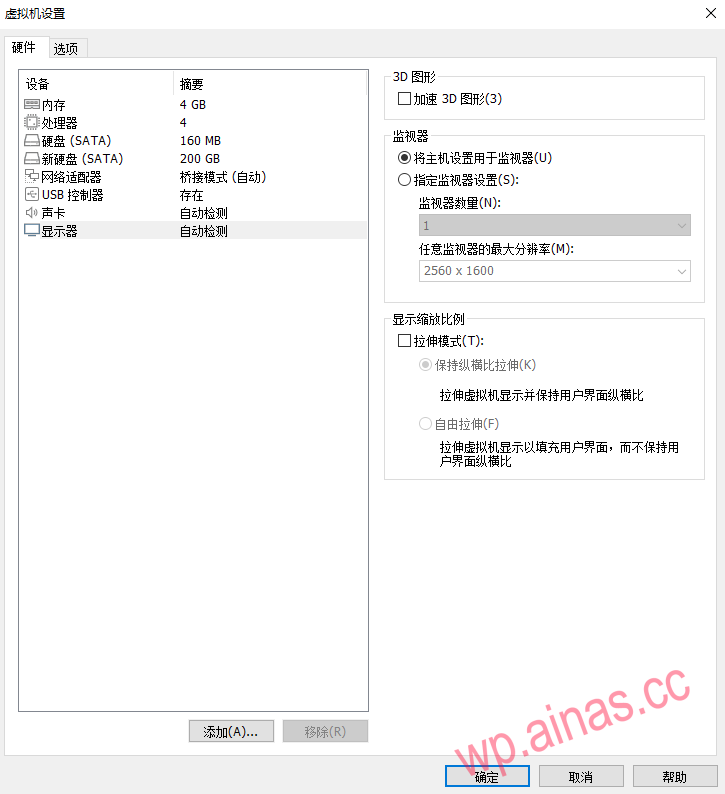
12. Add a new separate data disk. Select SATA as the virtual disk type, for example, the size is 200G.
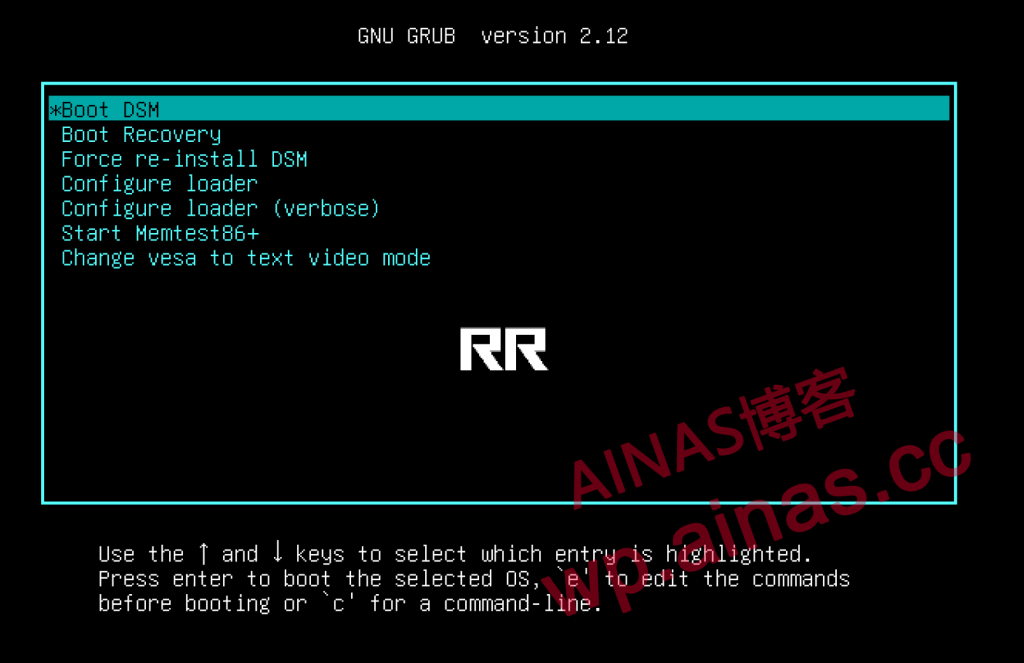
Start to install the DSM system, seeRR finished boot disk installation tutorial, Chapter 4 and beyond
1. Copy a VMware Workstation shortcut, and then add a space after the target -x “Virtual machine startup file path” Refer to the figure below for the startup file icon
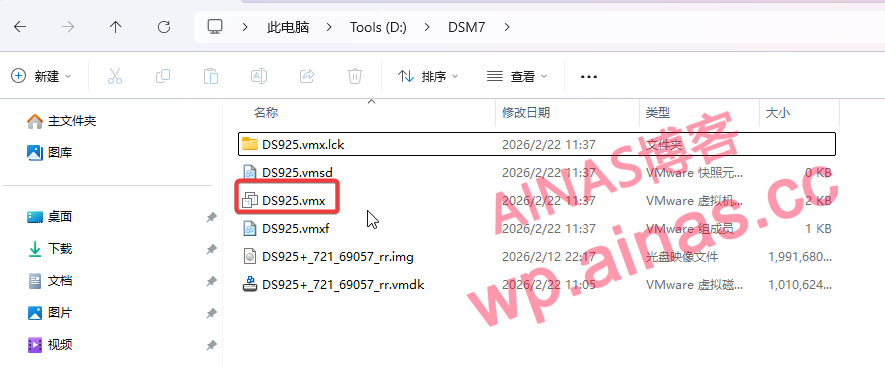
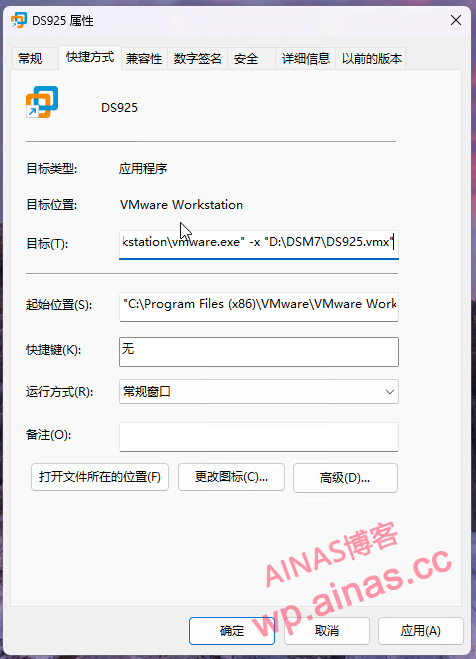
For example below
"C:\Program Files (x86)\VMware\VMware Workstation\vmware.exe" -x "D:\DSM7\DS925.vmx""The absolute path of vmware.exe" -x "The absolute path of the virtual machine's startup file (*.vmx)"3. Then drag this shortcut icon into the startup directory.
The startup directory of win10 is in
C:\ProgramData\Microsoft\Windows\Start Menu\Programs\StartUpJust put the shortcut icon into this directory.
