Our Location
304 North Cardinal St.
Dorchester Center, MA 02124

Preface: This method is suitable for synchronizing data from any network disk supported by OpenList to NAS. It is very convenient. Here we take Alibaba Cloud disk as an example.
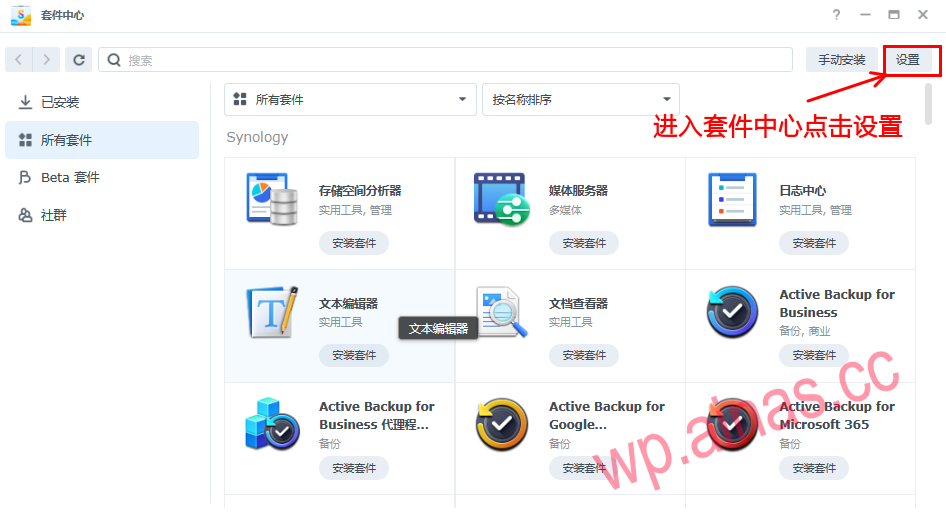
1. Enter the package center and click Settings in the upper right corner.
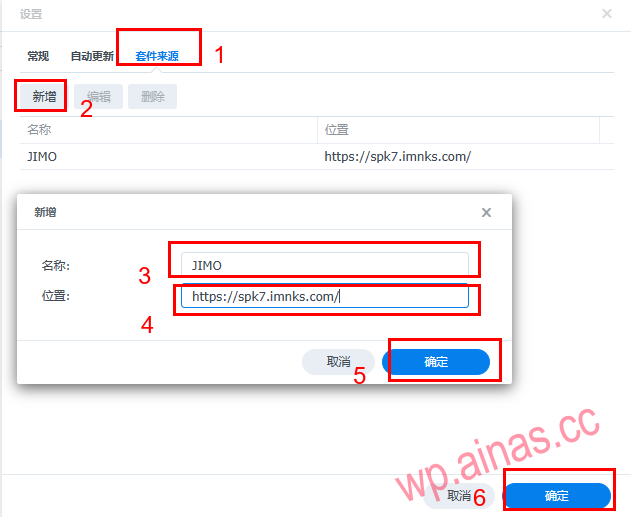
2. After entering the settings, click on the package source, click Add, and add a new package source address.
Name: JIMO
Address: https://spk7.imnks.com/
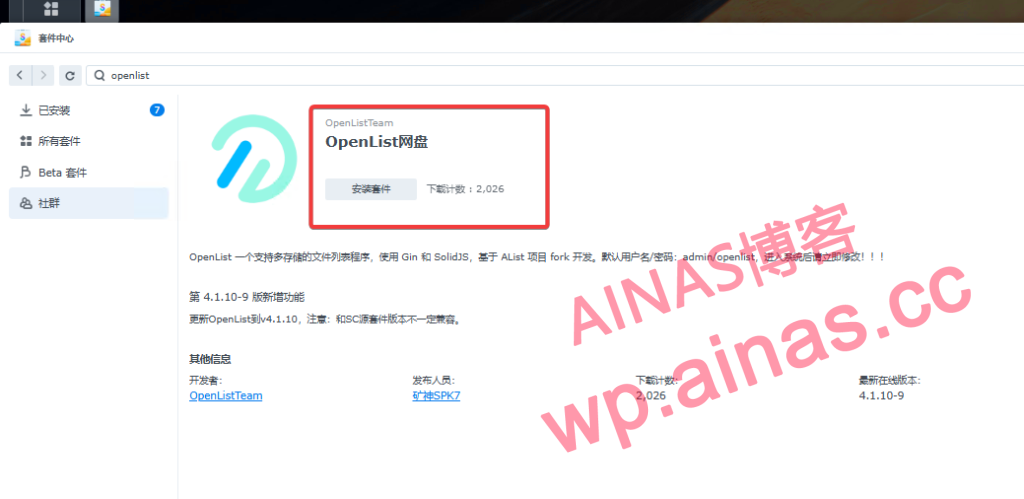
3. Search for: openlist in the package center and install the openlist package.
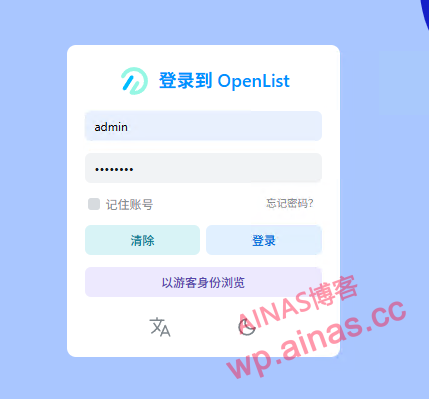
4. Open the package and add storage. The default login account password is admin/openlist.
1. Visit the Openlist Token acquisition toolhttps://api.oplist.org/
2. Select in the drop-down box
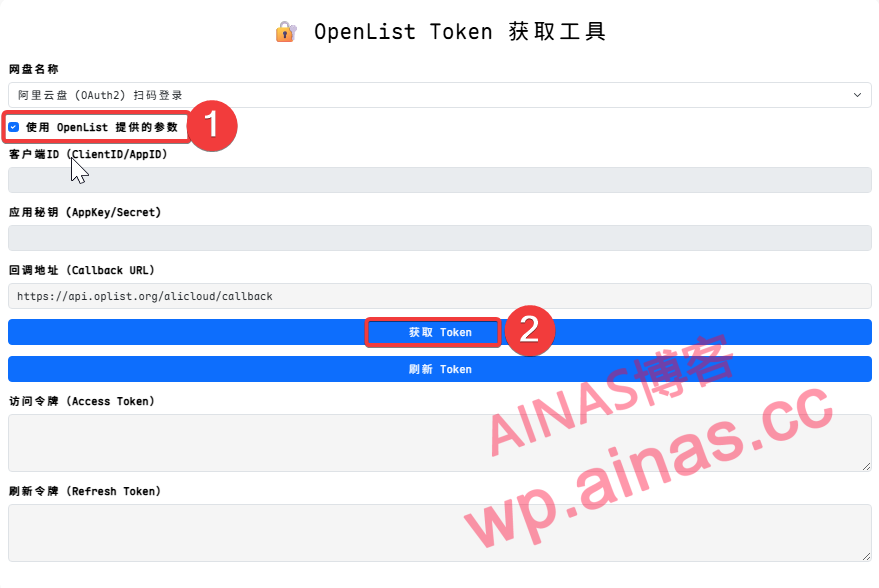
3.CheckUse parameters provided by OpenList, clickGet Tokenbutton.
In the pop-up window, scan the QR code to log in to your Alibaba Cloud disk.
4. After the authorization is successful, the page will display yourAccess Token and Refresh Token, here only copy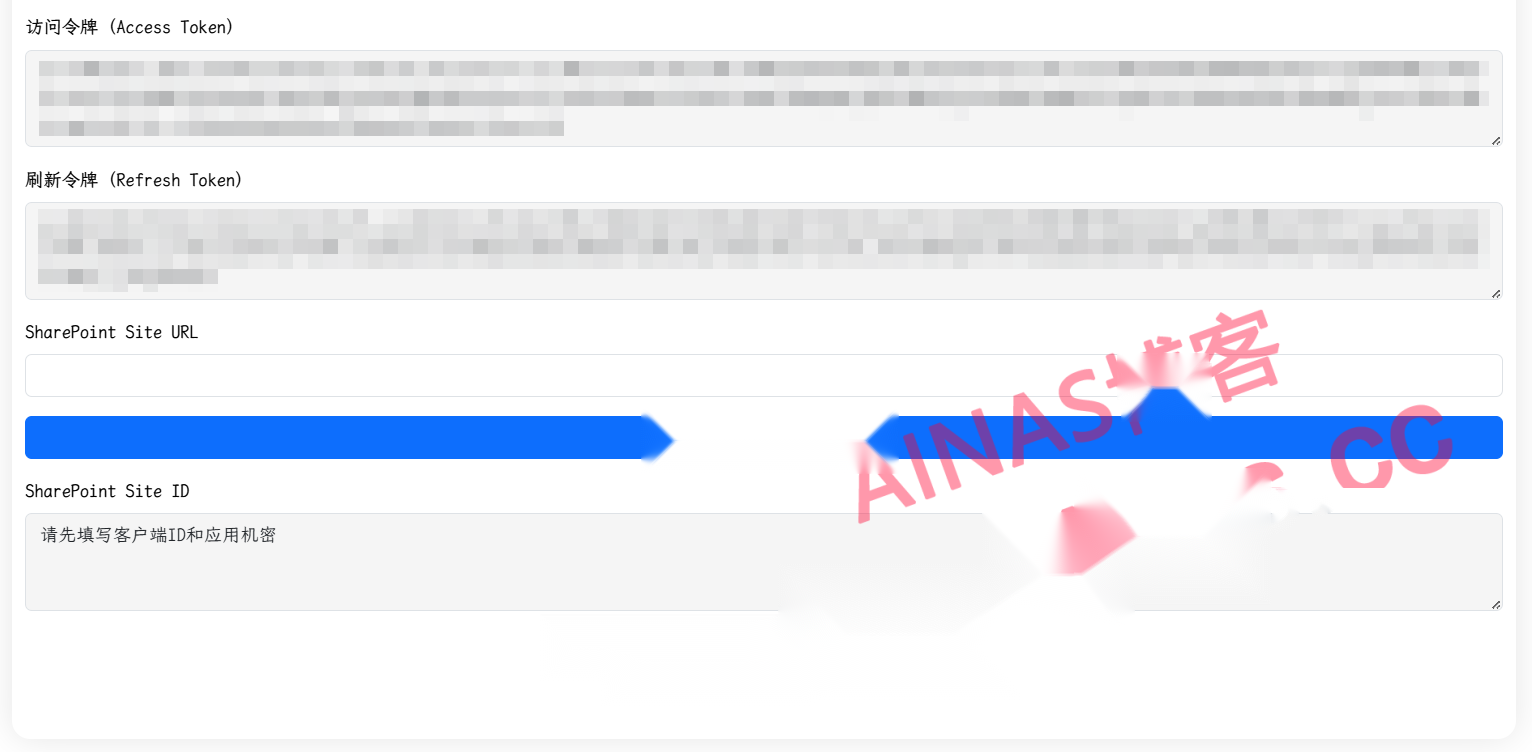 5. Open the OpenList management interface and click on the left menu
storage.
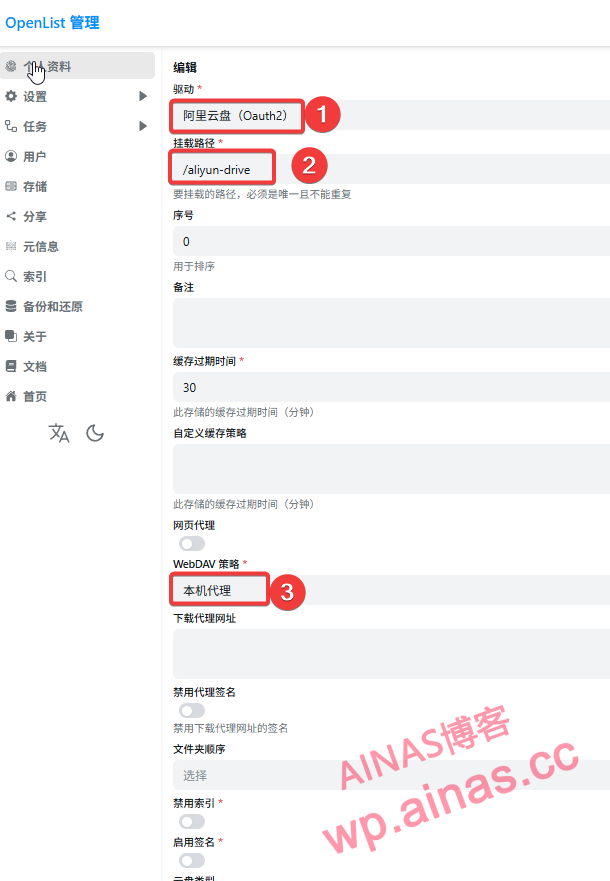
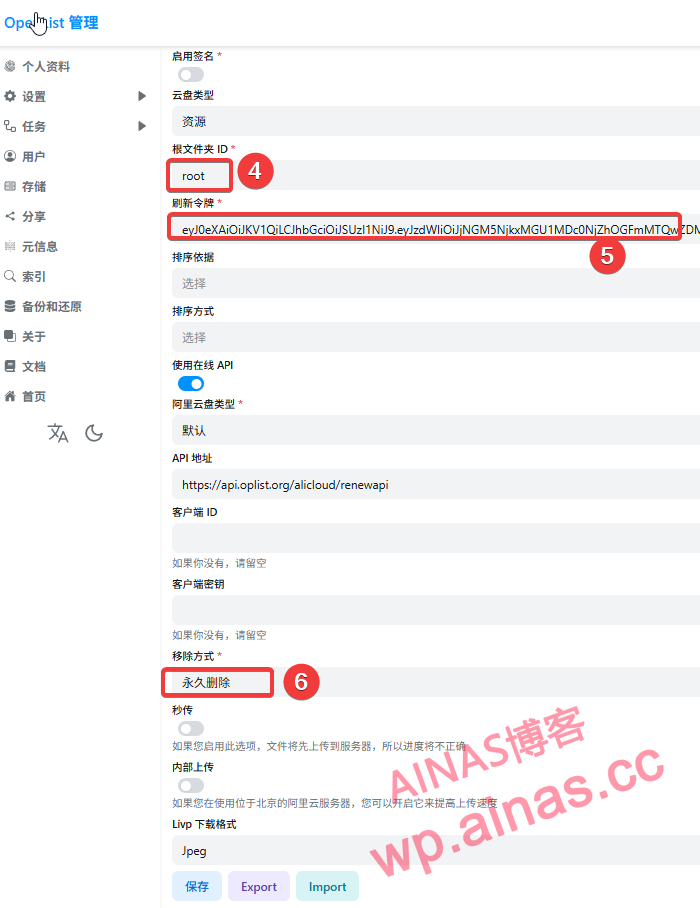
On the storage list page, click in the upper right corneradd storagebutton and select the driver asAlibaba Cloud Disk (Oauth2). Enter the mount path, such as:aliyun-drive, other settings are shown in the figure below
Note: Alibaba Cloud disk list is cached for 10~15 minutes, and it is normal for synchronization to be delayed.
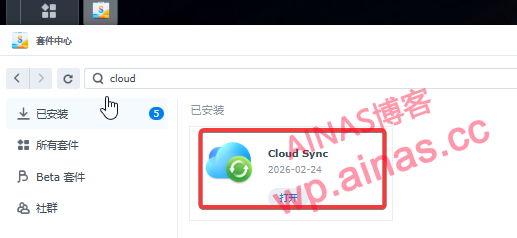
1. Install and open the Cloud Sync suite
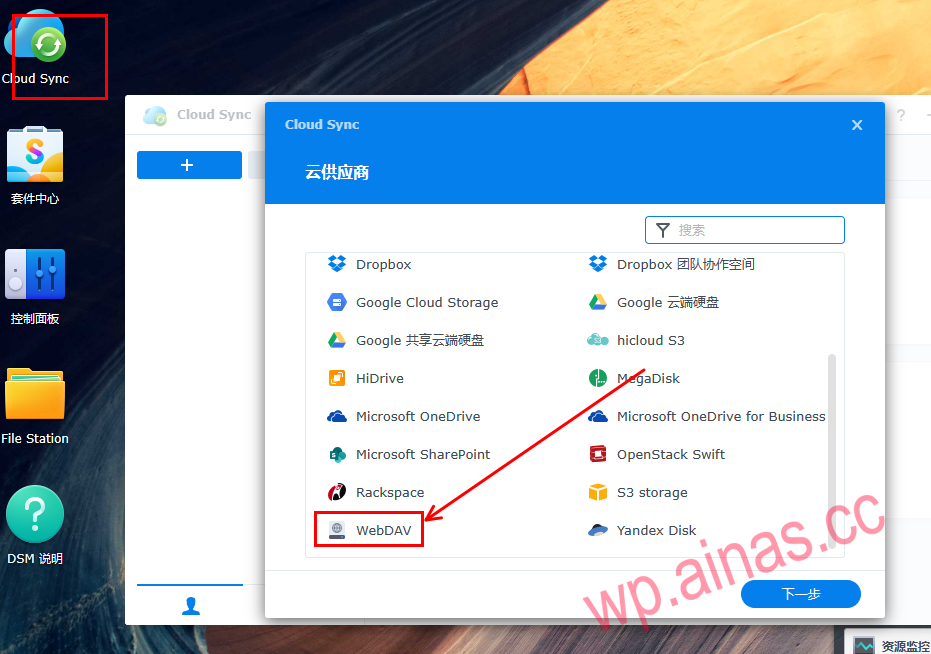
2. Select WebDAV
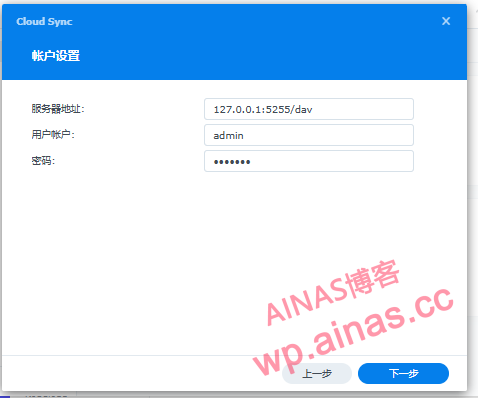
3. Enter the server address
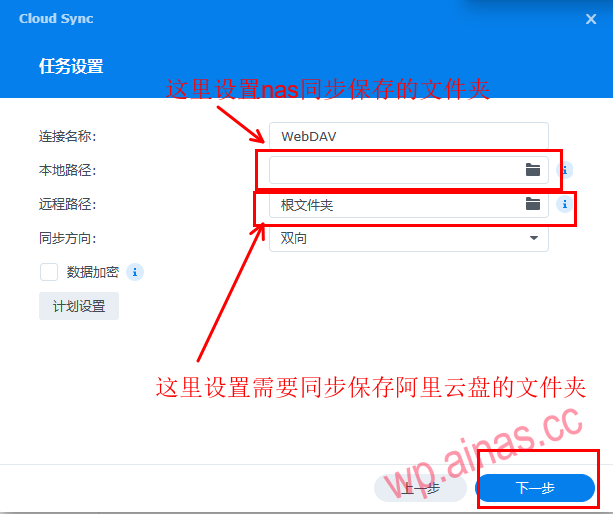
4. Choose according to your own needs
5. After the setting is completed, Synchronizing will be displayed.
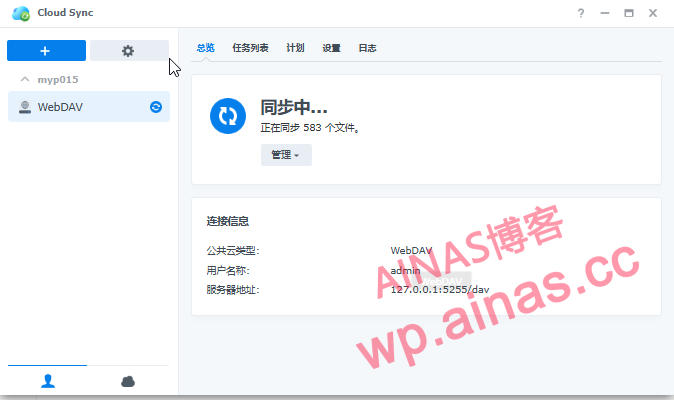
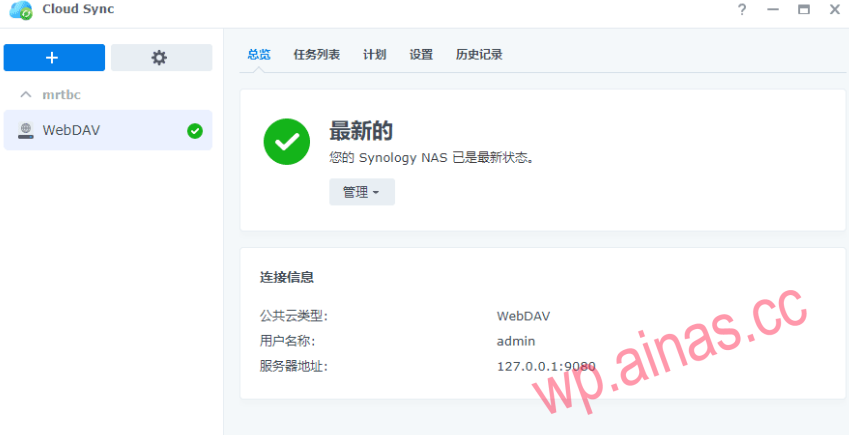
At this point, the Alibaba cloud disk synchronization setting is complete.
