Our Location
304 North Cardinal St.
Dorchester Center, MA 02124

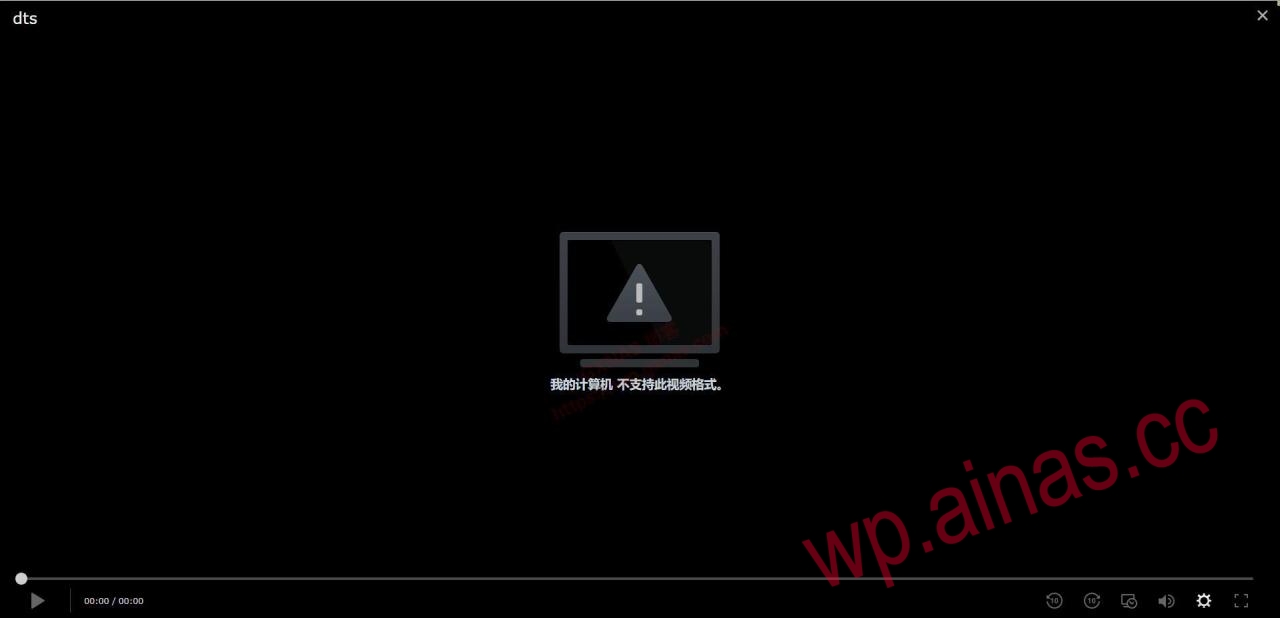
In the DSM6.17 version, Video Station (package version number: 2.4.10-1632) can normally play videos containing DTS encoding or EAC3 audio encoding. As the DSM system version and Video Station package continue to upgrade, Synology has reversed course and does not support DST and EAC3. When using Video Station to play videos containing DTS encoding or EAC3 audio encoding, it will prompt that this video format is not supported. If you don’t want to change to another player, you can solve it like this:
1. Open the package center, settings, package source, add new, write the name as you like, fill in the location https://packages.synocommunity.com/, and confirm; (warm reminder: you may say that the addition failed, maybe the domain name has been blocked, you know what is needed!)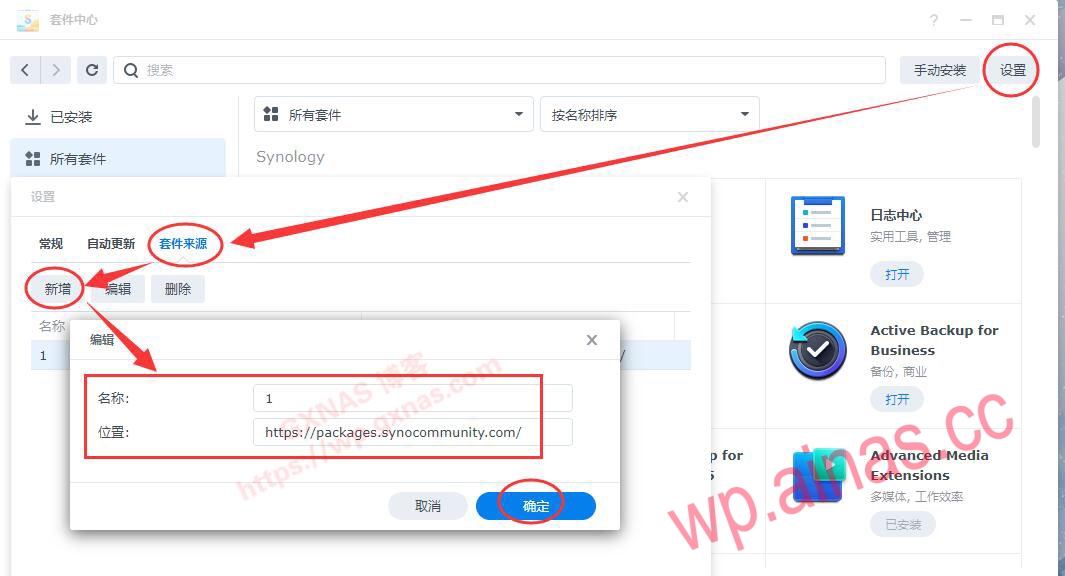
2. There will be an additional community on the left side of the package center. Click on community, find ffmpeg, and install the package;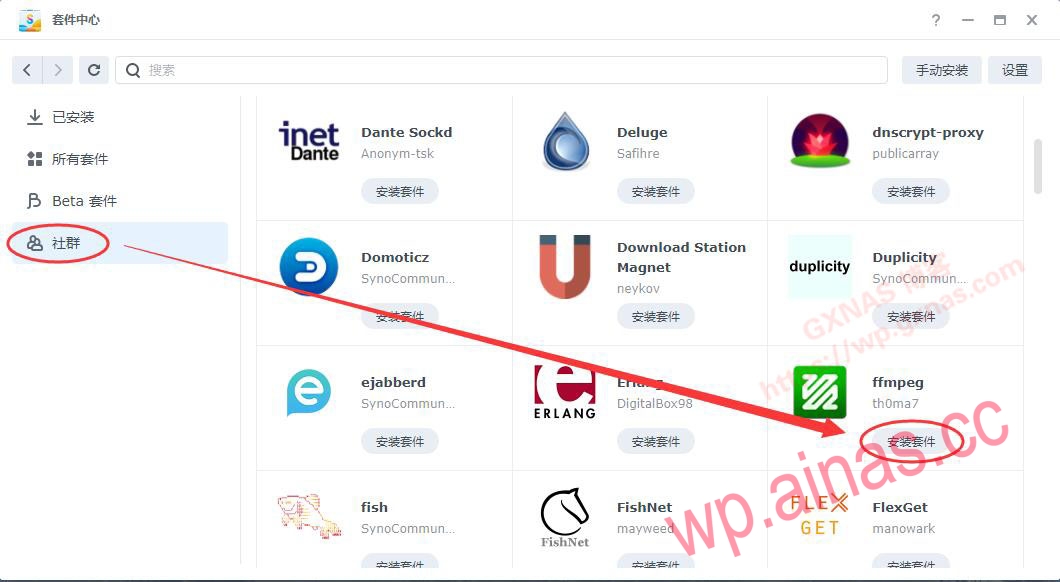
3. During the download, the download time is determined by your network. If the download speed is slow, you can put the address packages.synocommunity.com into something to force it to go through the proxy. If it doesn’t work, download it manually and install it manually (download address:https://github.com/th0ma7/synology/tree/master/packages/dsm7-beta);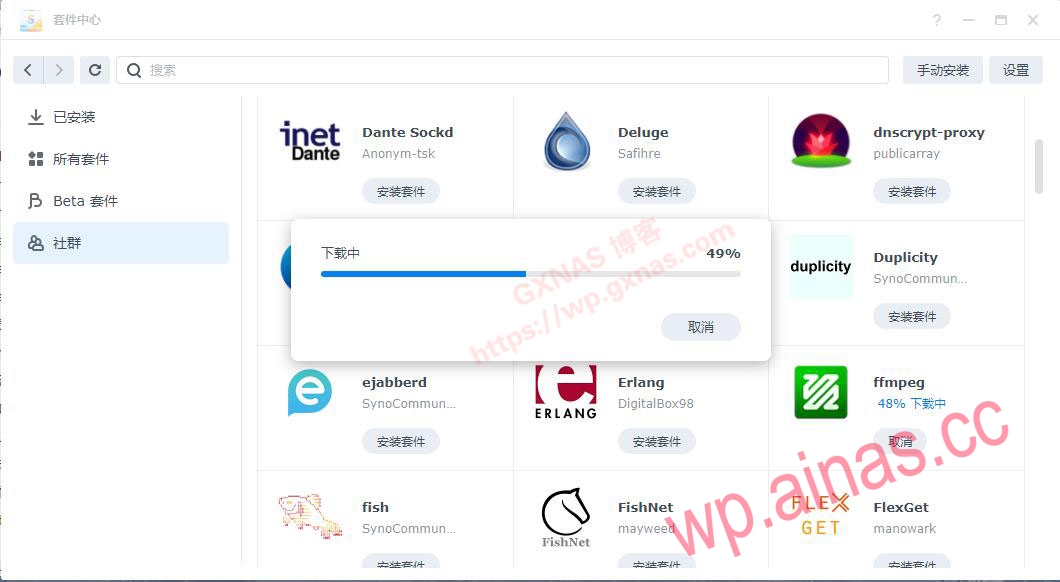
4. Agree;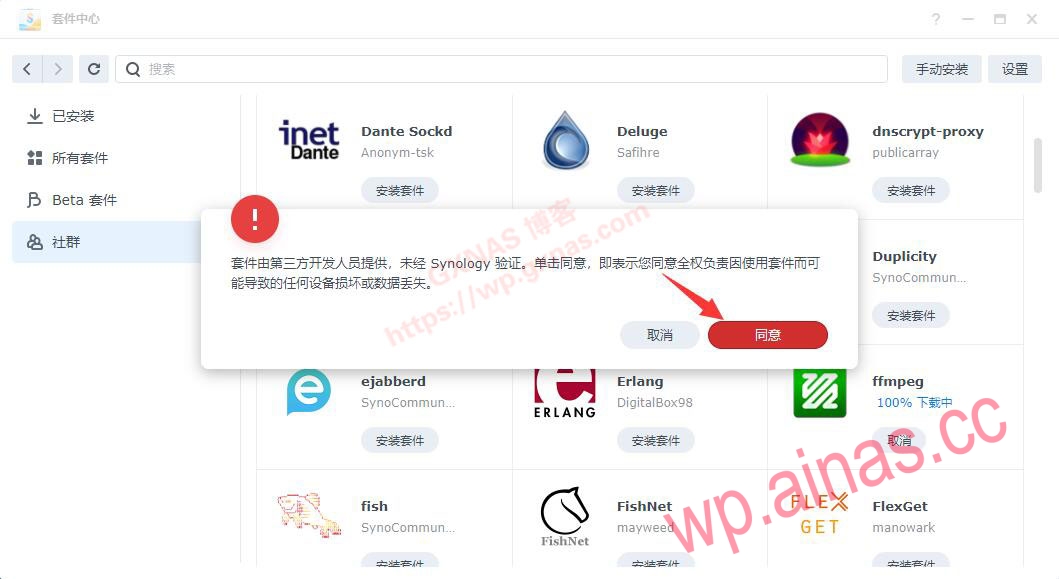
5. Installing;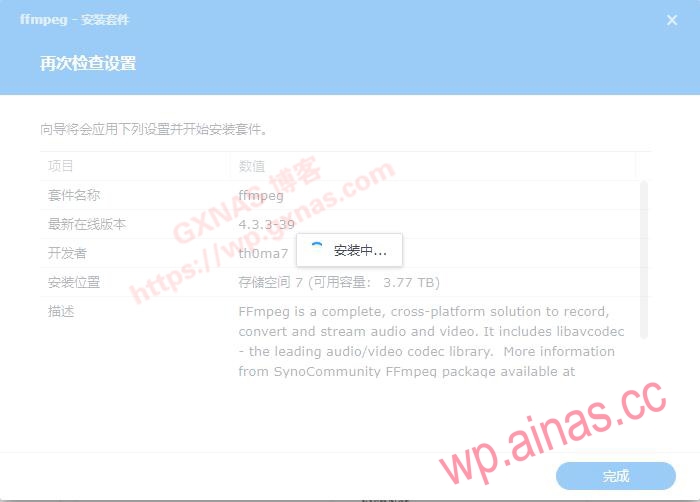
6. If you see that the ffmpeg package is installed, it means it is OK;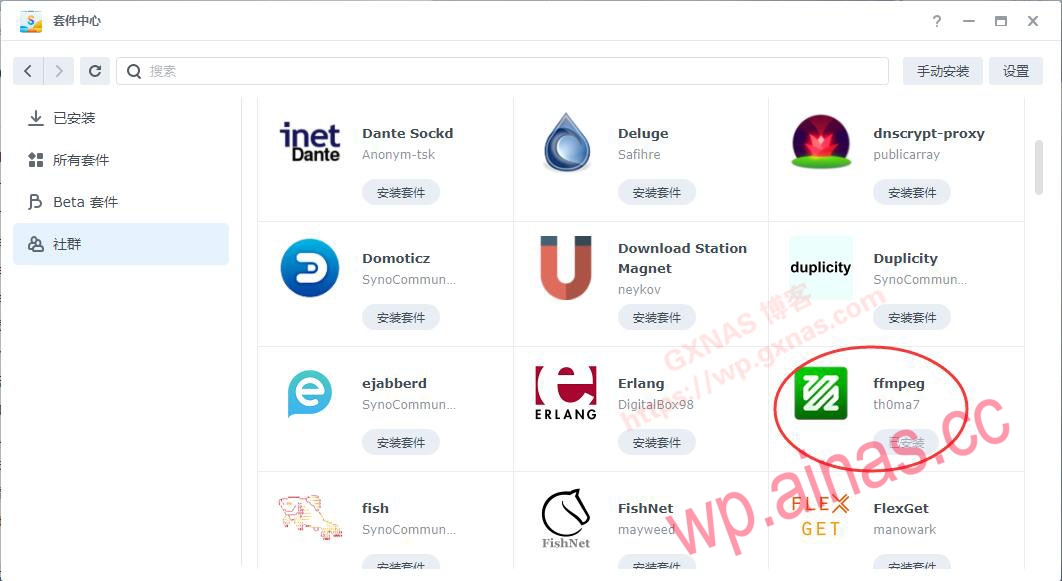
7. In the Package Center, installed, find Video Station and click the icon;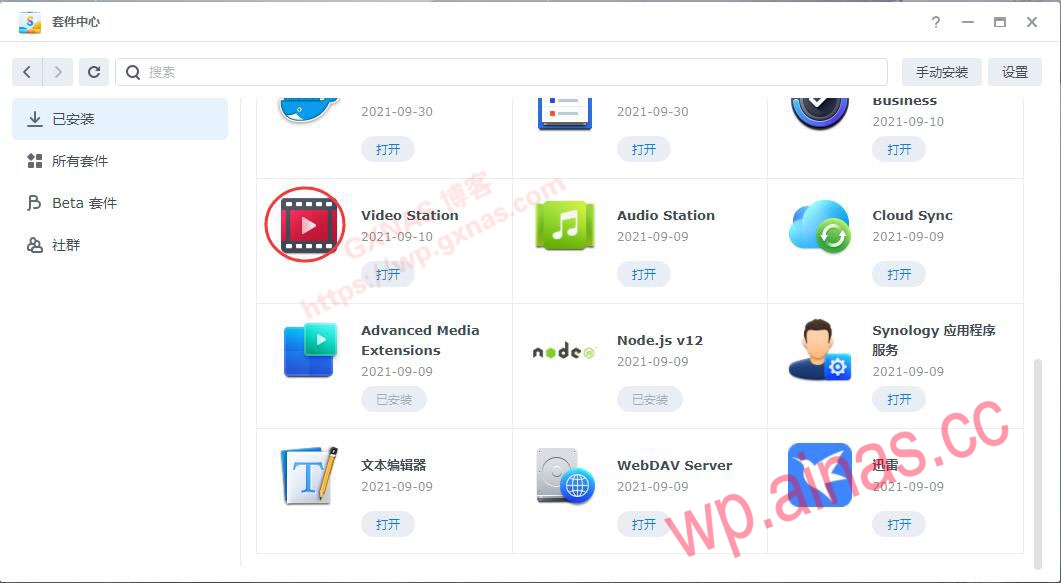
8. In the position shown below, click the inverted triangle and select Disable in the pop-up menu;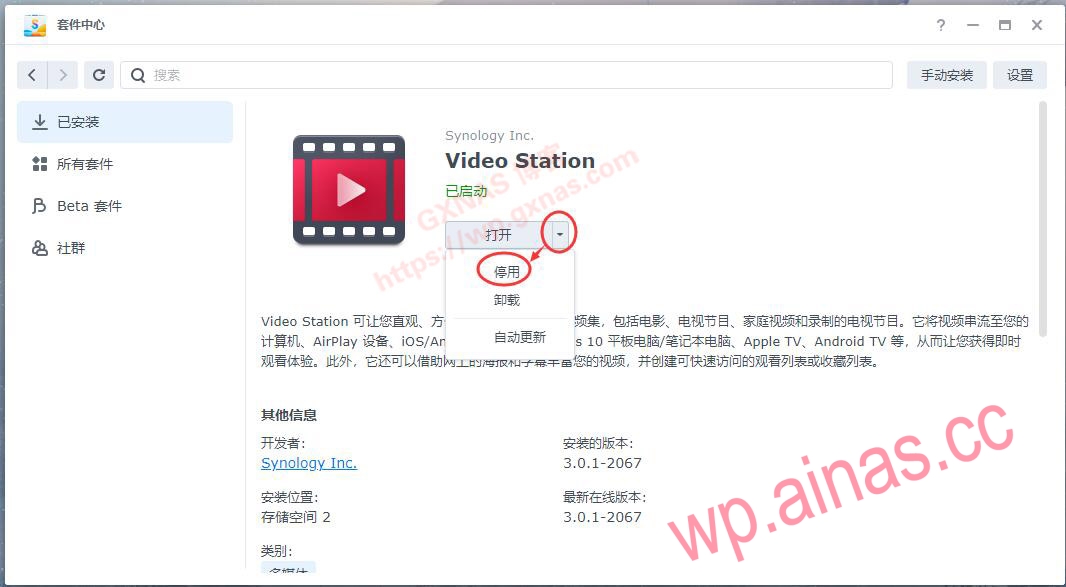
9. Yes;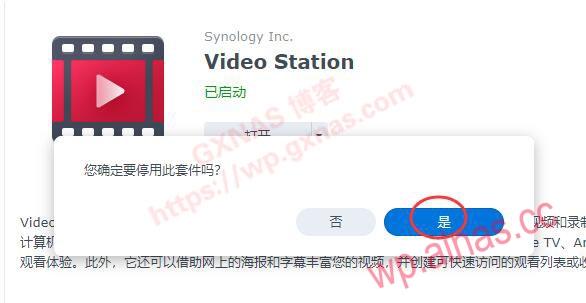
10. At this time, it will be displayed that it has been manually stopped;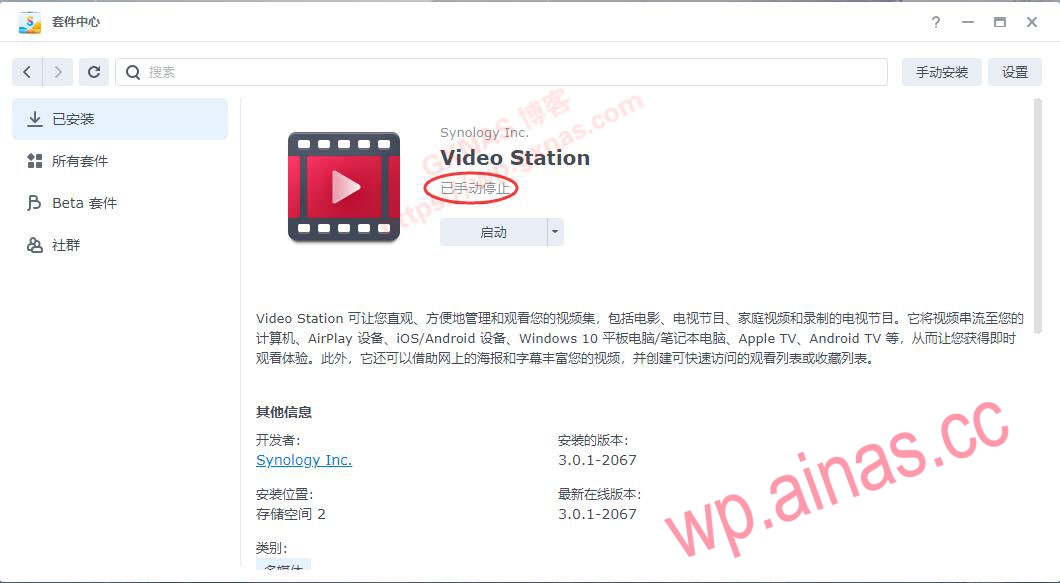
11. Open Synology Control Panel, Terminal and SNMP, check Enable SSH function, and set a port. The default port is 22. It is recommended to change it to a 4-digit port number and apply;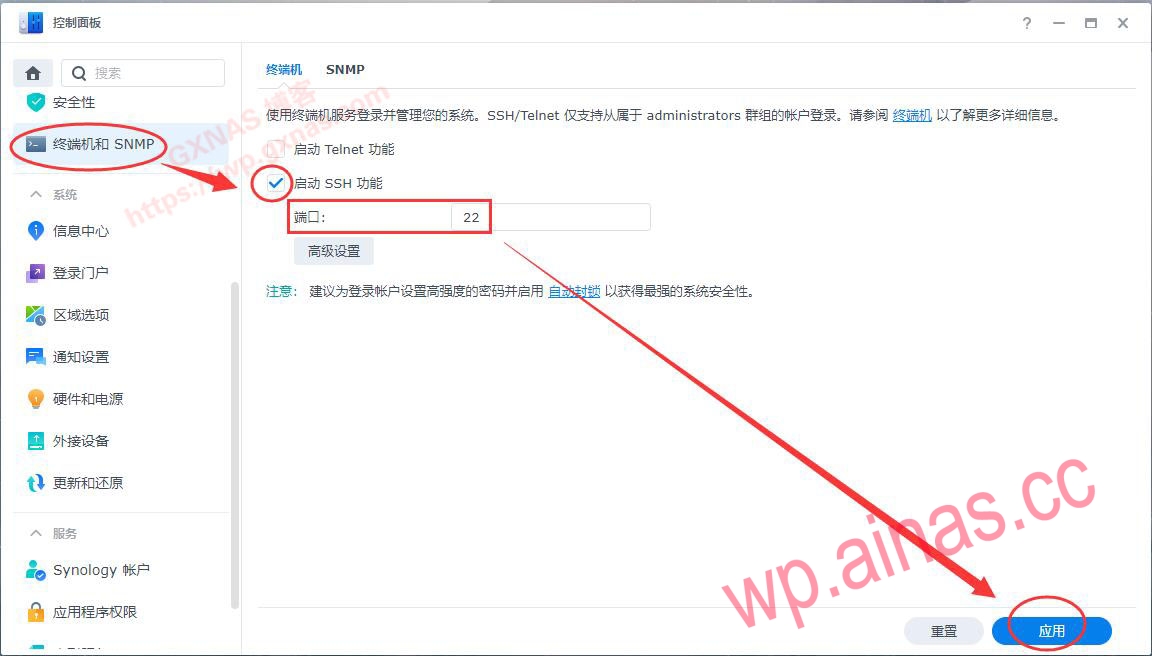
12. Open the SSH software on the Win computer (I am using MobaXterm here) and log in with the root account. If the login is successful, the words starting with root@ will be displayed as shown below;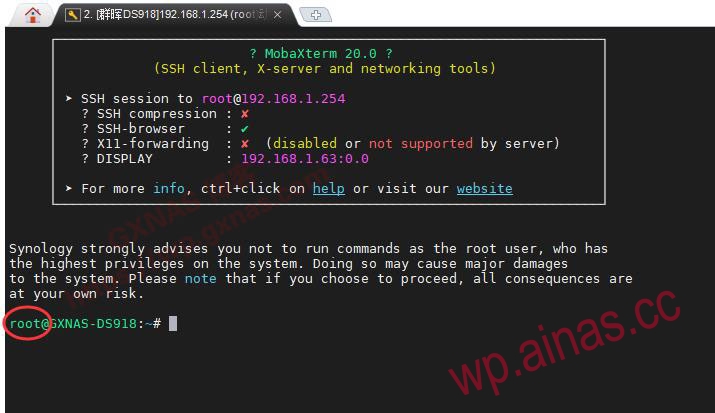
13. Enter the command to back up the original ffmpeg file:
Update on September 8, 2022: Some netizens reported that using the above command will cause the video to not display ass subtitles and needs to be changed to:
mv -n /var/packages/VideoStation/target/bin/ffmpeg /var/packages/VideoStation/target/bin/ffmpeg-BACKUP
14. Enter the command to back up the original libsynovte.so file of the Video Station suite:
cp -n /var/packages/VideoStation/target/lib/libsynovte.so /var/packages/VideoStation/target/lib/libsynovte.so.orig
15. Enter the command to set the permissions of the original libsynovte.so backup file of the Video Station suite;
chown VideoStation:VideoStation /var/packages/VideoStation/target/lib/libsynovte.so.orig
16. Enter the command to back up the original ffmpeg41 file of Synology CodecPack;
cp /var/packages/CodecPack/target/bin/ffmpeg41 /var/packages/CodecPack/target/bin/ffmpeg41.bak
17. Enter the command to download the modified ffmpeg (the command is very long, if it is not fully displayed, press F5 to refresh the web page and then copy):
echo "H4sICJ6oBF8AA2ZmbXBlZy13cmFwcGVyAO1abXPbNhL+LP4KhKVf5Jimybn7ogwz8dlKqklcayzHnU7ioyASlFh TJEtQVFzH/70LAqT4KjltrzO9qWeSSMCziwfAg8Vine9eaDMv0GaYLiQpJqkp64YsSZYfzg/7j1KP2IsQycqhgxO CDl7u/aTuLdU9B+19P9i7HOxNDvpIRcojTWKCl57zxL7pMnr9GmnJMtJcdxmR+Ql4k564VyvCMS67BvRX5Ia+g9Q 10o1T+EaJg2Sq/ffkSNG+aejix0T7WieLhMTLjEG8LPerJV8nNHFIHEs9RhnJR0dH6P3ow4fz70cfLhB8k6Xevef7 SL0ZXl/CJOyF5zuR58jIeK05JNWCle+zwZIYRygbEU1G7xhaknBsL8zpKsBLglQs5ntAtZMj+hCEMOCDpWkH0G6v EqRCl3WAVBfpUynA9HcYGlMJqJmKIrG1X6bUVN5IfKqmrDy+GSBVf5KlfPKm/PbtpcImI4E0dFNLcaxF2L7Hc0LFW mkJjuckybTDWxjWqGFvPYeEkwQnXhg0LdT/nJ2//ziG5ZhT87AvSakdOsQ25fdXoMA1rChBnz4h5TukzhN0iu7uJ CeUbEwJV40XSD3V60u9Hl14bgL/LsPUIybrhC/M7UvzUFY9OcMD8NUrsFissW0Tv2wnmhqWor1qTzOWZXMqeNeseX PV2C3bue12btVkiaOyUQGD9gLY8xz4ak6zI6XoGwUMxP4DwkWfAJ4KUiZiy4zuXqFkQWAhez2x+tPd2x3F4QwEmC I4IWGMVEp8YicW1w9FSkYGmhfh2iJBEnuEIiG3bAyLCzh0kUNcvPITMwij2AsSaw2nJSIxNfVBEN6TB1MHytmusiC xIBiCRMAOQsEXuLgglP8xbTHKH+VMfEoYdfz3WmrX41I86pf0VyiUUGxLXJ1OGBAe5XnIHF9fnQ8nEzS5Obu+Qdf DW6TAFYMuJgoEMnSosEDYR+PRBWLhhsdVEYYcLzan8FfGX1Z4ozyVILZ6Nmy3jZMi9gPsSUtZrLGWJMFwX7DY+PMv SI3RwQm3OJgKXhfD29H5MLsiFN4li57Lq9vRkF8eYiGADIFjpAKBRzbvT2/uIE5mASsgaxaz2EedpvlHY/NRT2nR yj8+N6RRWj/vMBiPKHRz4sXIW9uDEOLXKob706KE3G/6U9puJ9q77AzhFwfYf/iVOAwCoR2c6Kf8ZwMVrrZDswDnd U3Xa59VrdkoNUdeRAan8EFEx9PG1OrGpeZW44xhWgnbIpIWlwOE0hTjCFzcof39UpQVUSNDXGIPTtNpJeJSG/vEW ouwDRqDW1hc6irh97q5NjVtflBpHSzMkyPWOt04WWxzAgYFHMj7JDs6fPAndPbDRaVp8bRhWNmOlF1MHJPNF7ht3M AYGwcDN4yXGGJNqhvHi/Uq8kPsHMNZojg22R++AUU83D7MM52xKLWJsHWHYs8zUFk15c6yTtLaLZw2bv3KENWrvi LXos8Oo4eGalstcw4tfUa9L/eascQNlkKseiZC35u5GNsVEZangXOnDNTPe/OJtPcWB73e27YVuDajdv/lzob7ro 3Ercus182ryzXr2lA8a9/MentBb1aVC+6UCu6QSb19M/EtGWTZcV3Iwi9rZnlFQhva65B+m0XamppSMl9C1mHxE9 p5a1VQ7bPcislvuXZMhYnv0cRKHiKyi0wB3M6nC1aj1ITxp4ZPswvUSrxlJ6MKqJ3NNohg0g6prM02EmXM9hXpptC KaDCwHOIn+Dk8OHI3m1ZcC6carsKMQtadWMFqOSPxLm5l7HZ2W5A1fq1Inh0Fjge57Qr7FkvKSWwlMYasopNmp0F H5vNMeJ5l7YTz+JeGnmMFZA5ZX0qspDOlbQA7ouAOWB5EO2EZqxm8Fu6tIAwsePC4MTwtOnm1QNuZ7QYKbtuA4qH/ xVquvnjB3PplRVaQe3u/Ng5sPmwruH3g7dCuGkO+EJUyQ/liaXakzcJE5dkoXOYlC56ZiJcdS09YllLLTPLBZitX sNZPjX/d59l6OVHgyEpikW/RbuO09KatZC7dbkuJSNsrOEvAPZaDy1R7/CzDK/ezPFAe4aH7dPxZXuDYWeOYsOMTZ JUi6E3iFTl+LtjFQPNYk3kJs1JqIwGe+cRhb2kIK+QLsVn8g/c0q6S+3KNTScpXf1MOoqtZ7EXFDvSkvPj59u3le PiOv4tZkU/OO86vLobn4sEsHOVd47Prs8vbCXSJpqzsCwOKCiS0Sr3MW+VtjfZf76jIon1JIr5g727YL38G/O8l7/ 6l5EFc+Ui3OQsgwTN6dFh9PPYLVmclLP5mwnmJ42Io6uM/Xp+N5Y5V0quefxxzz5k33eRThsPMZt0yHljz5dHz5R HYZ64QnCgpr6ebygtRnclK76xUBBSLaru0xl6y+Z7Jeh6TCOBhkJKYwmlALrufnBfyrqG/fhW2w6zWFkYkgJiJYBc S8PQN9h+DmNjhPICY44AbXvd4rvEoSLHvOSirYrnhKnDQGhSNQA82oZQx8oJolezyKOJo+TcY/LcXwx/y32B0Rgd hM7m5uPp4gxqymiawoll18N87SEzblDcejYdoclsTn94UH+8wmmc3U6WOWlQJ90W3KsvWRtnaENZGp7XR0LQYidVa KqHAyNufpfVeWei9bUrv1aXOjsk/cv+byP120iV3o0vu+nPkntI/IvdO60LuhazFSLnci2NgpN9y+f0j9/97uV9d j9515RVNWf112qEJbHnLaoCmEkIBfnhYhqiV5ev3keonSD/NXyd/4hIycp272PxdWtEl7f7fC78BTGYfI90hAAA=" | base64 -d | gunzip > /var/packages/VideoStation/target/bin/ffmpeg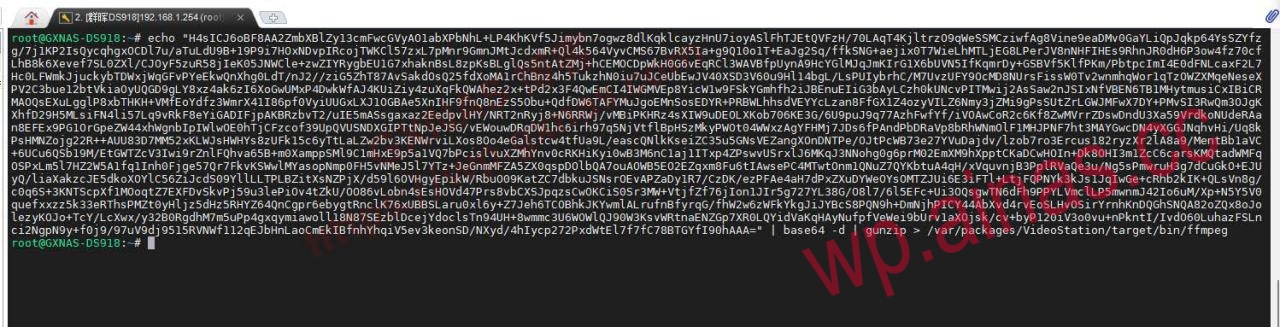
18. Enter the command to set the corresponding permissions for the file:
chown root:VideoStation /var/packages/VideoStation/target/bin/ffmpegchmod 750 /var/packages/VideoStation/target/bin/ffmpegchmod u+s /var/packages/VideoStation/target/bin/ffmpeg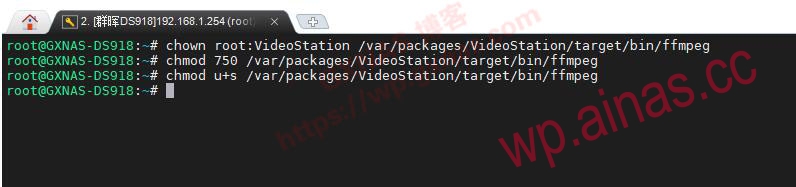
19. Enter the command to add DTS, EAC3, and TrueHD support to Video Station;
sed -i -e 's/eac3/3cae/' -e 's/dts/std/' -e 's/truehd/dheurt/' /var/packages/VideoStation/target/lib/libsynovte.so
20. Enter the command to replace the modified ffmpeg;
cp /var/packages/VideoStation/target/bin/ffmpeg /var/packages/CodecPack/target/bin/ffmpeg41
21. Return to Synology Package Center, installed, findVideo Station, start;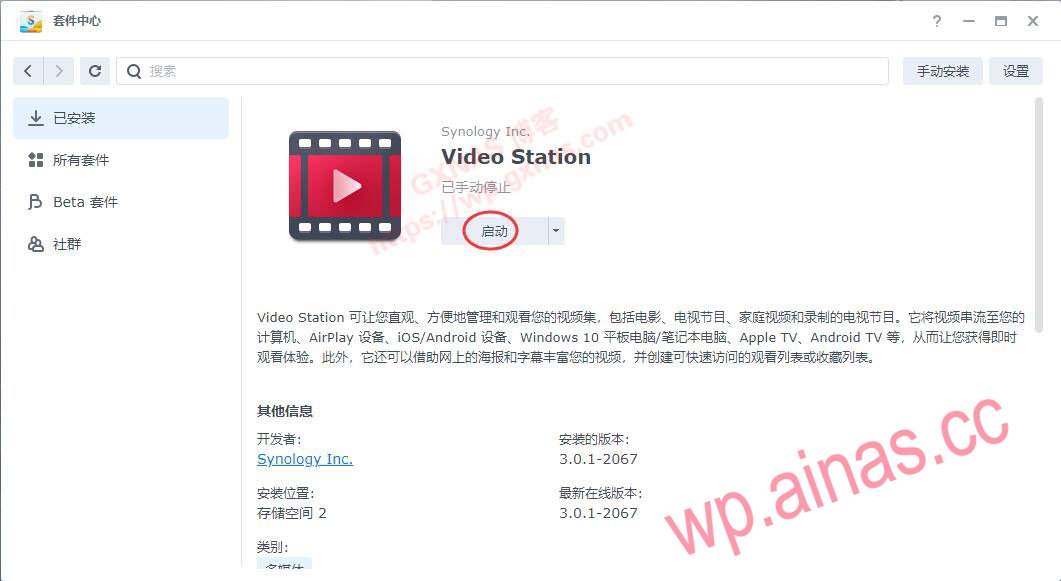
22. WaitVideo StationAfter startup is completed, click: Open;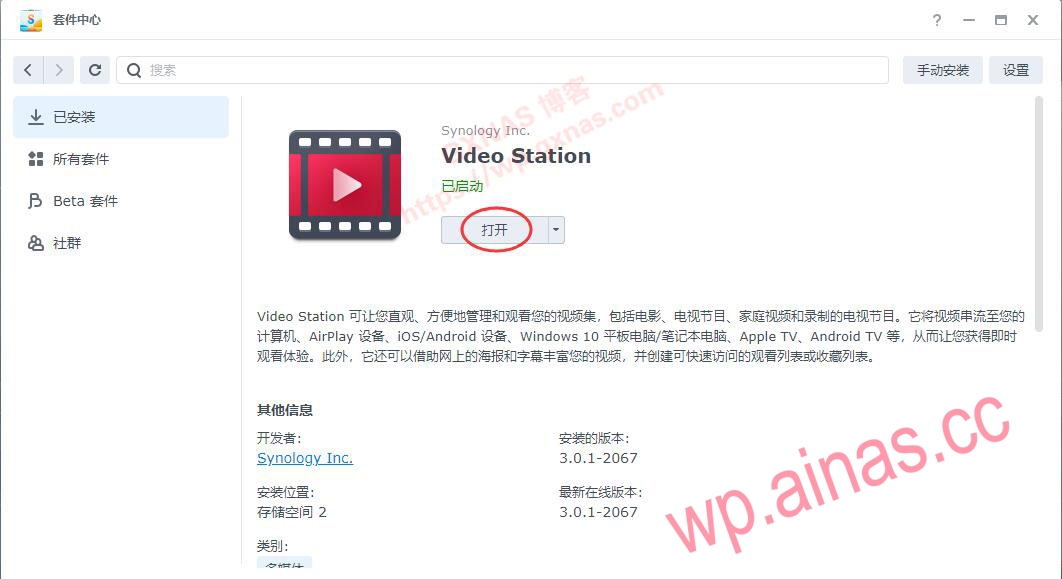
23. Playing DTS-encoded videos can be viewed normally;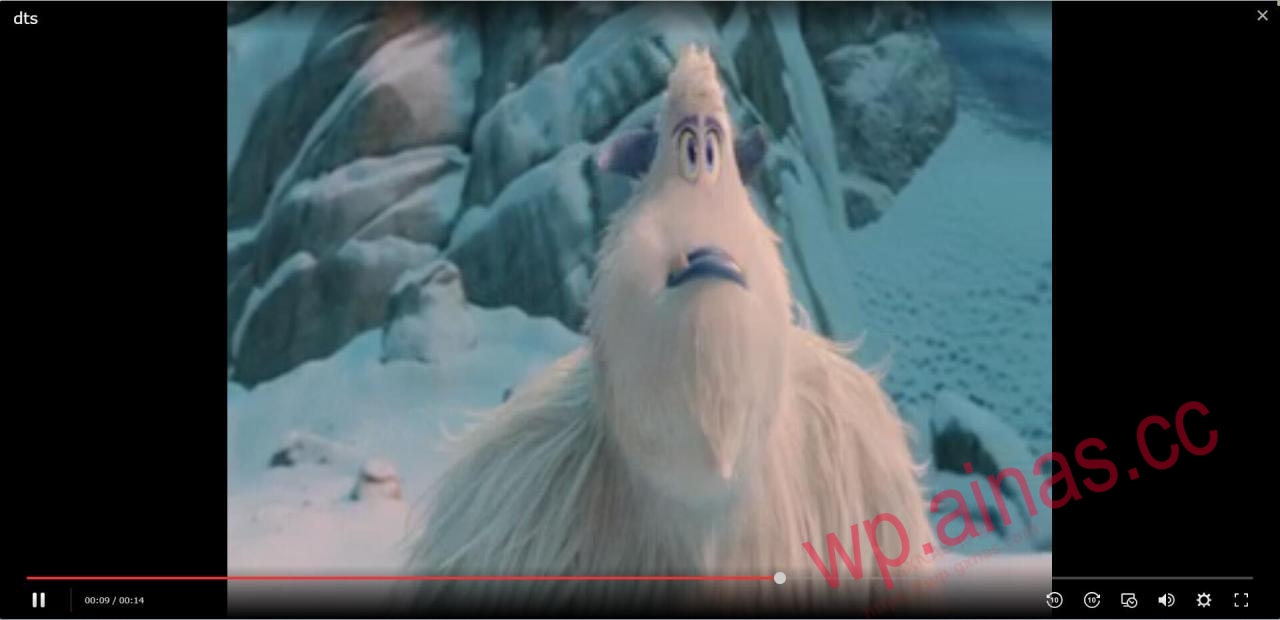
24. If you find that it cannot be played, it is possible that the video does not support hard decoding. Go to the settings, turn off hardware acceleration, and use ffmpeg soft decoding, and it will play normally.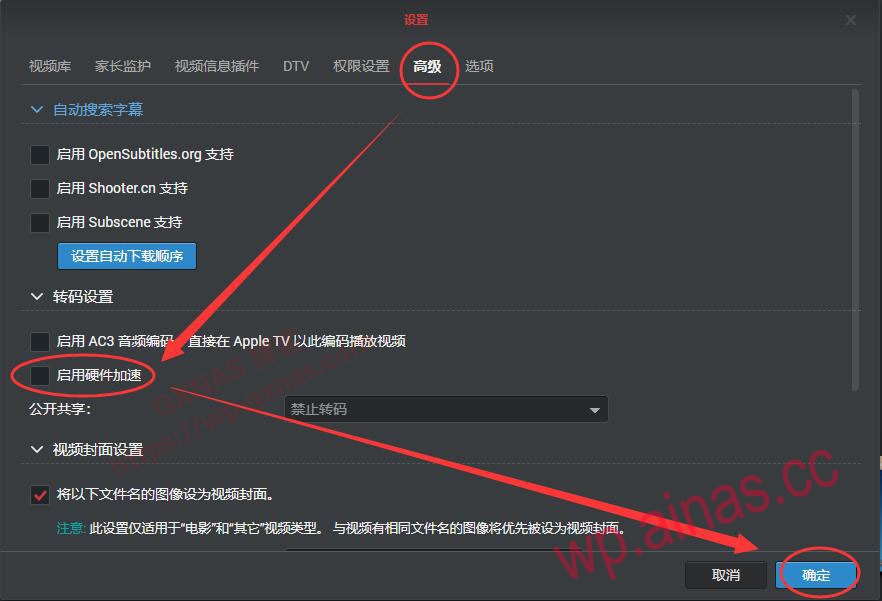
If the DSM6.X version wants to solve the same problem, please refer to “Use third-party FFMPEG decoder to make Synology’s Video Station perfectly support DTS, EAC3, and TrueHD》.
