Our Location
304 North Cardinal St.
Dorchester Center, MA 02124

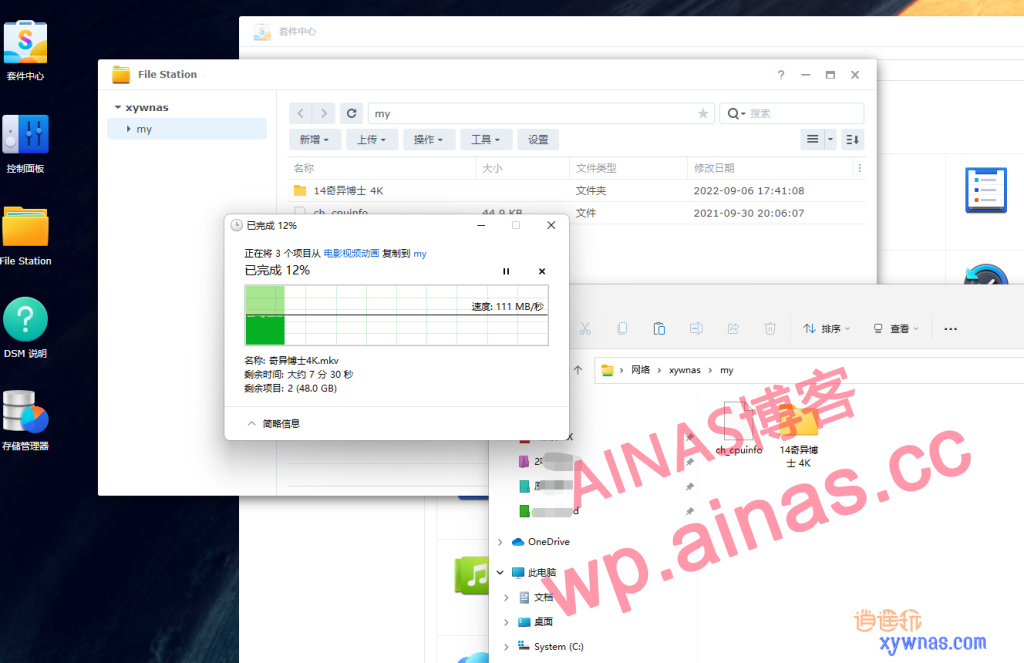
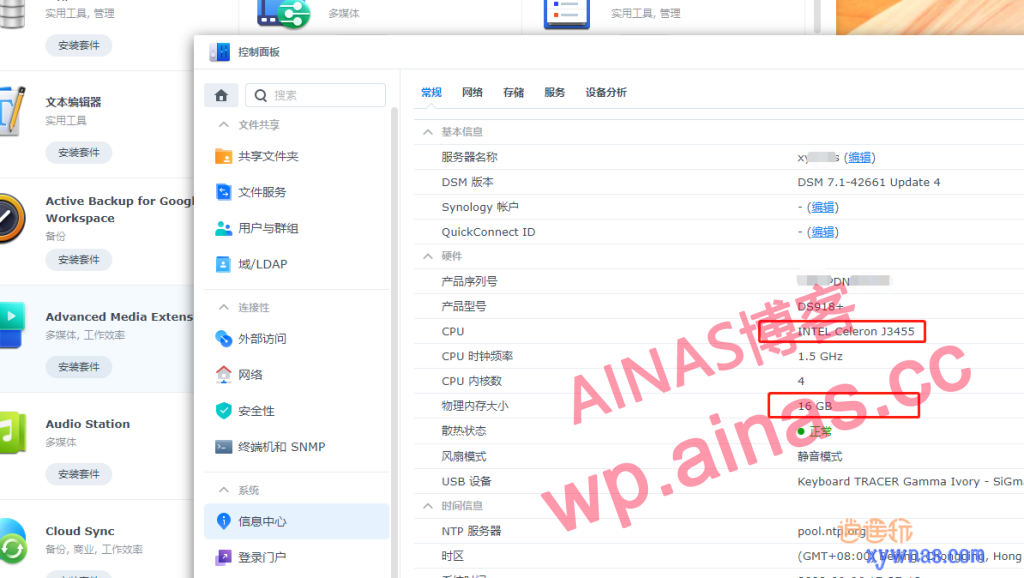
In the past, when ASRock J3455 motherboard was installed and used on Black Synology 918, it took about 15 minutes to boot and boot into the system, and the LAN gigabit transmission was only a dozen or more MB at the lowest, so this motherboard was also the most criticized by NAS partners. Now you can modify the BIOS of the ASRock j3455 motherboard to completely solve the problems of extremely slow startup, extremely unstable LAN transmission speed, abnormal USB disk transmission, etc. when installing and using Synology DSM system.
The operation is not permanent. As long as the bios is modified, it will be reset. Even if no modifications are made, pressing F10 to save will restore it to the original state. Any saving action will restore the bios to the default value before modification.
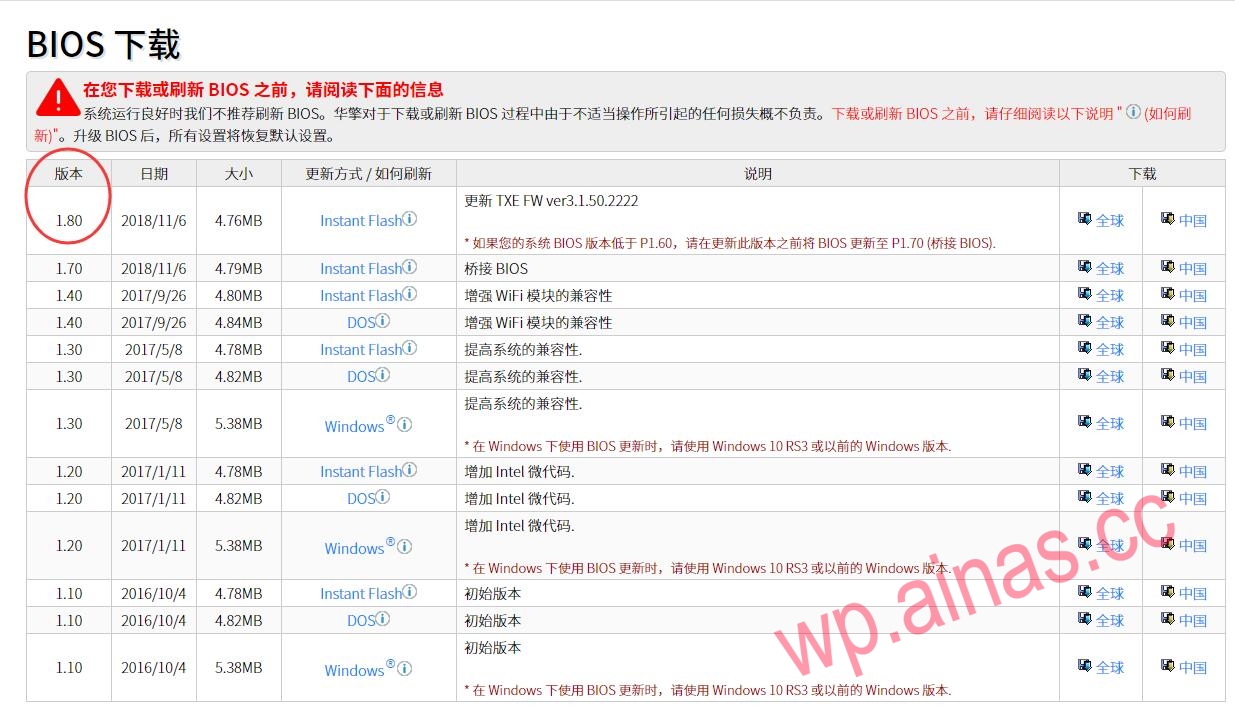
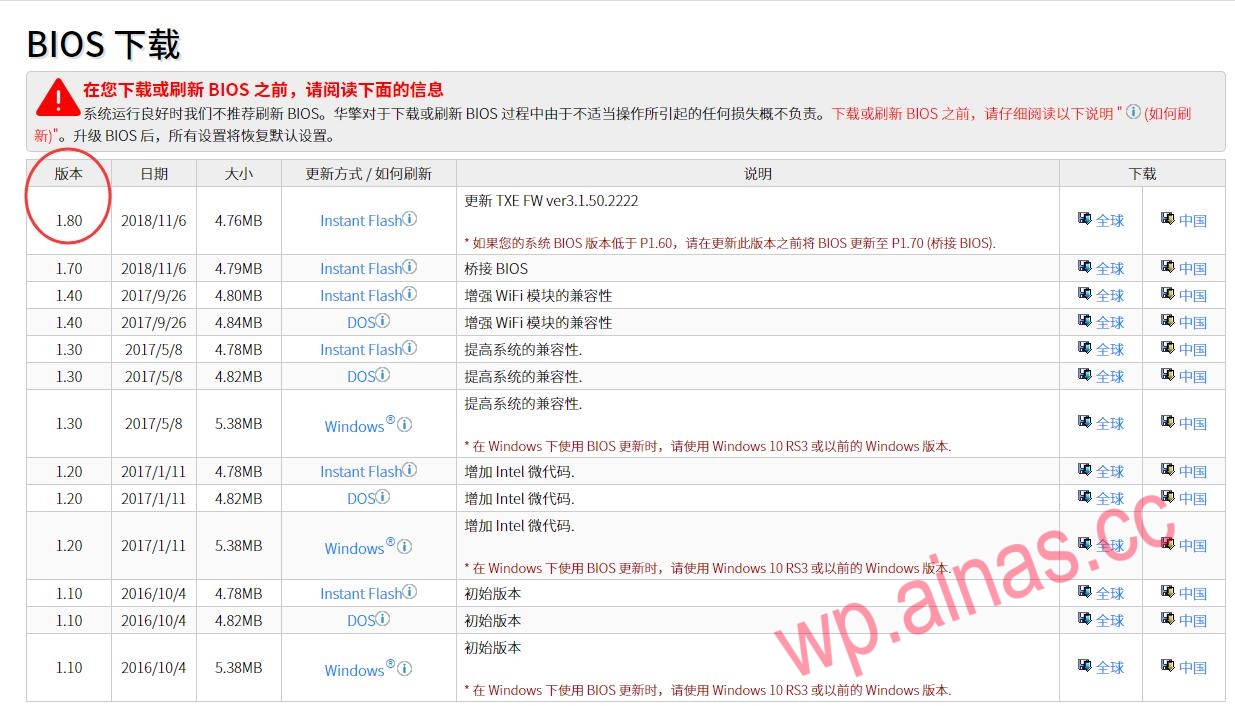
1. Go to ASRock official website (address:http://www.asrock.com/mb/Intel/J3455-ITX/index.cn.asp?cat=Specifications#BIOS) Download the BIOS firmware and upgrade the BIOS of the J3455 motherboard to the latest version 1.80. If the BIOS version has been updated to version 1.80, skip this step;
2. Before operation, be sure to prepare the boot program and insert it into the machine, then find another USB flash drive and format the USB flash drive as FAT32 type.
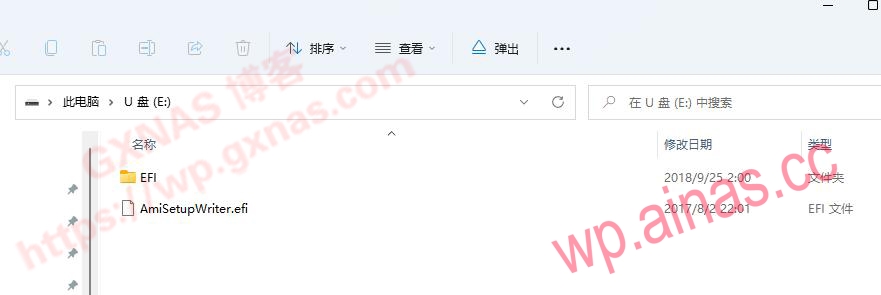
3. Download【this file] Unzip it on your computer and copy all the files to the root directory of the U disk, as shown below;
4. Insert the USB flash drive into the J3455 and boot into the BIOS. Because any modification to the BIOS will reset the modification, you must set up what you want to set first. First set the Synology boot USB flash drive as the first startup item, adjust all the functions to be adjusted, and press F10 to save. Follow the prompts to confirm the restart and keep pressing F11 until the quick boot menu pops up. Select the newly added U disk and press Enter (note: it must be started using uefi mode);
5. After starting, under the command line of Shell>, enter the command and press Enter:
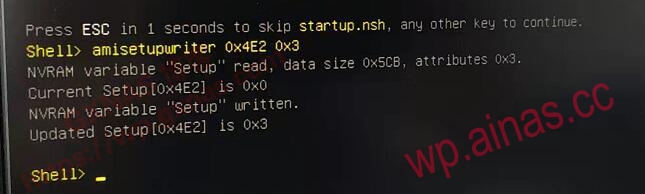
amisetupwriter 0x4E2 0x3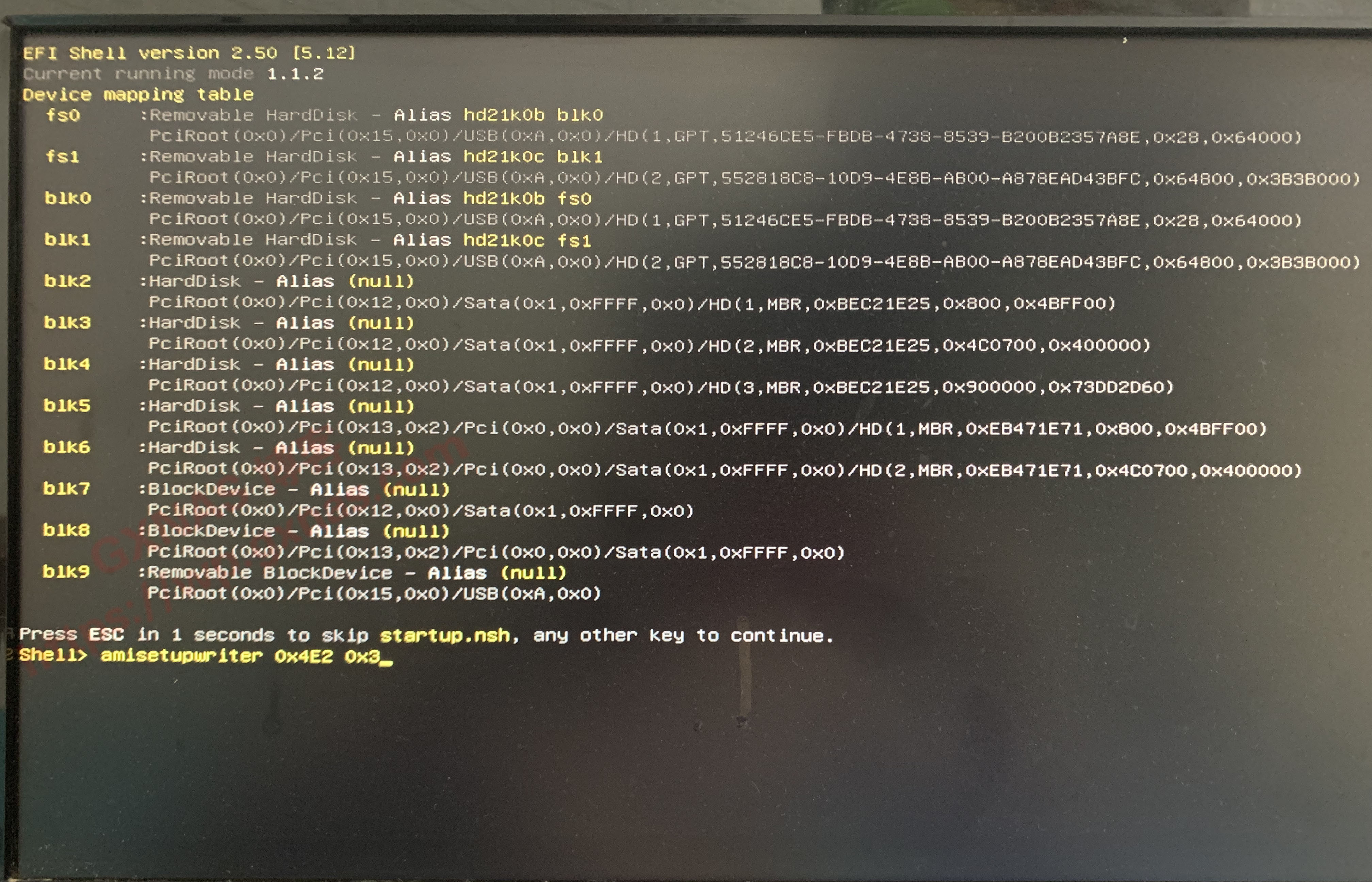
6. When the screen displays “Updated Setup[0x4E2] is 0x3”, it means the flash is completed, then enter exit after the Shell and press Enter to exit;
7. Restart the machine and enter the boot installation
8. The DS918-6.23/7.1/7.2 installed on ASRock J3455 used to take about 20 minutes to enter the desktop after startup. After running this command, it only takes more than 1 minute and less than 2 minutes to enter the Synology desktop. The effect is great! Gigabit LAN transmission, before modification, was 5MB/S~40MB/S, which fluctuated greatly. After modifying the bios, the transmission speed was stable at around 110MB/S, which is basically full Gigabit speed. 2.5g can also reach more than 200M/S