Our Location
304 North Cardinal St.
Dorchester Center, MA 02124

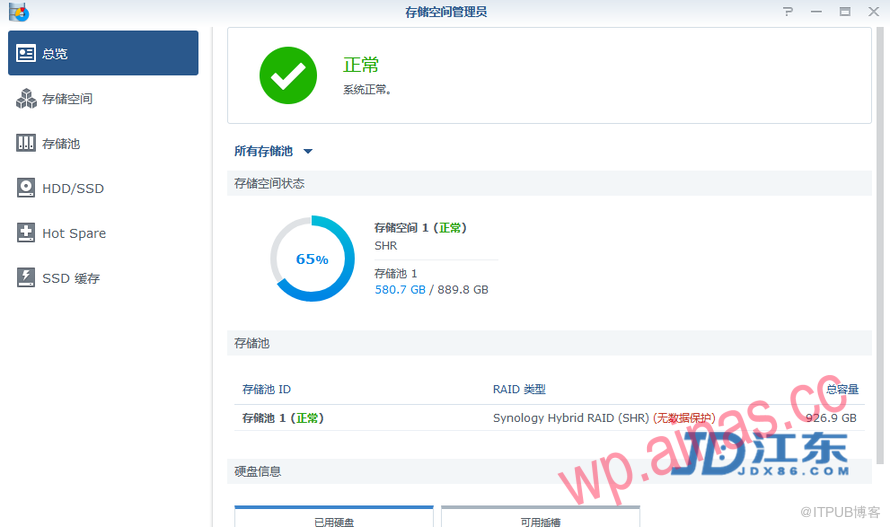
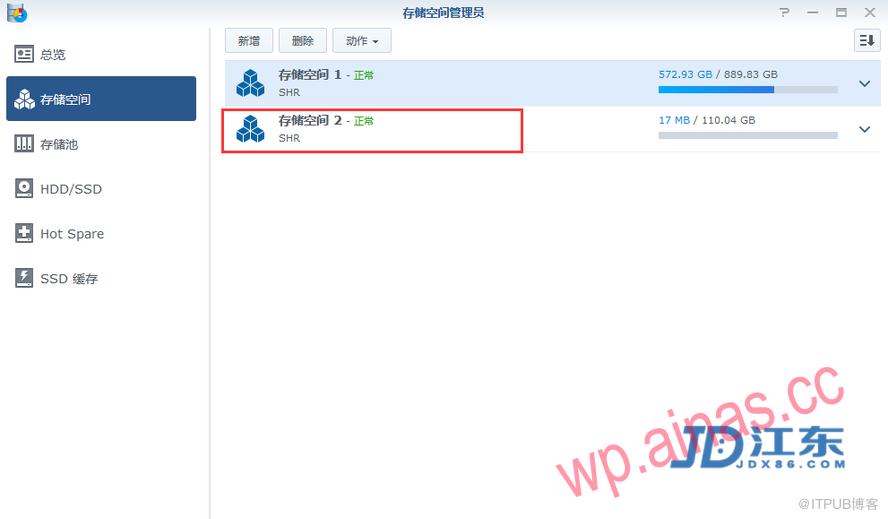
Storage spaces are basic storage spaces on Synology NAS, built on storage pools. Before creating a storage space, you need to create a storage pool. For Synology NAS models that support quick creation mode, storage spaces and storage pools can be created simultaneously, and the storage space creation wizard automatically optimizes storage capacity and performance.
1. Create storage pool(1) Select Storage Manager > Storage Pool in the main menu and click Create to select any of the following storage pool types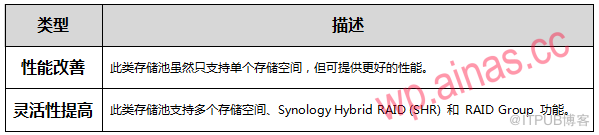
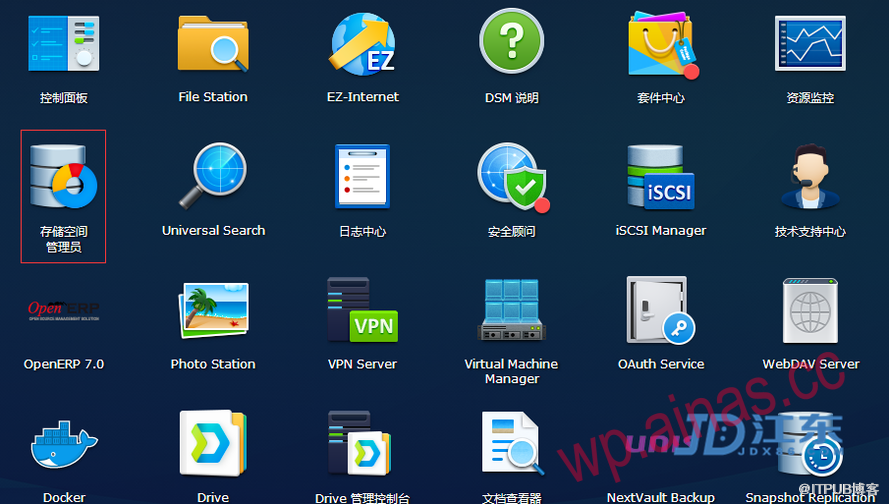
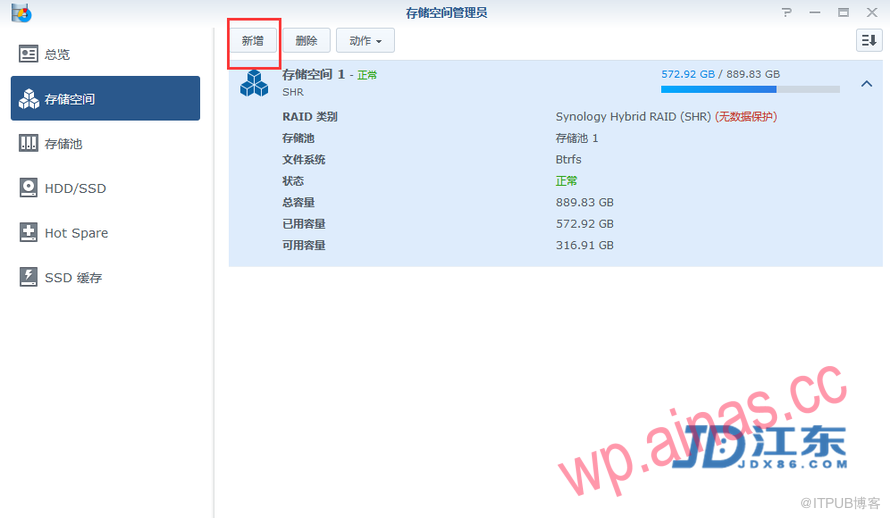
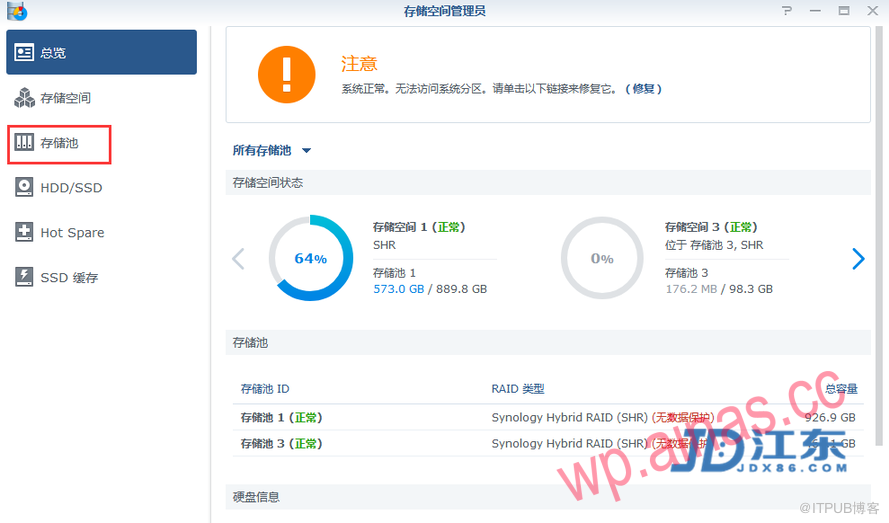 (2) Click to add
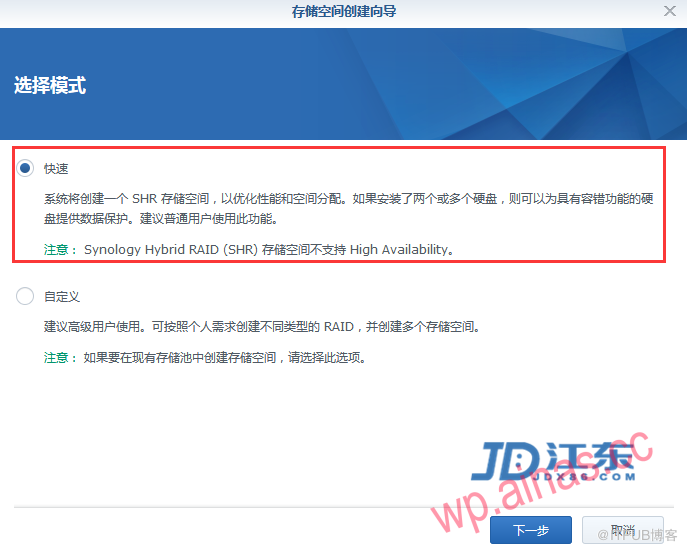
 (3) Select “Quick”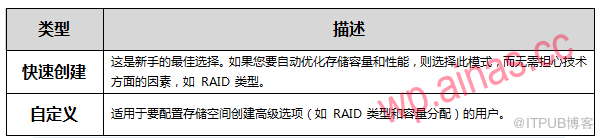
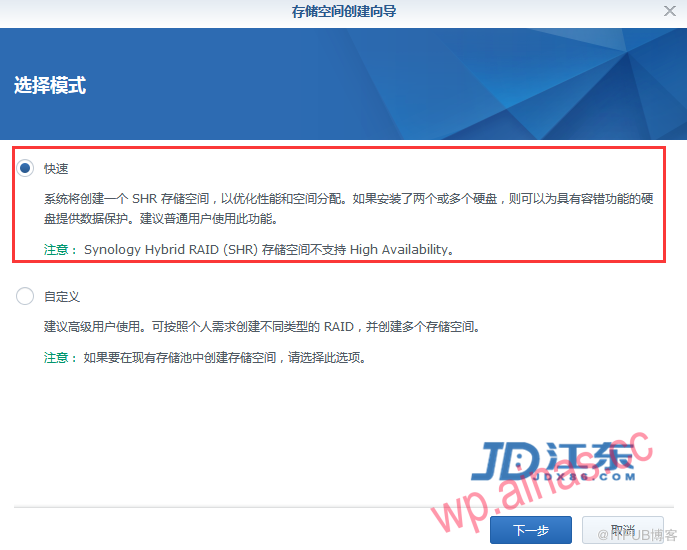 (4) Select NAS array modeRAID type :Depending on the model and the number of hard drives installed, the following RAID types can be implemented when creating a custom storage pool.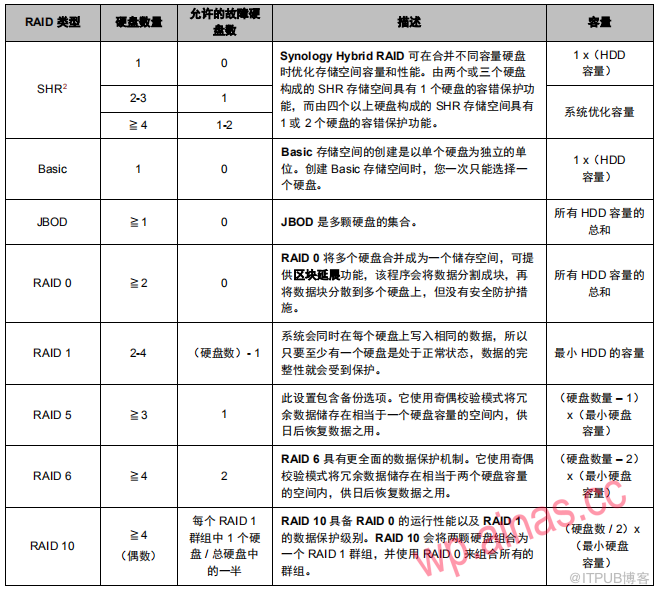
Change RAID typeThe RAID type of an existing storage pool can be changed without losing existing data, allowing you to manage storage capacity easily and efficiently. For example, you can create a RAID 1 storage space on your Synology NAS and change it to RAID 5 if you install more hard drives later.Supported RAID typesHere’s how the RAID type can be changed.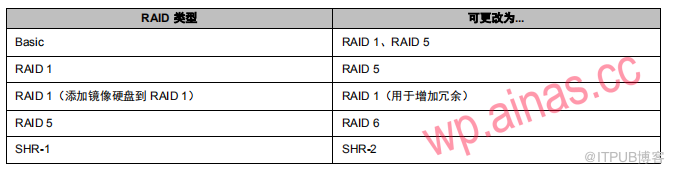
Hard drive requirementsTo change the RAID type of a storage pool, your Synology NAS must have a sufficient number of available hard drives installed. See below for the minimum number of drives required for each RAID type.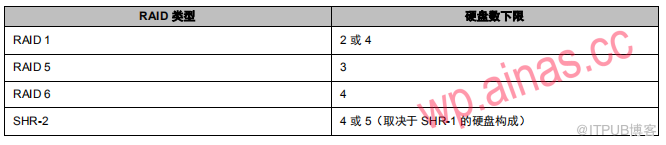 (5) Select the physical hard disk for the array
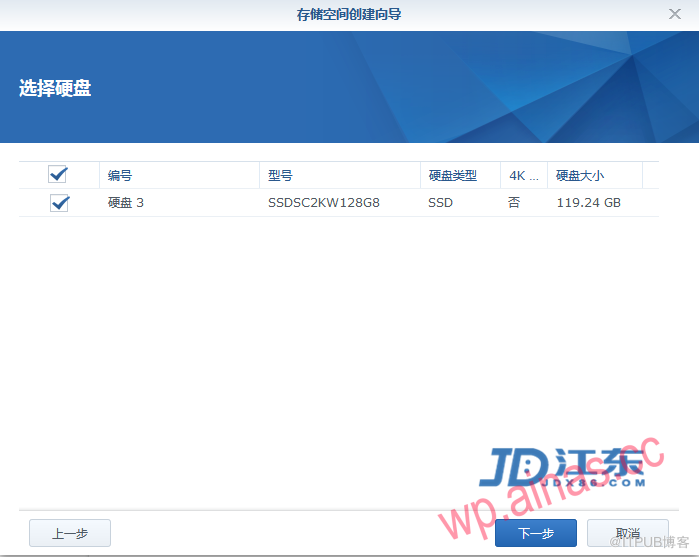 (6) Select the storage pool format
Note: Commonly used packages all support Btrfs format, and some packages only support ext4 format.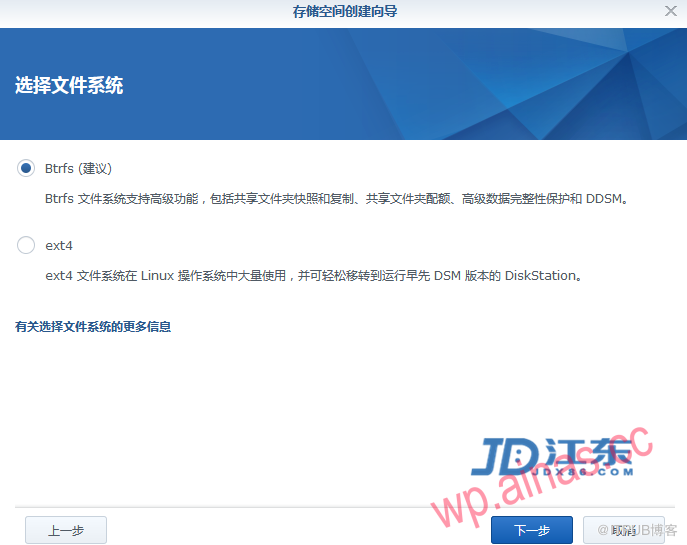 (7) Just apply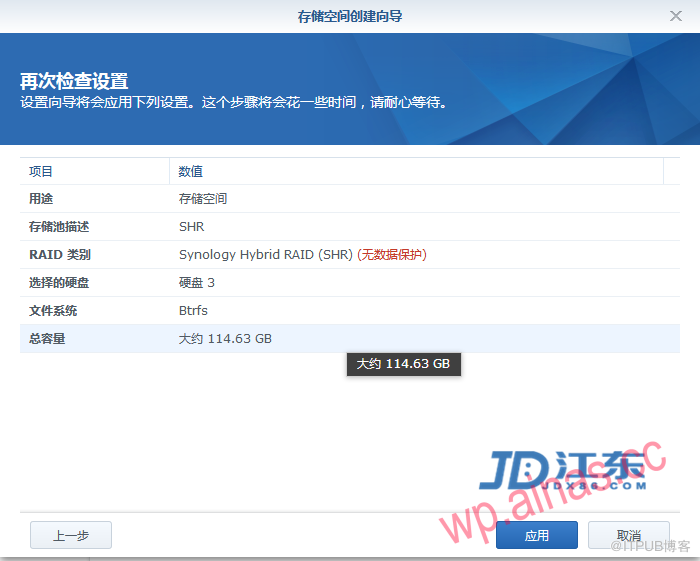
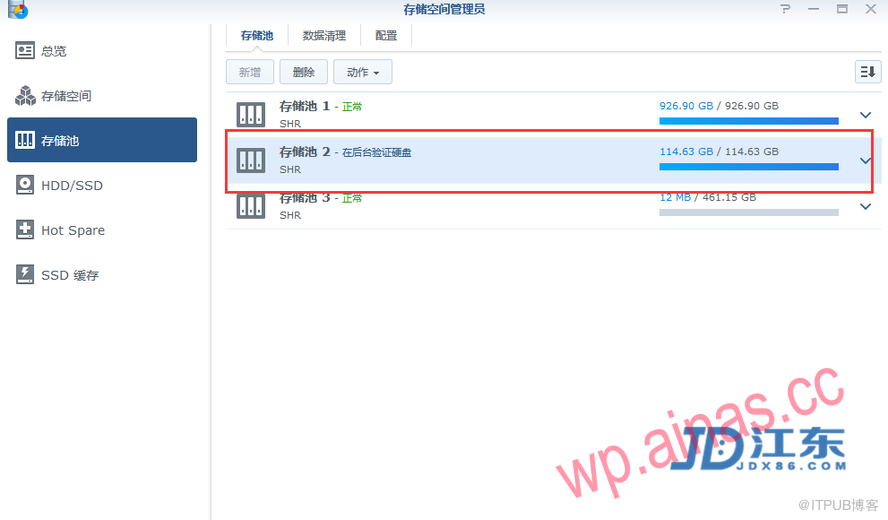
2. Create storage space(1) Open the package, click on the storage space and click “Add”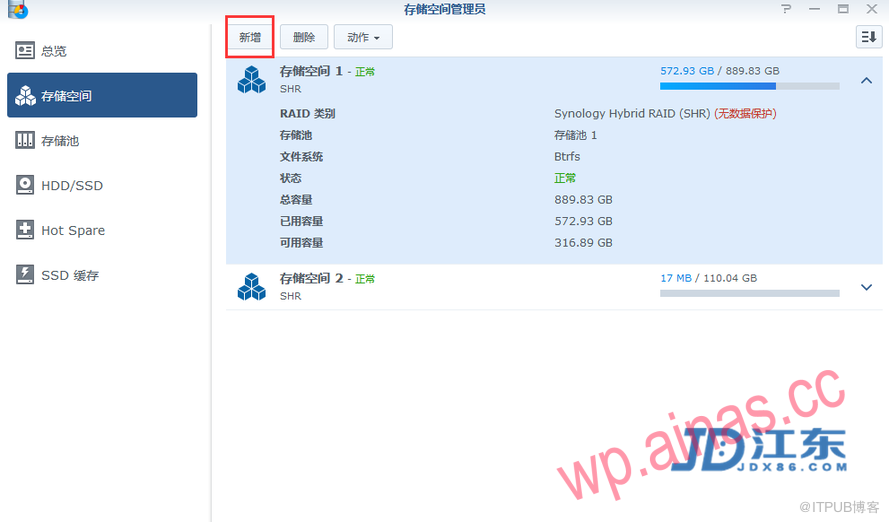 (2) Enter the creation storage space boot interface
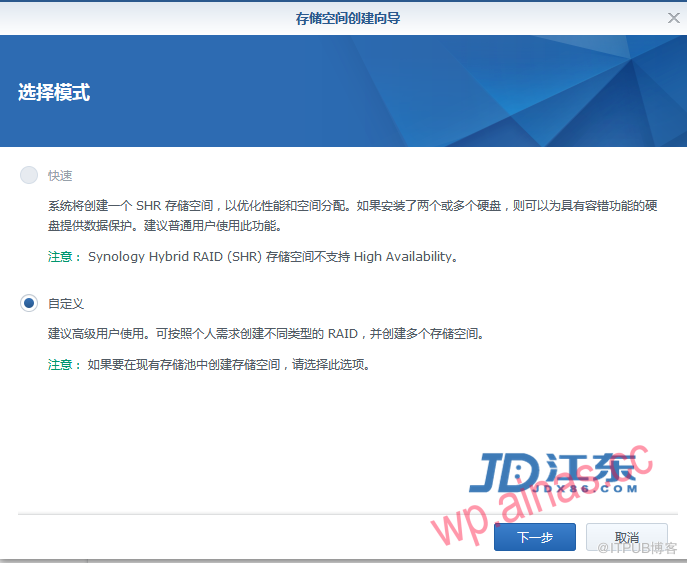 (3) Select storage pool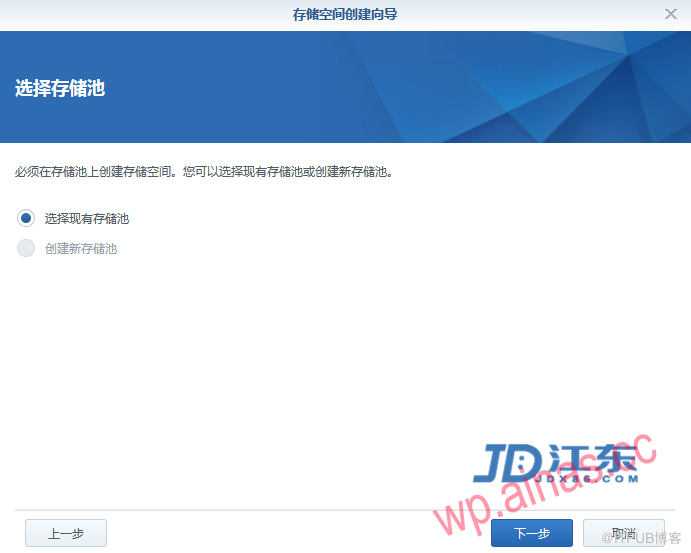
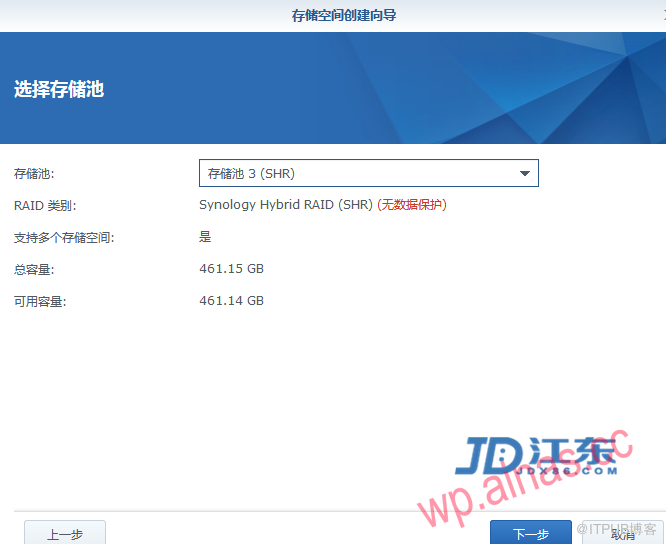 (4)Creation completed