Our Location
304 North Cardinal St.
Dorchester Center, MA 02124

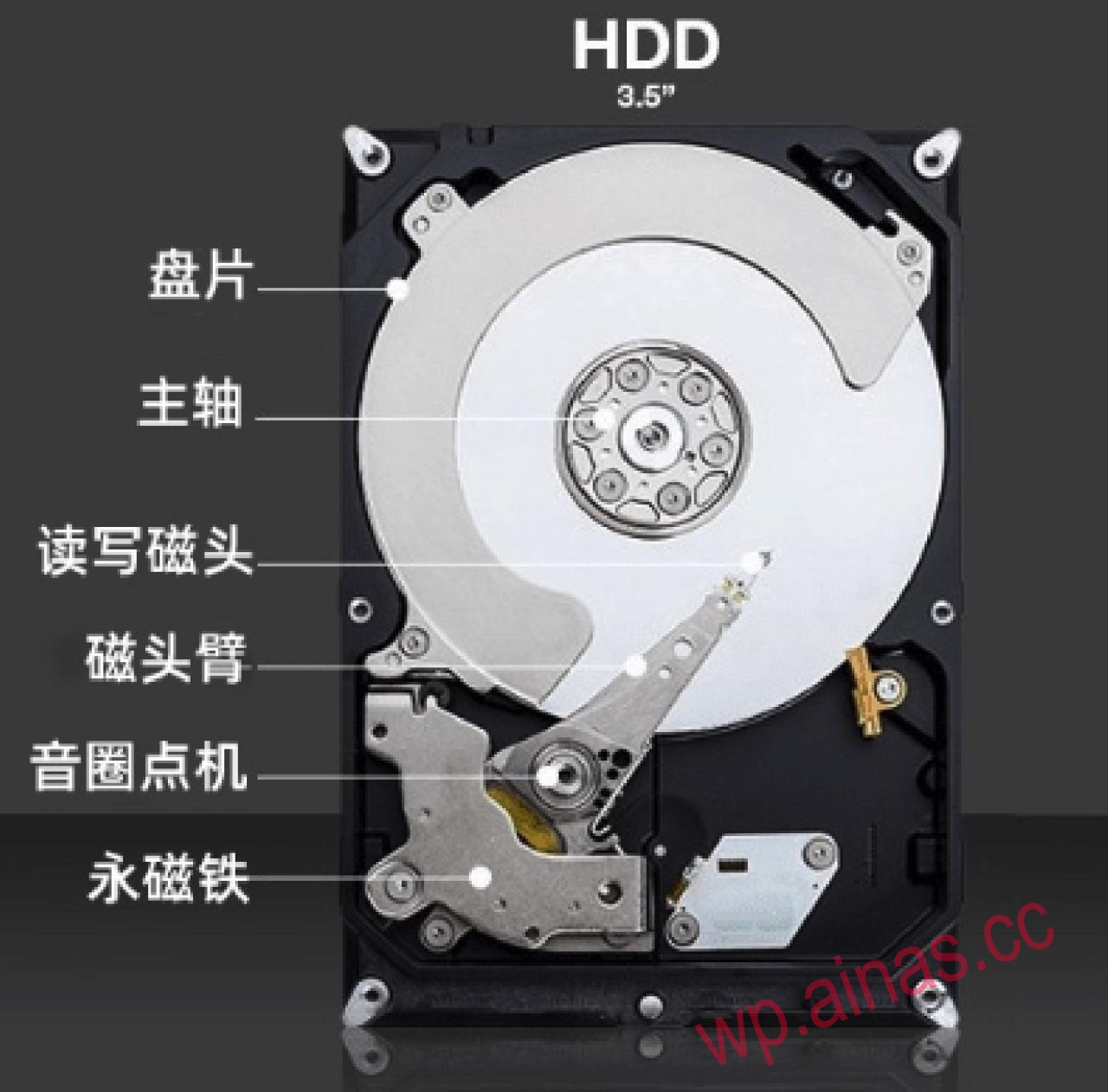
As we all know, when a mechanical hard disk is working, the motor drives the disk to rotate at high speed, and the magnetic head relies on the aerodynamic effect caused by the high-speed rotation of the disk to float on the disk.
When not sleeping, even if there is no data reading or writing, the disk will always be rotating in order to maintain a faster response and the suspension of the magnetic head. Moreover, if the disk does not support the speed-down mode, the disk will rotate at a fixed speed. The power at this time is about 8-10w.
When shutting down or sleeping, the magnetic head returns to the parking area and the motor stops rotating, so the consumption is very small, and the power is about 1W.
So, it can be seen that the biggest benefit of hibernating a mechanical hard disk is to save power. If you have 5 hard drives on your NAS, it means that the average power consumption can be reduced by 35w, which can save about one kilowatt hour of electricity a day.
Of course, some friends will say that at this time, the motor stops running and the magnetic head returns to its original position, which reduces the loss of the motor/magnetic head and increases the life of the hard drive. In fact, this increase is really not big, at least for us, we don’t need to worry about it at all. On the contrary, it is the start and stop of the magnetic head, which may increase the chance of damage to the magnetic head. This is why frequent sleep starts are worse than no sleep.
In fact, what affects the life of the disk is more temperature, vibration, magnetic field, etc. Besides, the disk is consumed when you buy it, so we don’t have to worry too much about its lifespan. When you buy it, buy one with a 3-year or 5-year warranty. Just back up your data as often as possible.
I searched on the platform and found that there are not many articles about NAS hard disk hibernation, and I didn’t see Synology’s hibernation video. This illustrates a problem: hard disk hibernation may not be so important.
Why is this? Because in many cases, our mechanical hard drives cannot sleep. When toying with NAS, we will run some audio and video scraping software on the NAS, such as Docker or PT protection. These software always have some scheduled tasks, network connections, log writing, etc. In short, they are constantly reading and writing to the hard disk, and the hard disk basically has no rest time.
So, if you are also a user of this kind of tossing, congratulations, just read this article.
Of course, if you don’t bother and install NAS just to store data, you can usually use some of Synology’s own image management software, VideoStation, and you don’t need to save it. It can be deleted immediately after downloading. The requirements are relatively simple, so you can consider setting the hard drive to hibernate.
1. Turn off DHCP
DHCP is the Dynamic Host Configuration Protocol. To simply understand, it dynamically allocates IPs to devices plugged into the router. This assigned IP has a lease time. After the time is up, the client needs to renew the lease, and the machine is awakened at this time.
In fact, for some of the fixed equipment in our homes, we can just set a fixed IP, without the need for DHCP at all.
So, here we turn off DHCP and give him a fixed IP.
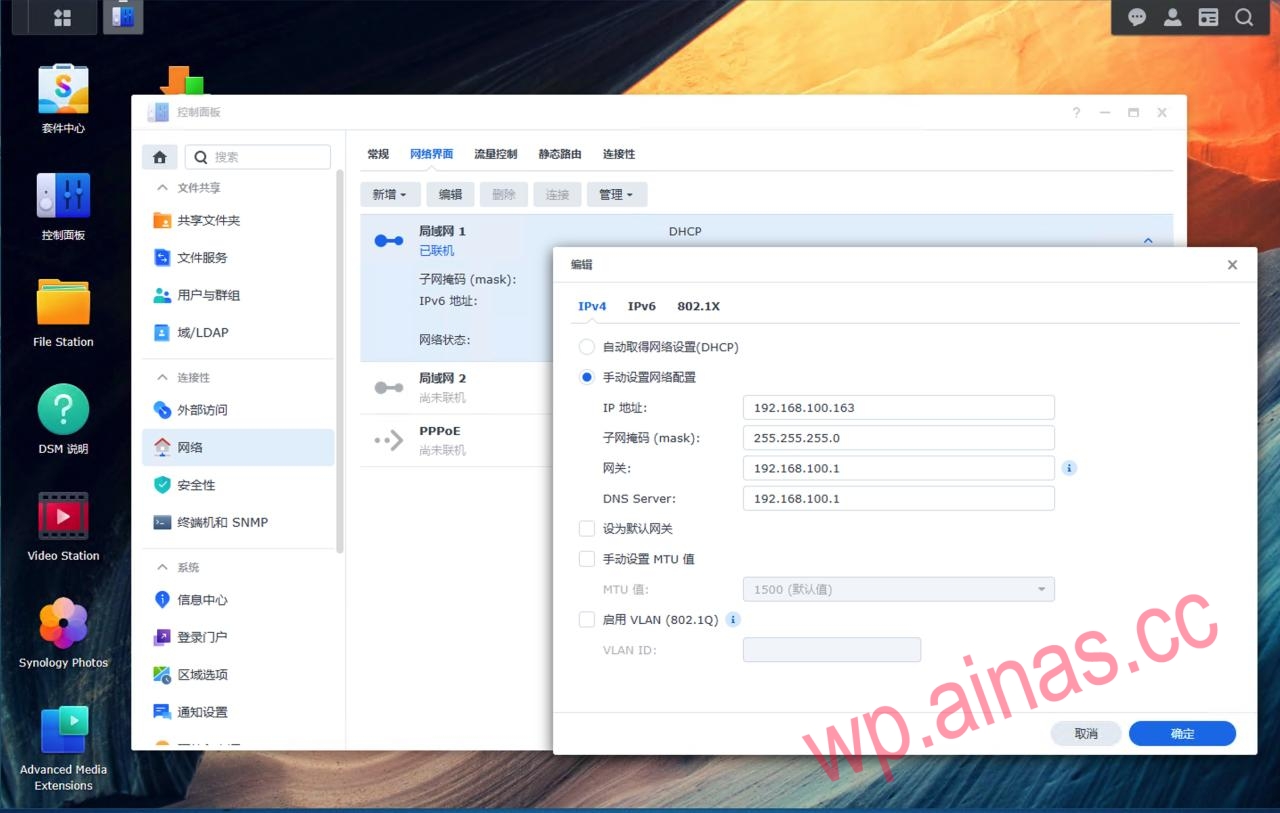
Open “Control Panel > Network > Network Interface”, select “Network Interface”, select the LAN connection below, and click “Edit”.
Click on “IPv4” and select the “Manually set network configuration”. For the IP here, you can directly use the IP currently assigned by DHCP, or you can set one yourself, as long as it does not conflict with other devices in the LAN.
If you are like me and have more than one, modify them all.
Then confirm to save.
2. Write the log into memory
There is a second factor that affects Synology’s hibernation, which is the log. Especially for Black Group, if there are some hardware incompatibilities, the system will intermittently or continuously output error logs, and these logs are written to the disk, which will cause the disk to be unable to sleep.
Here I can output all the log files to the memory and mount the log directory directly to the temporary directory (the temporary directory is mounted in the memory by default).
But there is another problem. If we shut down the computer, won’t the logs in the memory disappear? So here we add two more trigger tasks. When booting, the logs are mounted to the zero-hour directory. When shutting down, copy the log to the hard disk backup folder.
Open “Control Panel > Scheduled Tasks” and click “New > Triggered Tasks > User-defined Script”.
“General” here, write the task name. Note that this account needs to be root, otherwise it will not have permission to operate the subsequent scripts.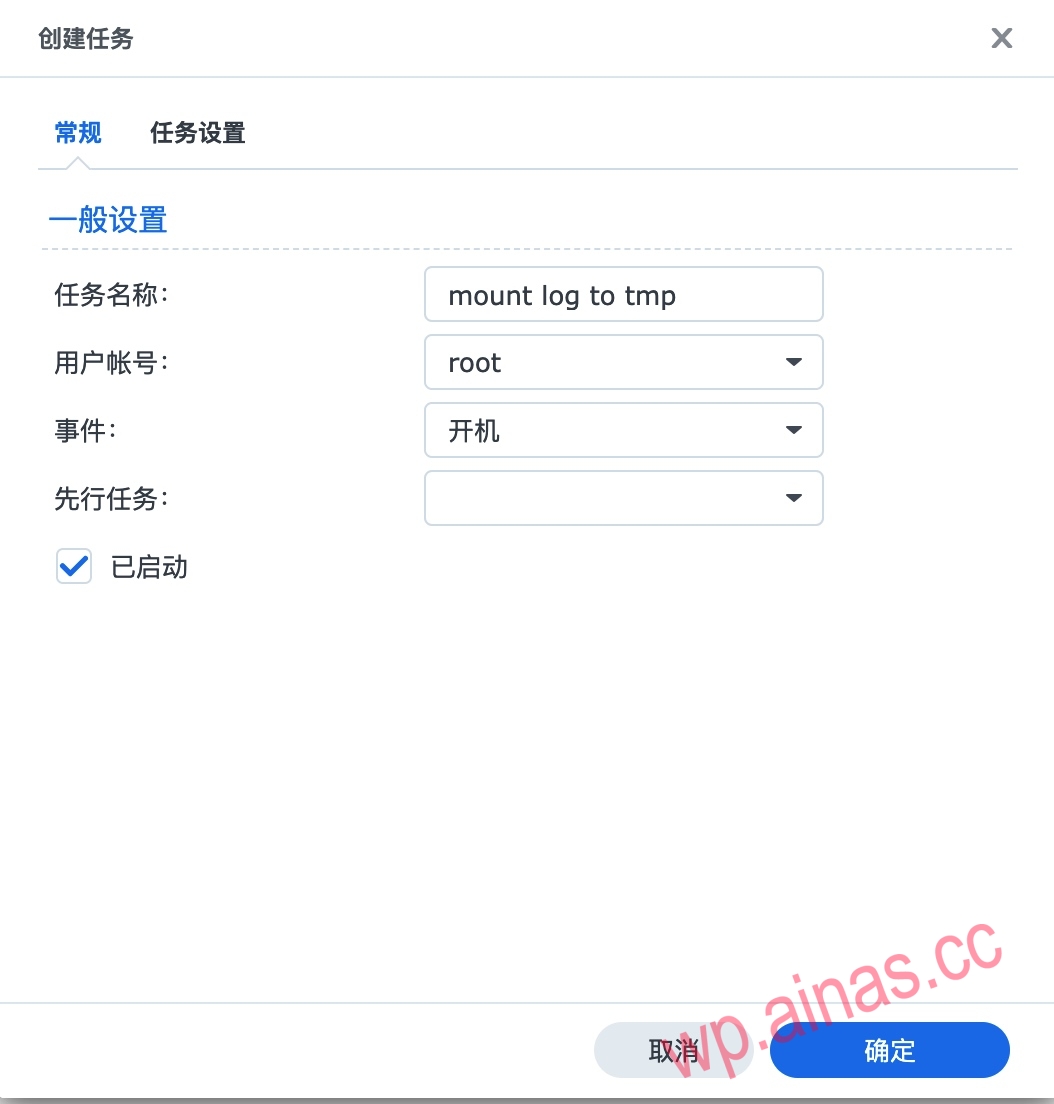
Here in “Task Settings”, paste the following run command.
if [ ! -d "/var/logbak" ]; then
     mkdir /var/logbak
     cp -a -f /var/log/. /var/logbak/
fi
cp -a -f /var/logbak/. /tmp/log/
mount -B /tmp/log /var/log
In the notification settings, if you have configured SMTP, you can check it like me and fill in your email address, so that an email will be sent to you every time the command is successfully started and executed.
Confirm to save.

Similarly, click “New > Triggered Tasks > User-defined Script” again. This time for “Event” we choose to shut down, and the account still needs to be root.
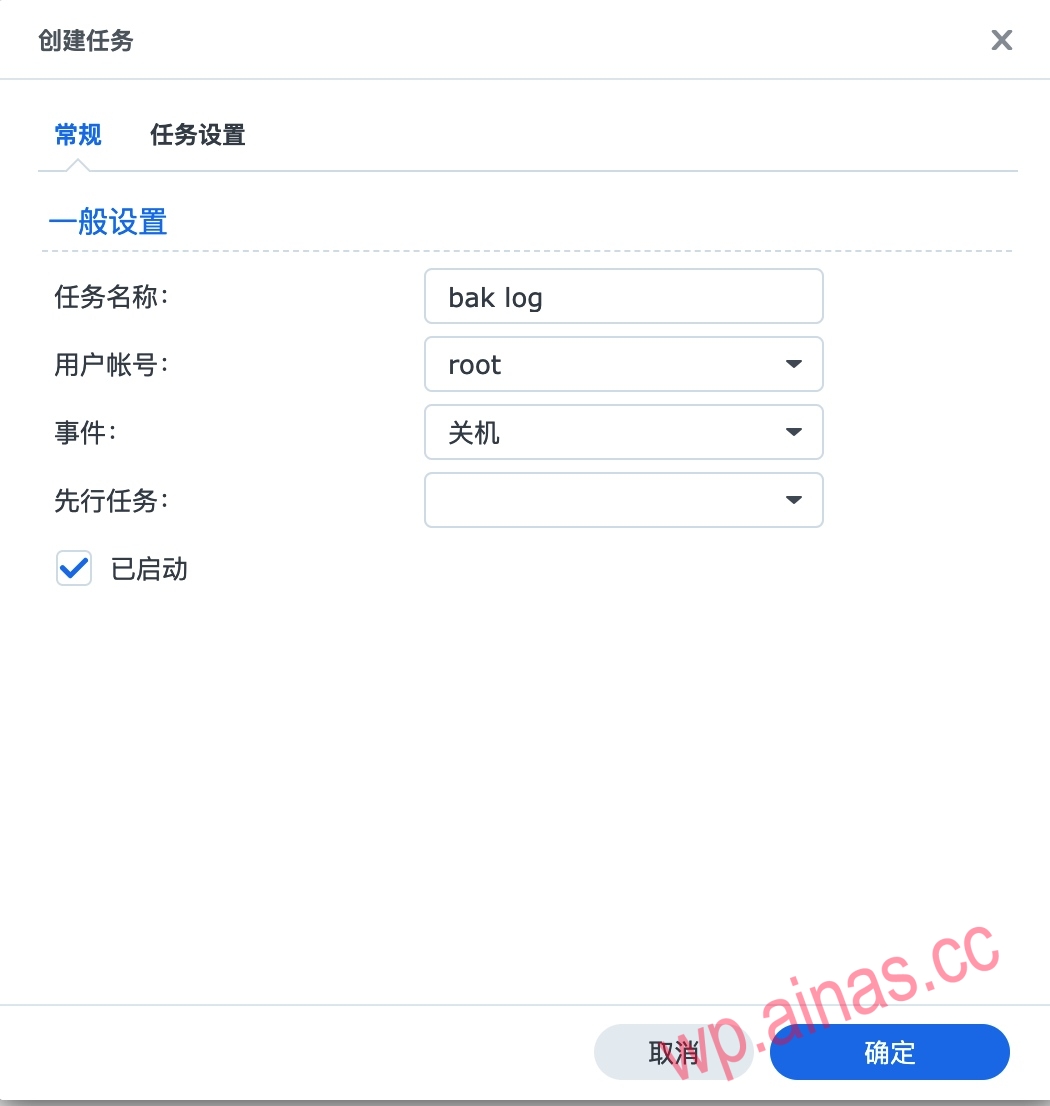
“Task Settings” is the same here, paste the following script into it.
cp -a -f /tmp/log/. /var/logbak
Confirm to save.
3. Enable hard disk hibernation
In “Hardware and Power > Hard Disk Hibernation”, enable this hibernation.
The time here can be set to 20 minutes or even half an hour to prevent us from operating it ourselves and waking up frequently.
Then apply save.
If you want to better observe hibernation, you can check “Enable hard disk hibernation log”.

At this point our hibernation settings are complete. You can close the page, disconnect the link, and wait for a while to see if your Synology can sleep normally.
You can search through the log centerwoke upto identify whether it sleeps normally.woke upThe hard disk will output such a log every time it is awakened. If frequentwoke upThere is still a problem. If not at allwoke upIt means there is no hibernation. If, like in my picture, it wakes up several times a day when we are using it, it means that sleep is basically normal.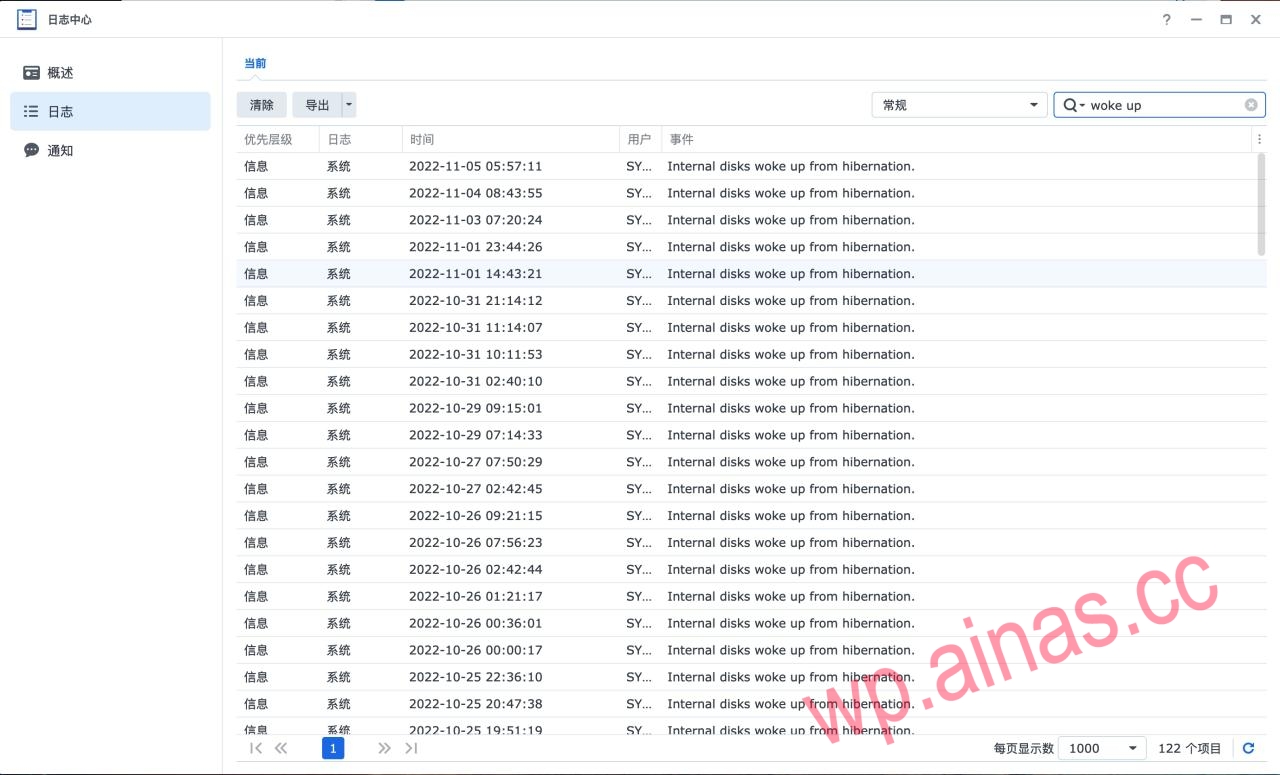
Of course, some friends found that even after completing the above three steps, they still cannot sleep. What to do? At this time, we need to analyze ourselves what services are reading and writing from the hard disk.
In the following section, we will take a look at the analysis process of the hard disk not sleeping.
1. Enable hibernation log
In “Hardware and Power > Hard Disk Hibernation”, enable the hard disk hibernation log.
Then apply save.

In “Technical Support Center > Technical Support Service”, under the system log tool, enable the system sleep debugging mode.
“Encountered a problem” here select “Cannot sleep” and apply.

Then close all the web pages, SMB services and other clients and wait for a day.
2. Analyze logs
First, enable SSH in “Control Panel > Terminal and SNMP” and apply it.

Then we copy the hard disk hibernation log. The log file is at/var/logdirectory. If you are familiar with the scp command, you can copy directly through the command.
I will use it hereWinSCPSoftware for presentation.
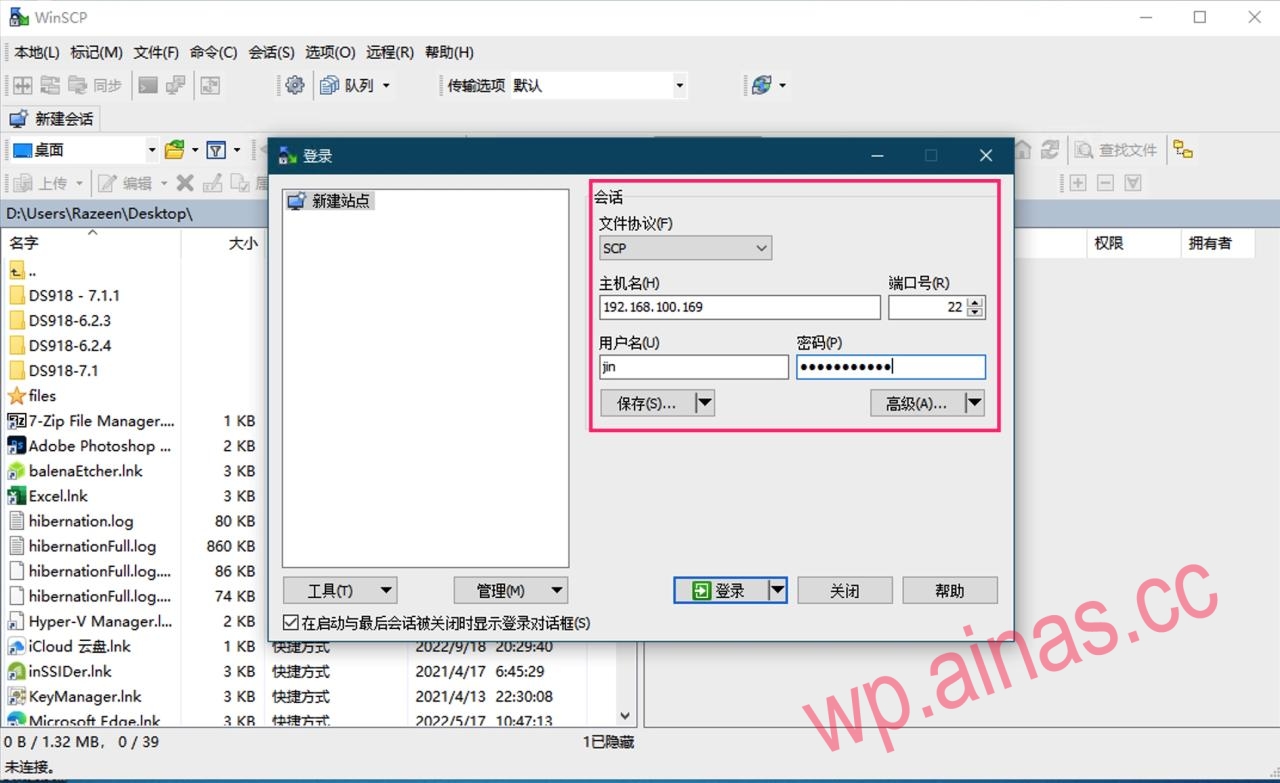
OpenWinSCPSoftware, select “SCP” for the file protocol, fill in the IP address of Synology as the host name, and the username and password are the login password of Synology. After filling in, click log in.
We click on the folder icon and choose to open the directory.
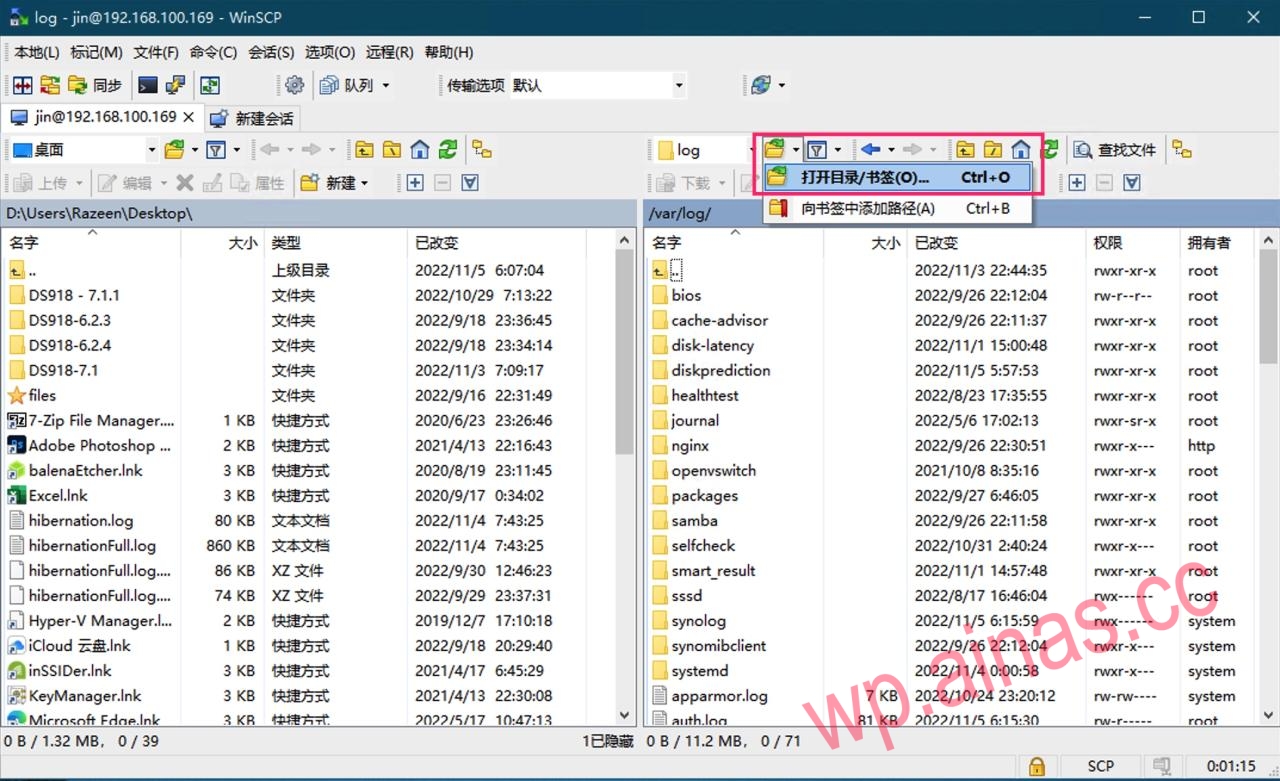
input/var/logJump directly to the directory.
Drag down to find these files and drag them to the folder on the left.
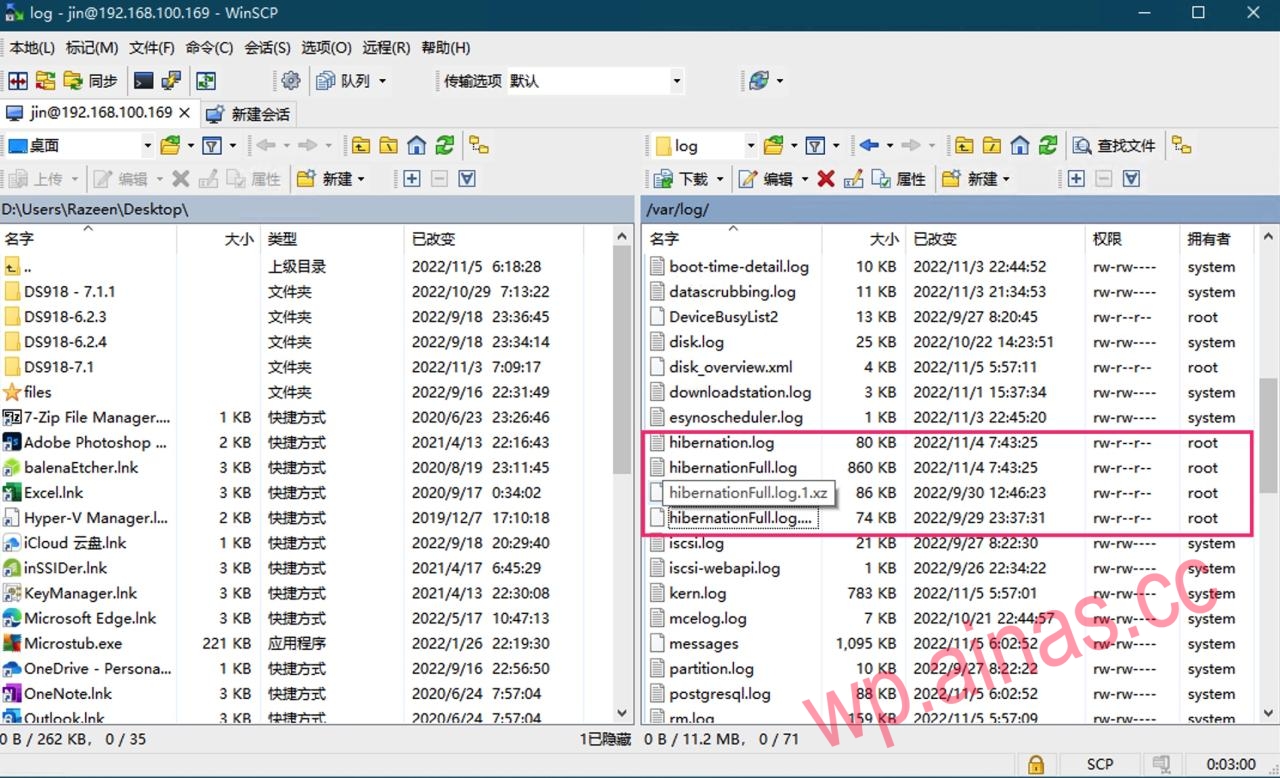
Then find these files in the folder on the left. Open with text editorhibernationFull.logdocument.
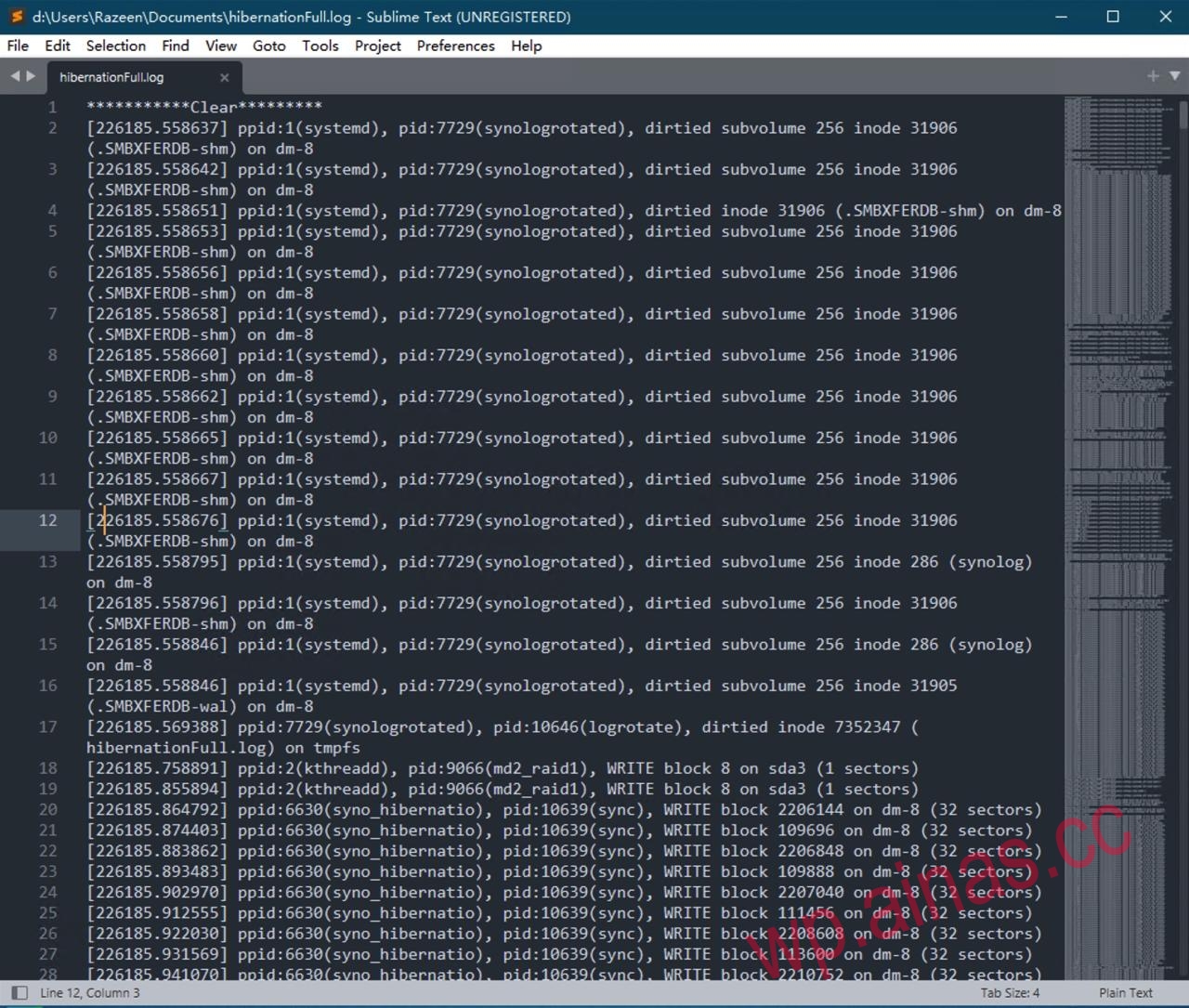
When you open the file, you can see that there are more than 8,000 lines. What do you think? We use the process of elimination.
Let’s first exclude lines like the following. The sync program is the kernel that writes dirty data to disk, and this dirty data is usually the result of user-mode operations and is not automatically triggered.
1
|
|
There are alsokthreaddThis kind of kernel scheduling, such as:
1
|
|
Then exclude those that are not written to the hard disk. Such as the following withon tmpfs,on proc and on cgroup of.
1 2 |
|
Then we can analyze the rest. Such as my file here (I deleted it to show similar lines):
1 2 3 4 5 6 7 8 9 10 11 12 13 14 15 |
|
Let’s analyze this.
logrotate/sylogrotated: The system records the log or log rotation. Generally, normal sleep should not work, so don’t worry about it.syslog-ng: Nginx WEB page/reverse proxy service. I may have accessed this in the middle, so don’t worry about it.interfaceUpAdju: The interface has changed. This should be because when I moved the router, I moved the network cable and re-plugged and unplugged the network. It usually doesn’t happen, so don’t worry about it.EmbyServer: Audio and video service, I feel like the culprit has been found, it should beEmbyServerIt has some scheduled tasks, we can consider setting them up or uninstalling them directly==I’ll put it here directlyEmbyServerUninstalled ==. Of course, you can also check if the service has a setting switch for scheduled tasks and set it manually, such as what I have hereEmbyServer, these times can be extended.
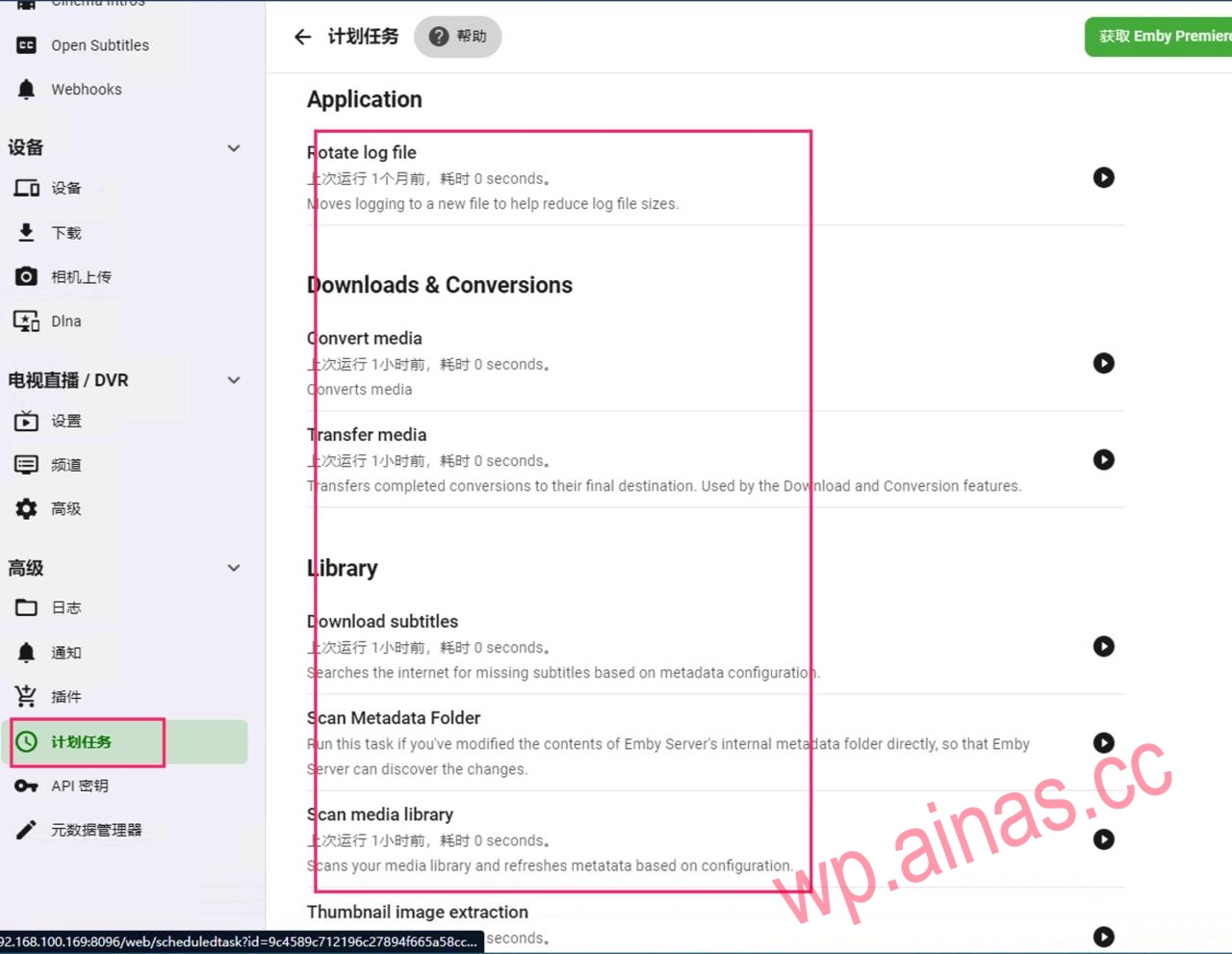
After transferring all the logs to memory, uninstalledEmbyServerAfter that, my hard drive can hibernate normally. Basically, if you don’t visit, you won’t wake up.
If yours doesn’t work after one round, then observe a few more rounds to find the service that finally wakes up the disk.
If you like to mess with some services, or set up a PT, or start a blog, then just turn off the hard drive hibernation.
