Our Location
304 North Cardinal St.
Dorchester Center, MA 02124

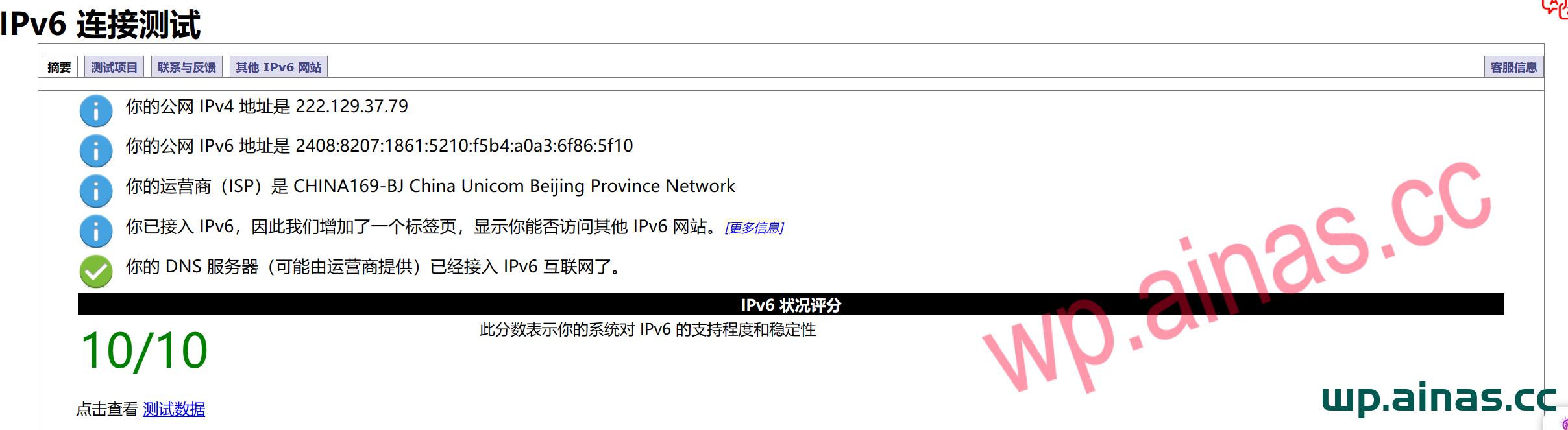
1. Openhttps://www.test-ipv6.com/ orhttps://ipv6-test.com/, check whether the network supports it. If the test passes, the following prompt will appear. 2. If the following prompt appears, you need to check whether the optical modem or router supports IPV6, or whether IPV6 is not enabled. You can also consult the local telecom operator.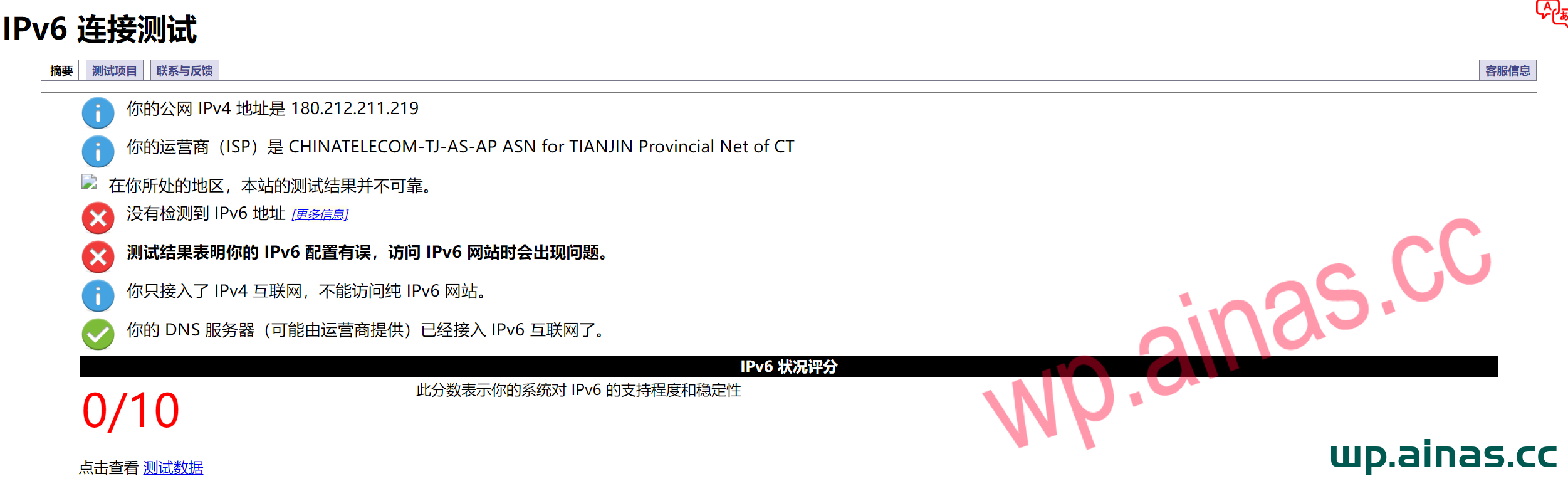
1. Gateway: Set to enable IPv6; turn off the gateway firewall (This is the key point. If you don’t close the external network, you can’t access the internal port.)
2. Router: Set to enable IPv6; turn off the gateway firewall (This is also the key point. You cannot access internal ports without turning off the external network.)
Note: To log in to the gateway, you need the super administrator account password. If you don’t know, don’t mess with Baidu. Call the operator directly to save time.
Some routers have the firewall turned on by default, but the management settings interface does not have the option to turn off the firewall. Select the relay mode for the Internet access model to bypass the router firewall (ask Xiaomi customer service). For different models of routers, please choose whether to use the relay mode according to the actual situation.
1. Log in to the gateway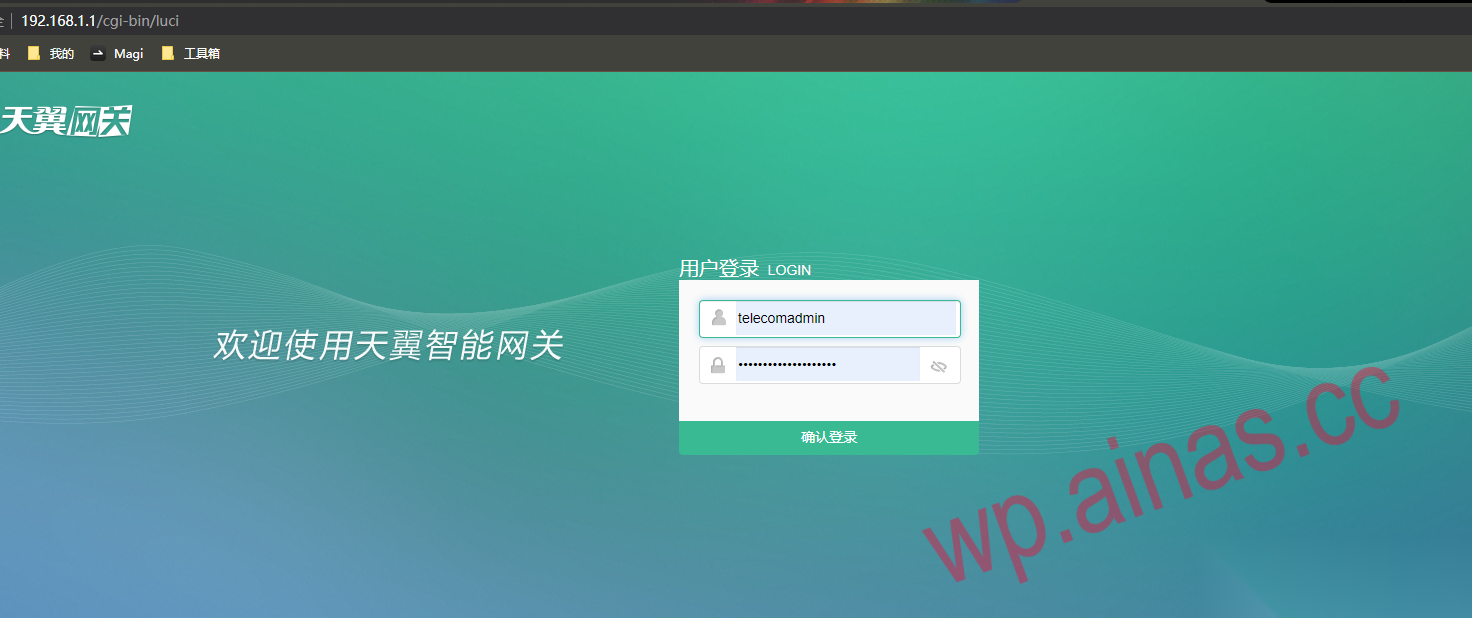 2. Turn off the gateway firewall (the key point here is that the connection is not closed and the IPv6 ports of the home network cannot be accessed)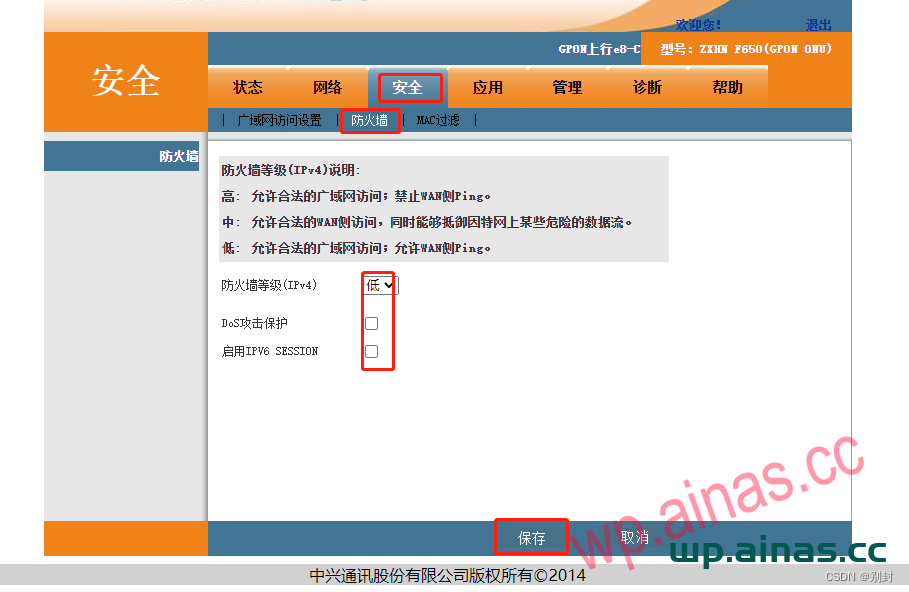
**Some routers do not have the option to turn off the routing firewall. Please use relay mode to access the Internet.1. Log in to the router and turn on IPv6. Taking the Xiaomi router as an example, open Internet Settings – Turn on IPV6 in Working Mode and turn off the firewall.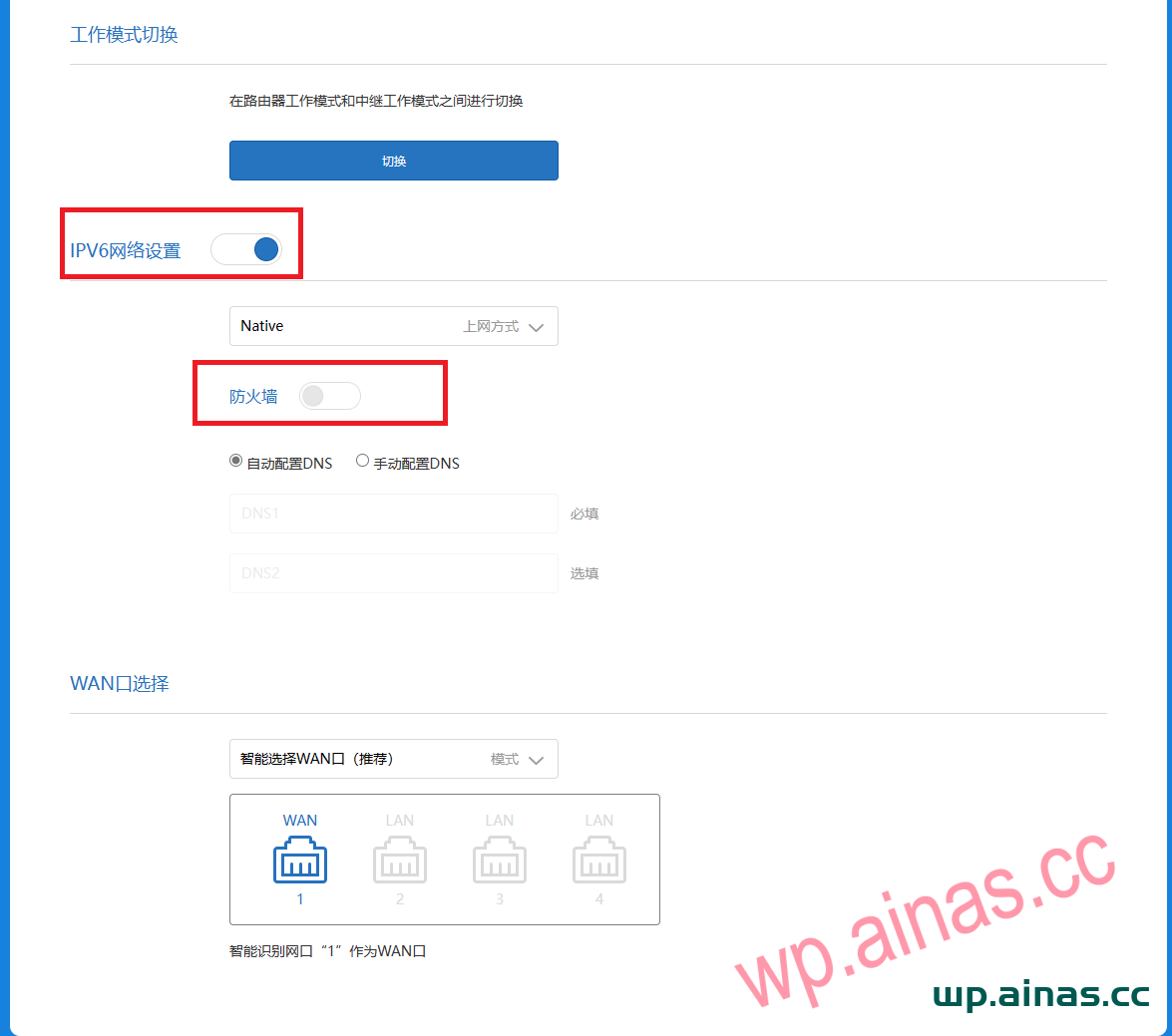 2. If the firewall setting cannot be found, it is turned on by default and you are not allowed to turn it off, so you can use the relay mode to access the Internet and directly forward the gateway signal.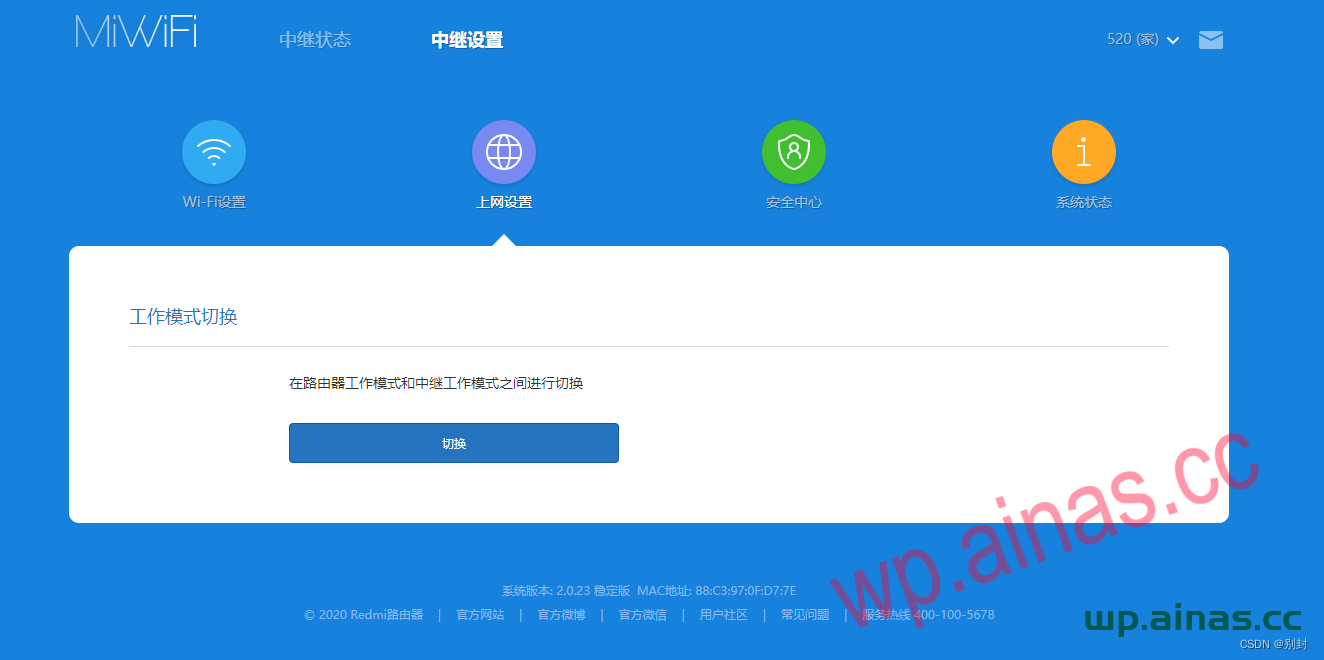
1. Check the Synology IPv6 address: “Control Panel” – “Network” – “Network Interface” – select “LAN 1 (online)”, click “Edit” – “IPv6” – confirm whether it is obtained “automatically”.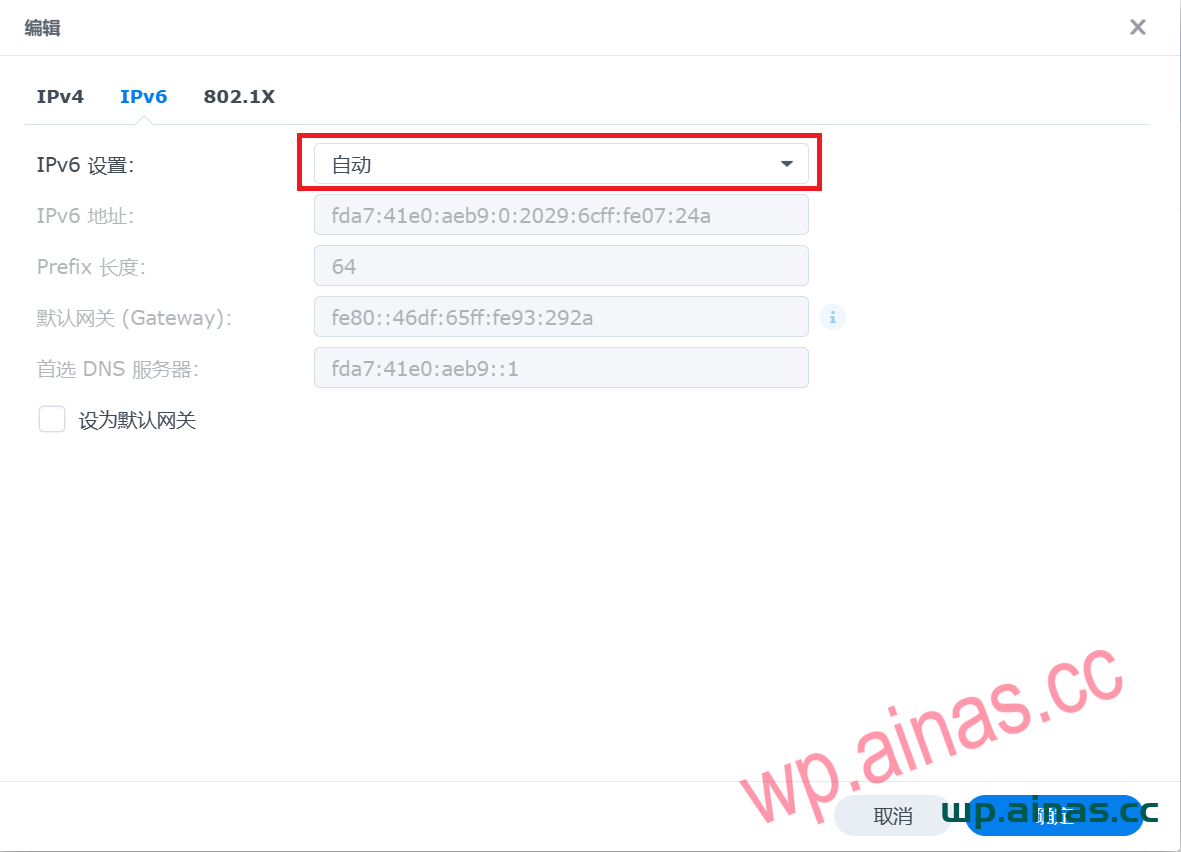
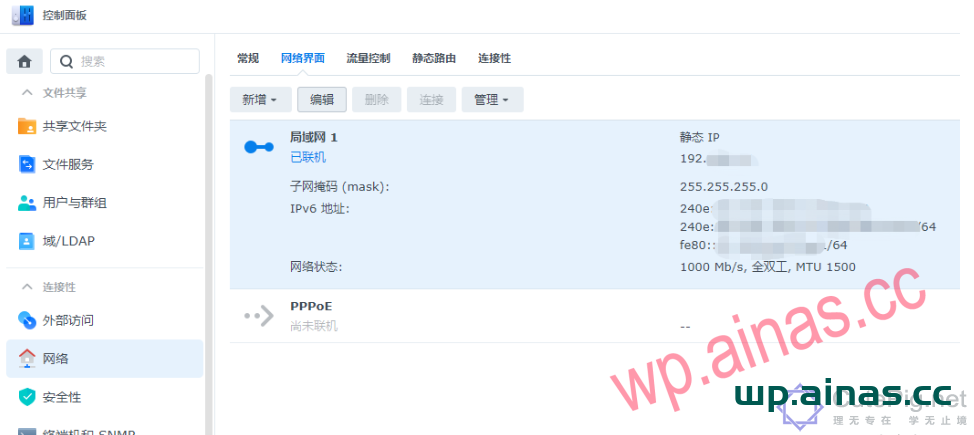 2. Test connectivity: Open the cmd window and ping Synology’s IPv6 address. For example, the address format viewed on the Synology interface is: 240e:aaa:eee:1111::1000/128. When pinging, remove “/128” and ping directly: 240e:aaa:eee:1111::1000
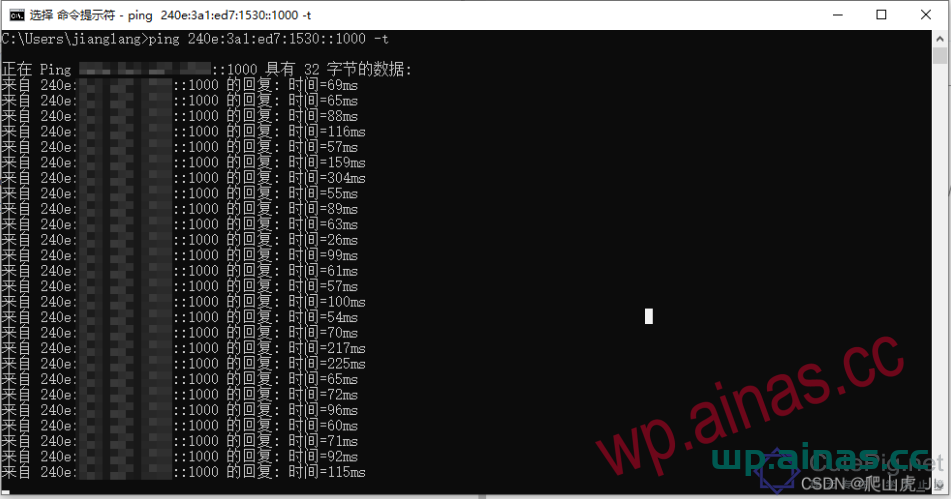 3. At this point, the IPV6 settings have been basically completed. The IPv6 address is too long and changes dynamically, making it inconvenient to remember. You need to bind the dynamic address to a fixed domain name for easy operation.
1.“Control Panel” – “External Access” – “DDNS” – click “Add”, select synology as the service provider, and enter a second-level domain name at will.
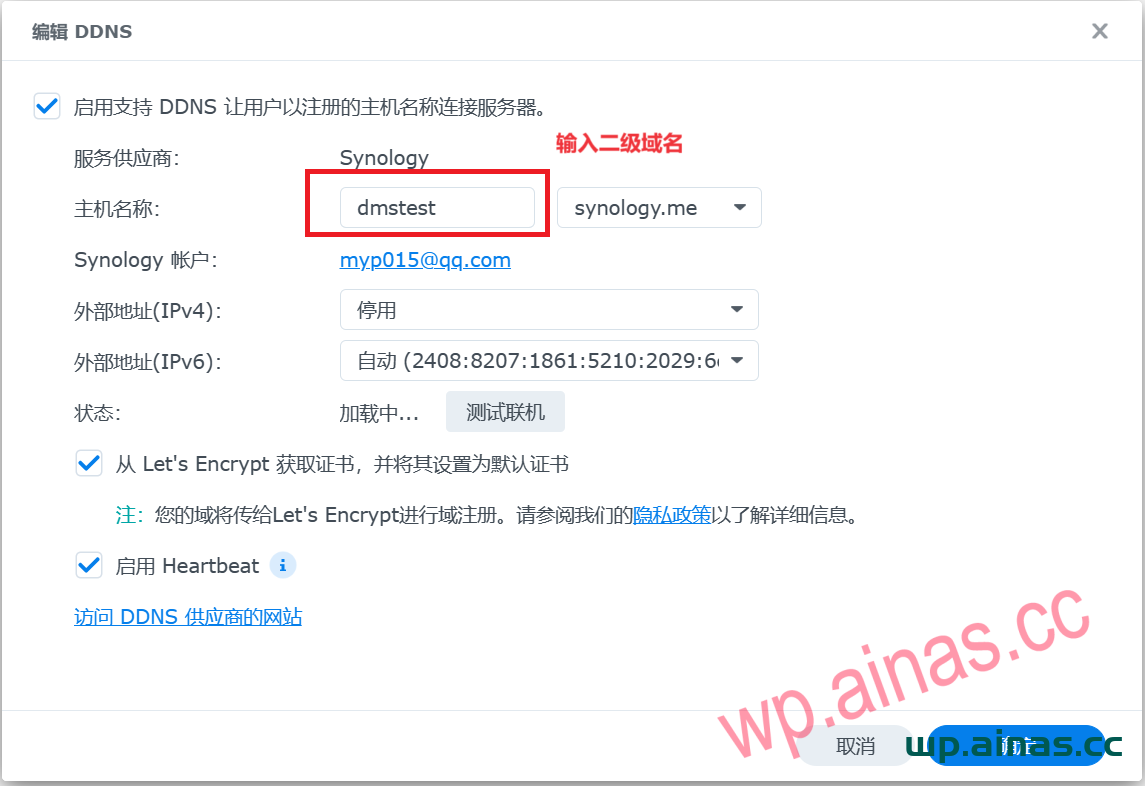 2. Select OK and wait for 1-2 minutes before accessing using the domain name. The address is http://your second-level domain name.synology.me:5000, for example, mine is http://dmstest.synology.me:5000
