Our Location
304 North Cardinal St.
Dorchester Center, MA 02124

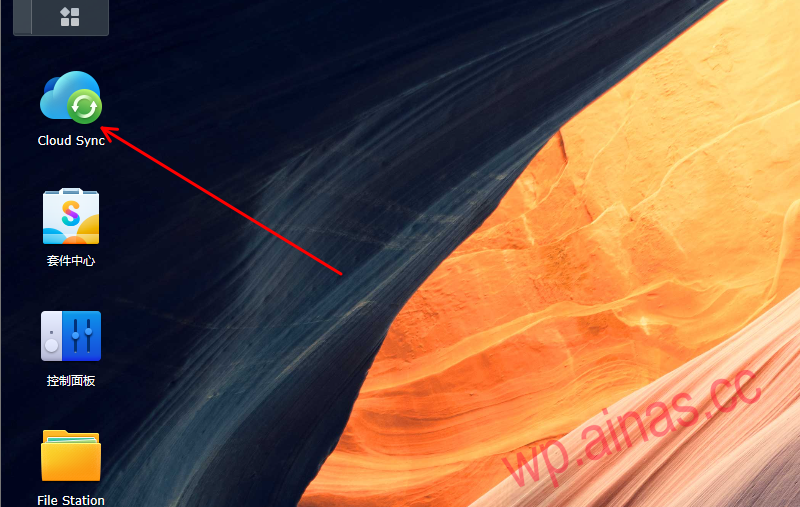
1. To set up cloud synchronization on Synology NAS, you must first install a program cloud sync, open the DSM package center, search for and install cloud sync.
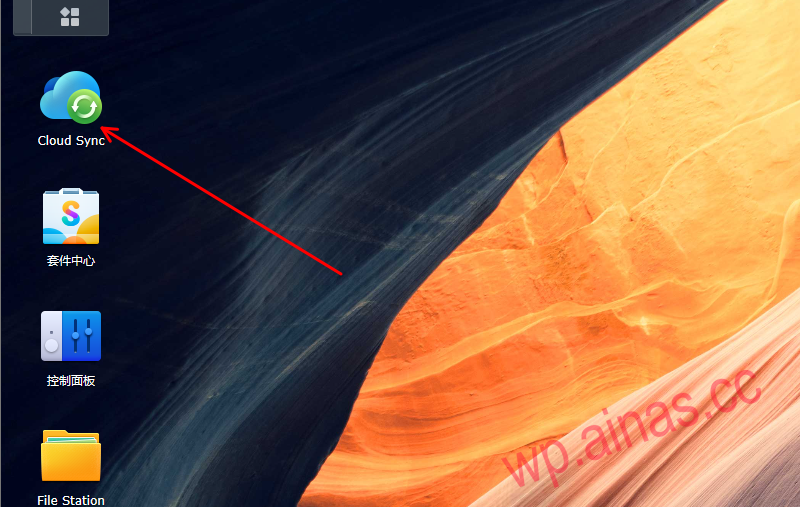
2. Open cloud sync and you will be asked about the network disk to be synchronized. Here we select Baidu Cloud and click Next.
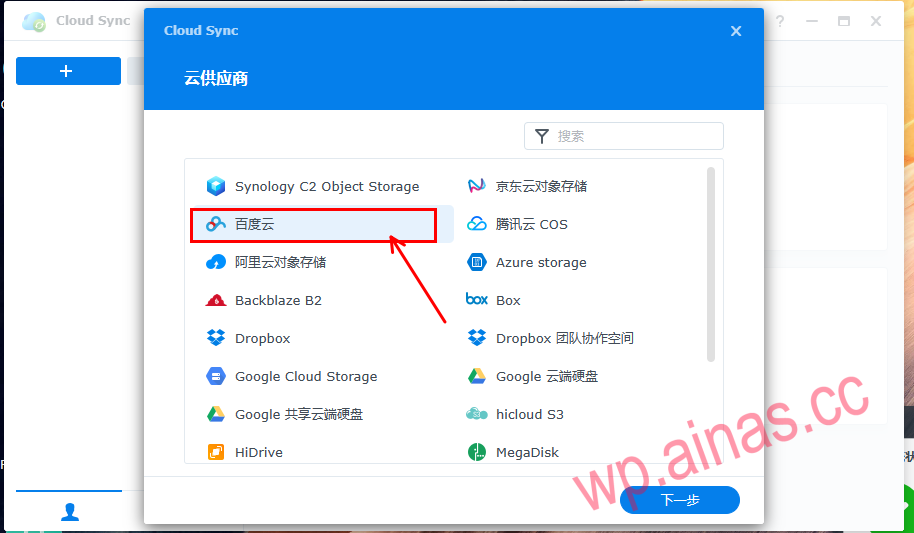
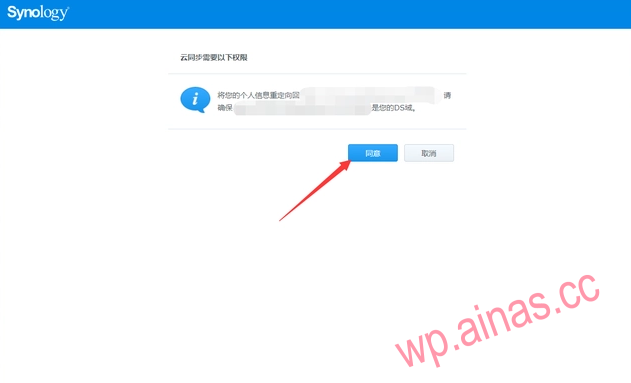
3. Enter the username and password of Baidu Cloud Disk in the redirected web page to log in. If the browser has already logged in to Baidu Cloud Disk, you can confirm directly here.
5. Then go back to cloud sync to continue the settings. You need to fill in the local path here. You can use files station to create a directory and fill in the path of this directory here. The remote path generally uses the default settings. The synchronization method is because we want to download from the network disk, so select “Download remote changes only”. Click Next after completing the settings on this page.
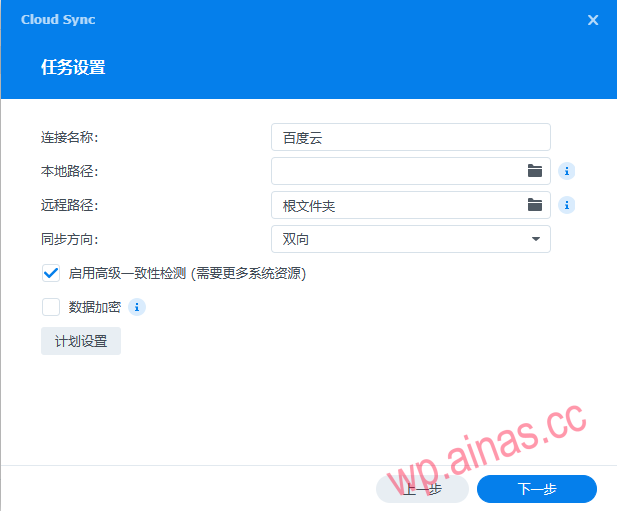
The root directory here is not the root directory of Baidu Cloud Disk, but Baidu Cloud Disk: Application Data – Cloud Sync Directory
6. After setting the directory, click Finish, and the system will automatically start synchronizing with Baidu Cloud.
Here is a brief explanation: to automatically download Baidu Cloud data, just transfer the files that need to be downloaded to the synchronized directory, and they will be automatically downloaded to the NAS.
