Our Location
304 North Cardinal St.
Dorchester Center, MA 02124

【Foreword】As there are fewer and fewer IPv4 public IPs available around the world, broadband operators in many regions have already issued announcements that they will no longer provide public IPv4 to home broadband users, and will only provide IPv6 public IP. However, IPv4 and IPv6 cannot interoperate at this stage, so it will become increasingly difficult for many NAS players to access the resources of their home NAS from outside. Even if there is an IPv4 public IP, directly exposing the NAS port to the public network still poses certain security risks. Some children’s shoes may choose to use intranet penetration solutions for specific protocols and ports such as FRP/NPS. This solution requires the use of a server with a public IP for transit, but is limited by server bandwidth and traffic, so it is not very comfortable to use.
【What is Tailscale】
Tailscale is a virtual networking tool that uses WireGuard protocol encryption to establish point-to-point connections in a decentralized manner. For ordinary users, using Tailscale can solve the two major pain points of no public network IPv4 and network security. We can put the NAS and computers at home, computers in the office, our own mobile phones, family members’ mobile phones, and even cloud servers into a virtual LAN to facilitate access to NAS resources and realize mutual file sharing and backup.【Preparation】Before proceeding, some preparations need to be done:
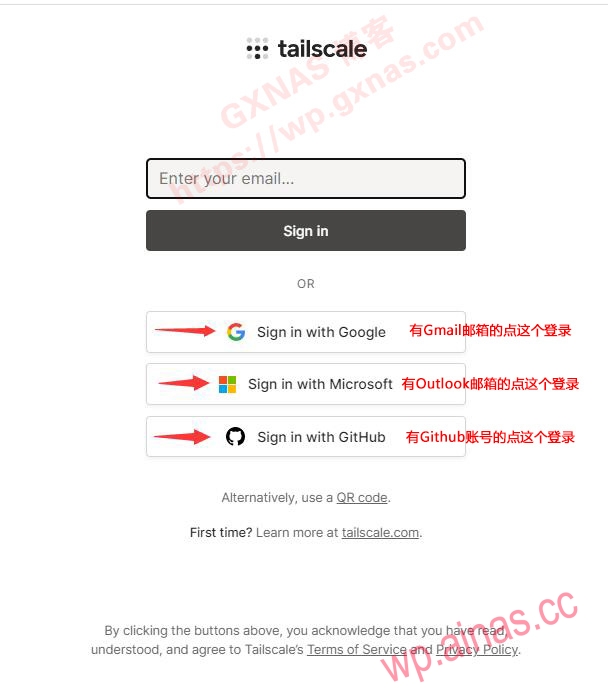
1. You need to prepare an email (only supports: Google Gmail, Microsoft Outlook, Microsoft Hotmail) or a github account. If you don’t have one, it is recommended to register an account first (choose one of the three):
Microsoft’s registered address is:https://outlook.live.com/owa/Apple’s registered address is:https://appleid.apple.com/account2. Download the Tailscale Synology suite (choose to download and install according to your own Synology system version):Synology, windows, android systems: [Download address】
Download this for MacOS Apple computers: [Download address】
Download this for IOS iPhone: [Download address】
Note:Due to Apple’s restrictions, you will not be able to download the APP using a Chinese account in the Apple Store, you need to log in with an Apple Store account in the US (if you don’t have an account in the US, please register yourself).
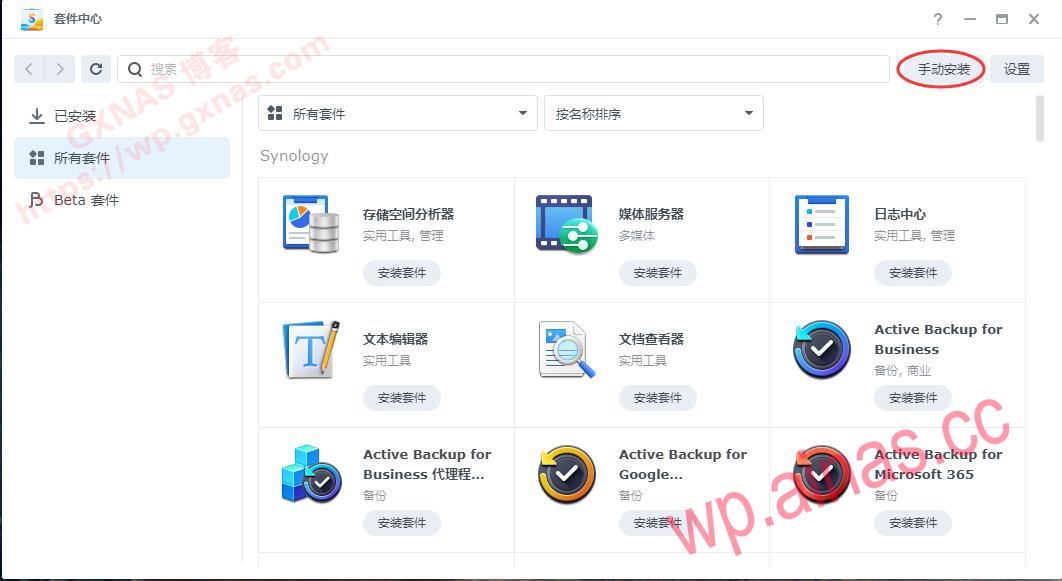
【How to operate】1. Open Synology Package Center and install it manually;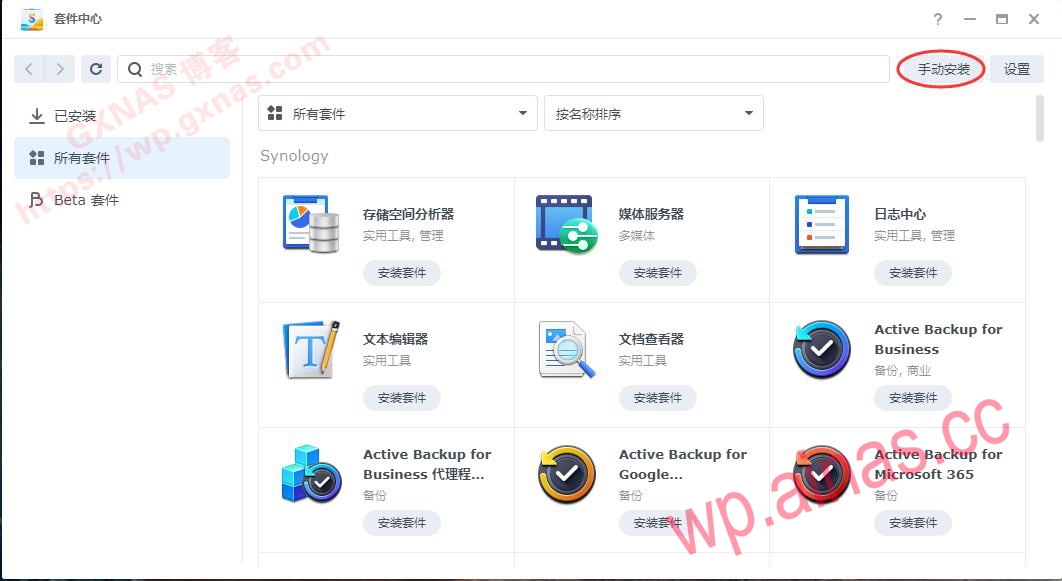
2. Browse;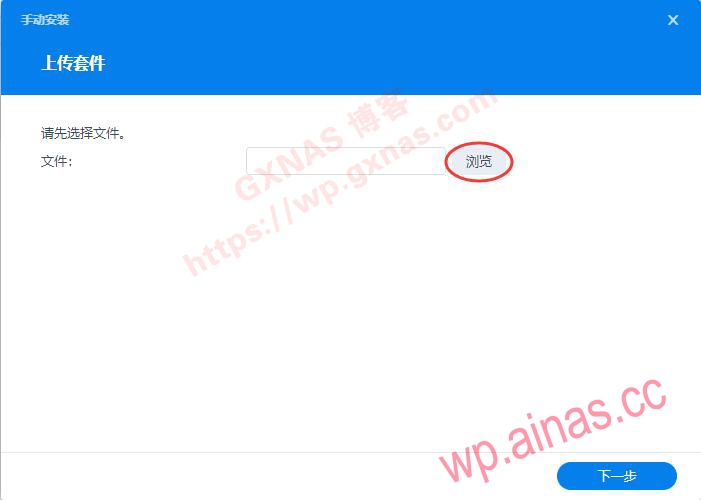
3. Select the package you just downloaded (you need to download it according to the version of the Synology system you are using. The Synology system in my home is 7.1.1-42962up3, so the package I downloaded is the DSM7 package) and open it;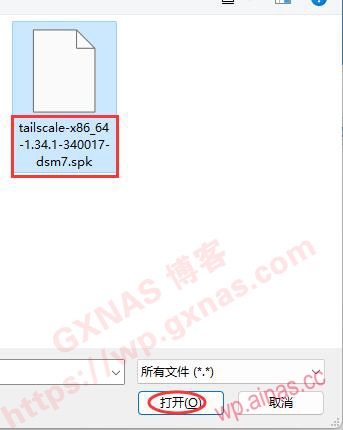
4. Next step;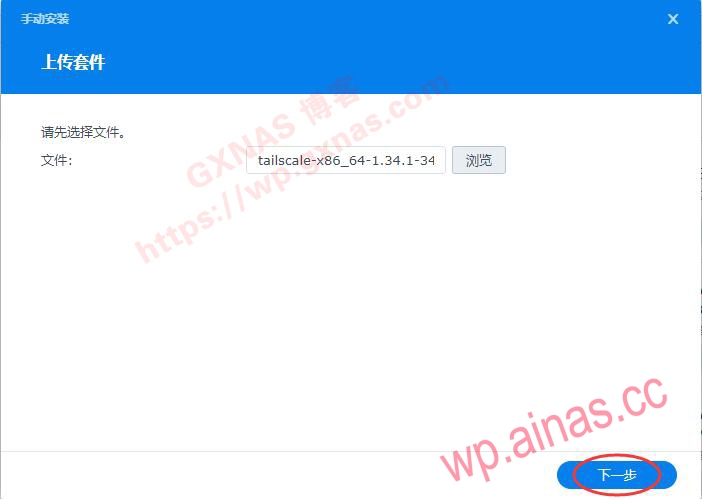
5. Agree;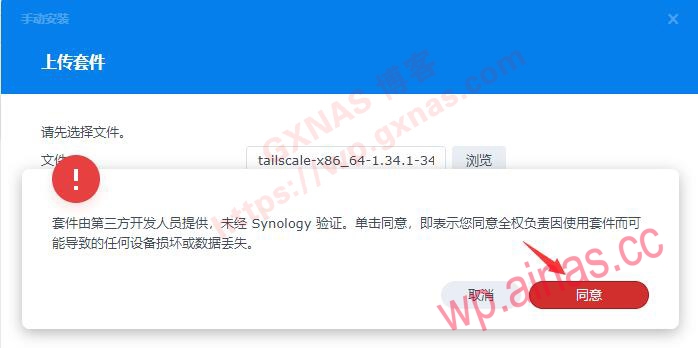 6. Tick “Start immediately after installation is completed” and complete;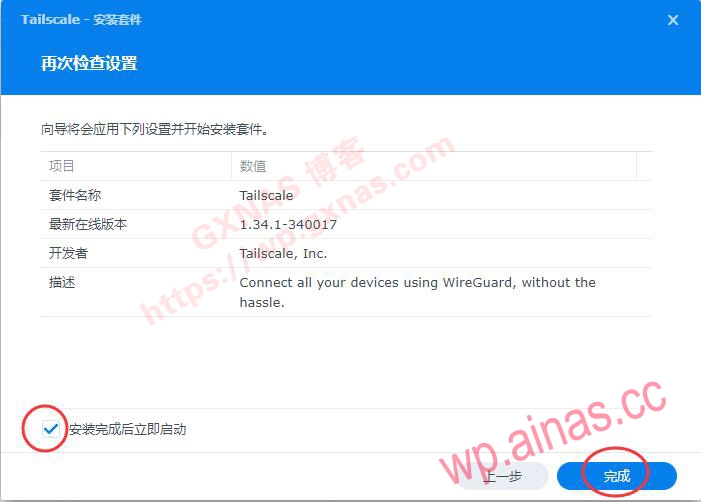
7. Package Center, already installed, find the Tailscale package you just installed and click “Open”;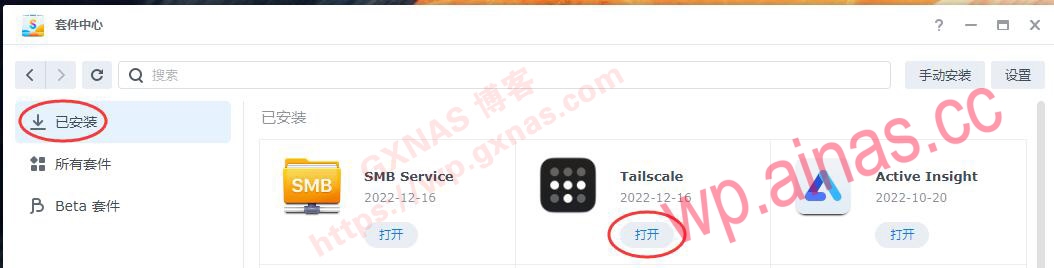
8. Click “Log In” on the pop-up web page;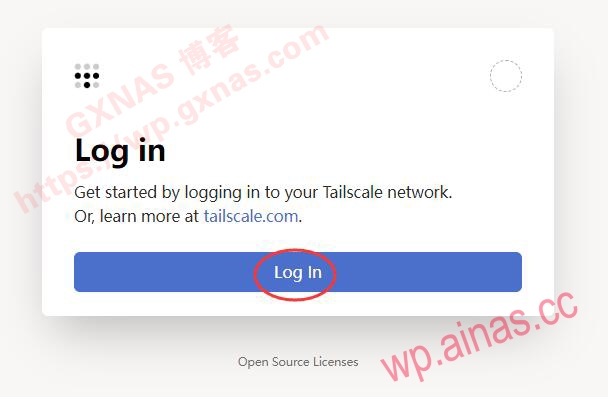 9. Three login methods, choose any one;
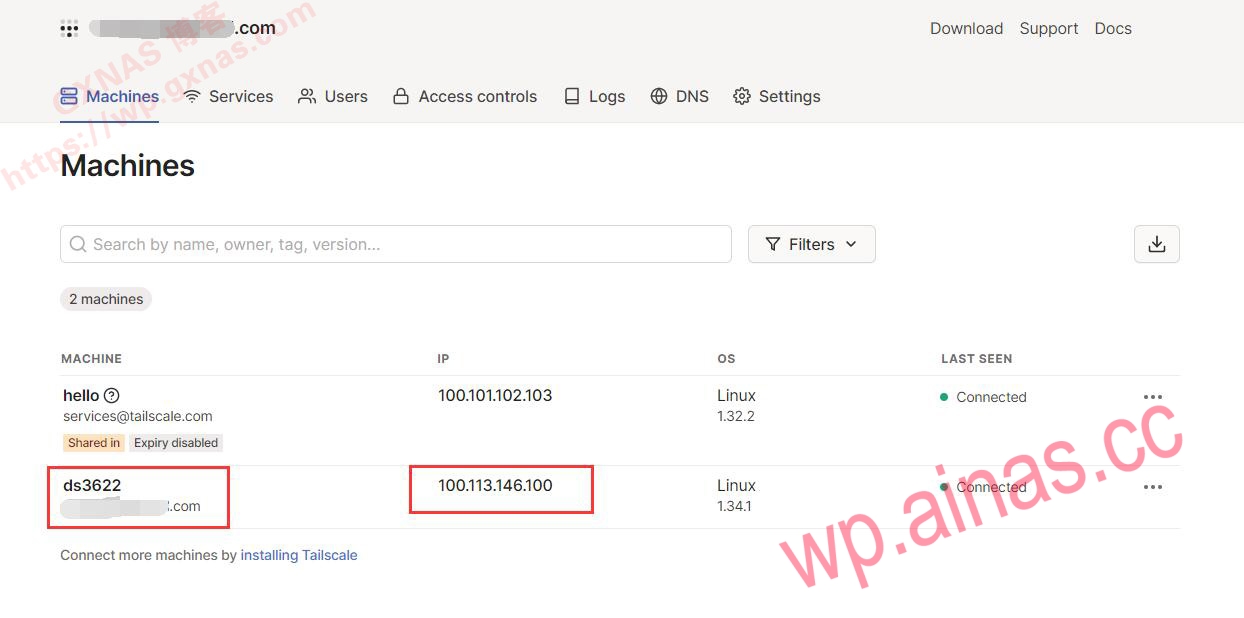
 10. Log in to the main interface and you will see the name of the Synology NAS displayed on it, and obtain the IP address of a virtual network (the IP address obtained by my Synology is 100.113.146.100);
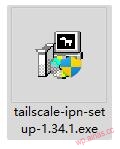
 11. For example, if I want to access Synology at home in the office, then the office computer needs to join the virtual network, so I download the Windows version of the client and install it;
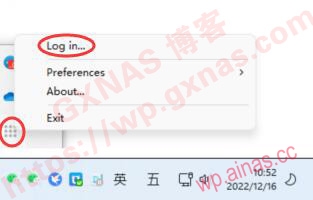
 12. Find the Tailscale icon in the lower right corner of Win, right-click, Long in, and log in to the same email account;
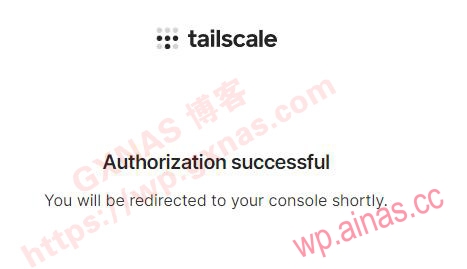
 13. The webpage pops up to prompt that the login is successful;
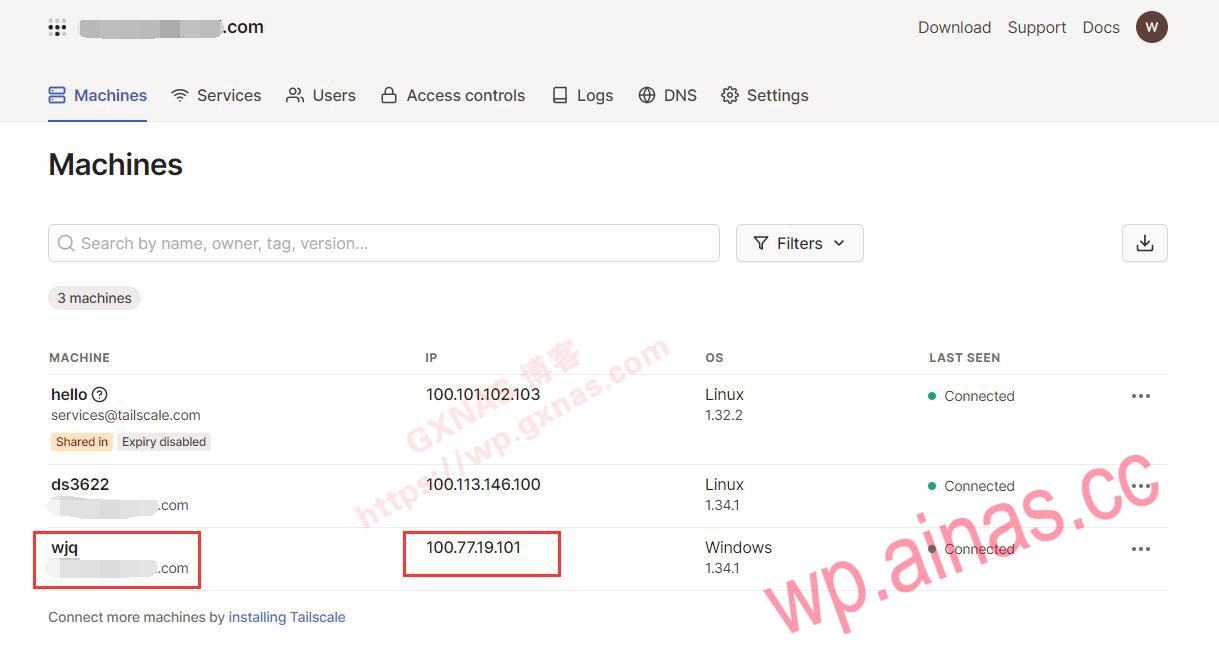
 14. The name of the office computer is also displayed above, and the IP address of a virtual network is obtained (the IP address obtained by my office computer is 100.77.19.101)
 15. The mobile phone also needs to access Synology remotely. I am using an Android phone. After the APP is installed and run on the mobile phone, it shows that the mobile phone has obtained the IP address of a virtual network (the IP address obtained by my mobile phone is 100.78.170.108), but the APP is currently in a deactivated state, so you need to click the button in the upper left corner;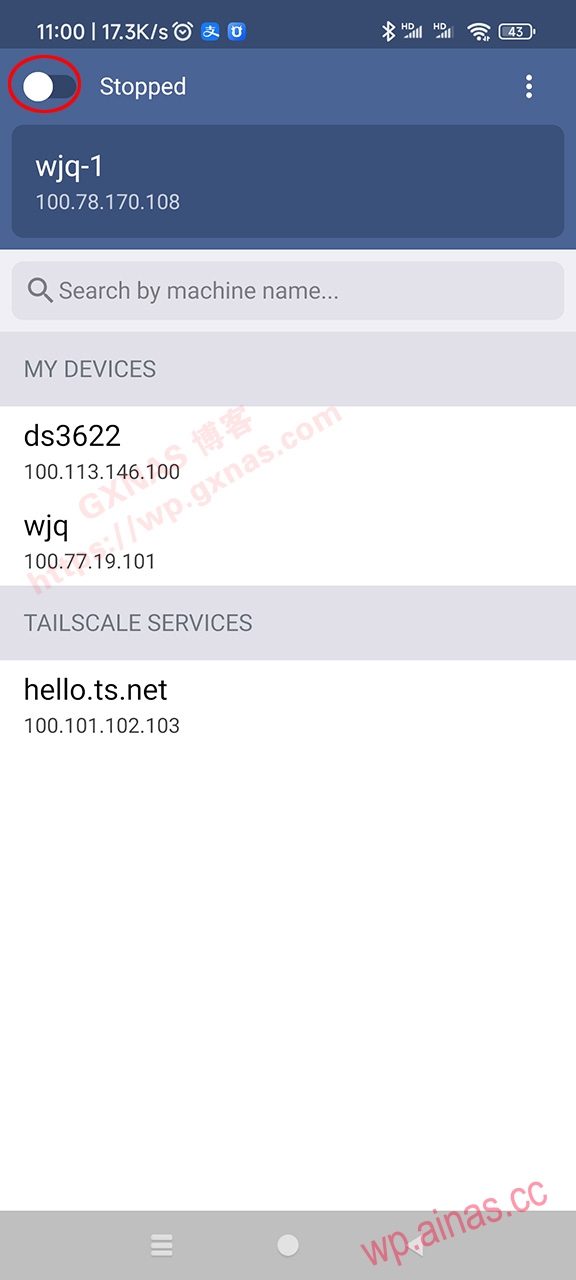
16. A network connection request will pop up on your phone, click “OK”;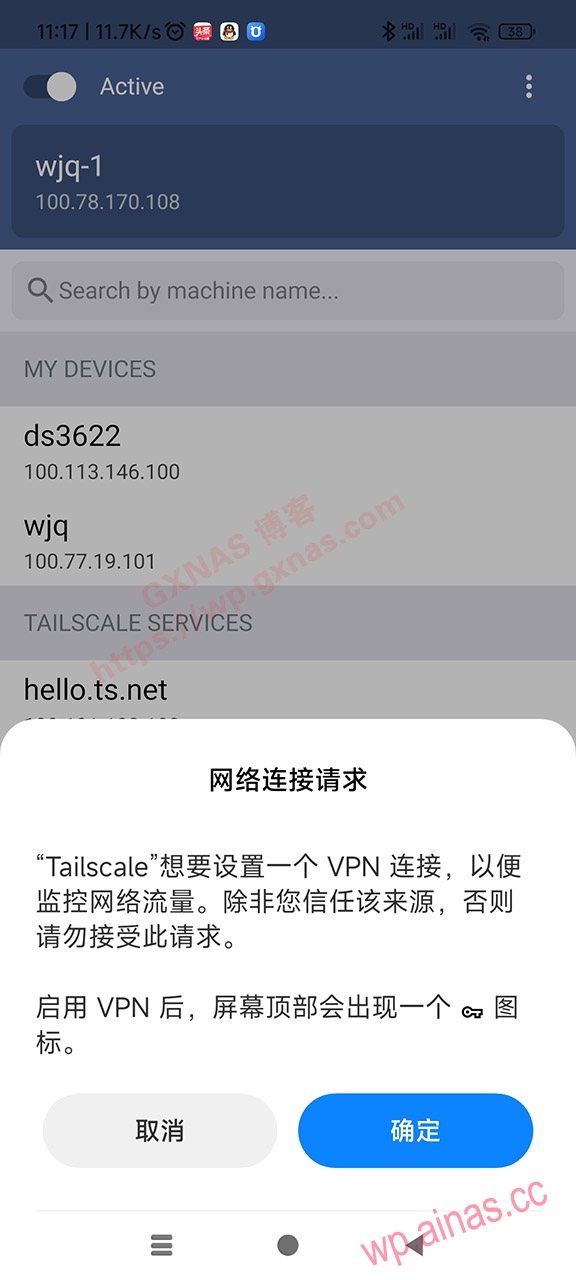
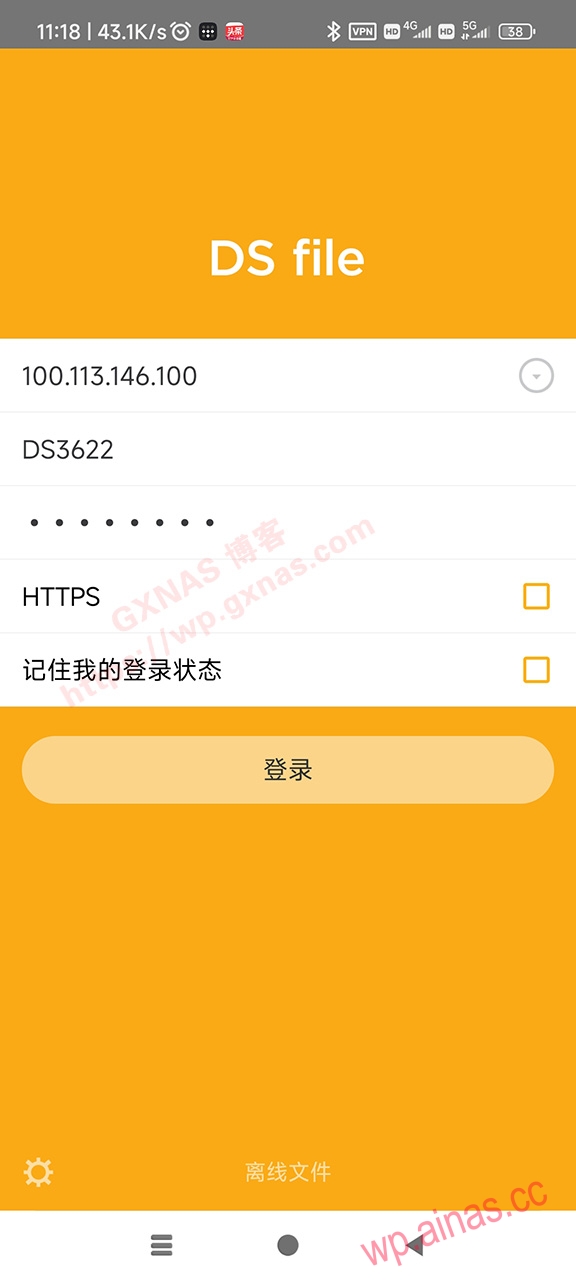
17. See on the Tailscale webpage that the mobile phone has successfully joined the virtual network;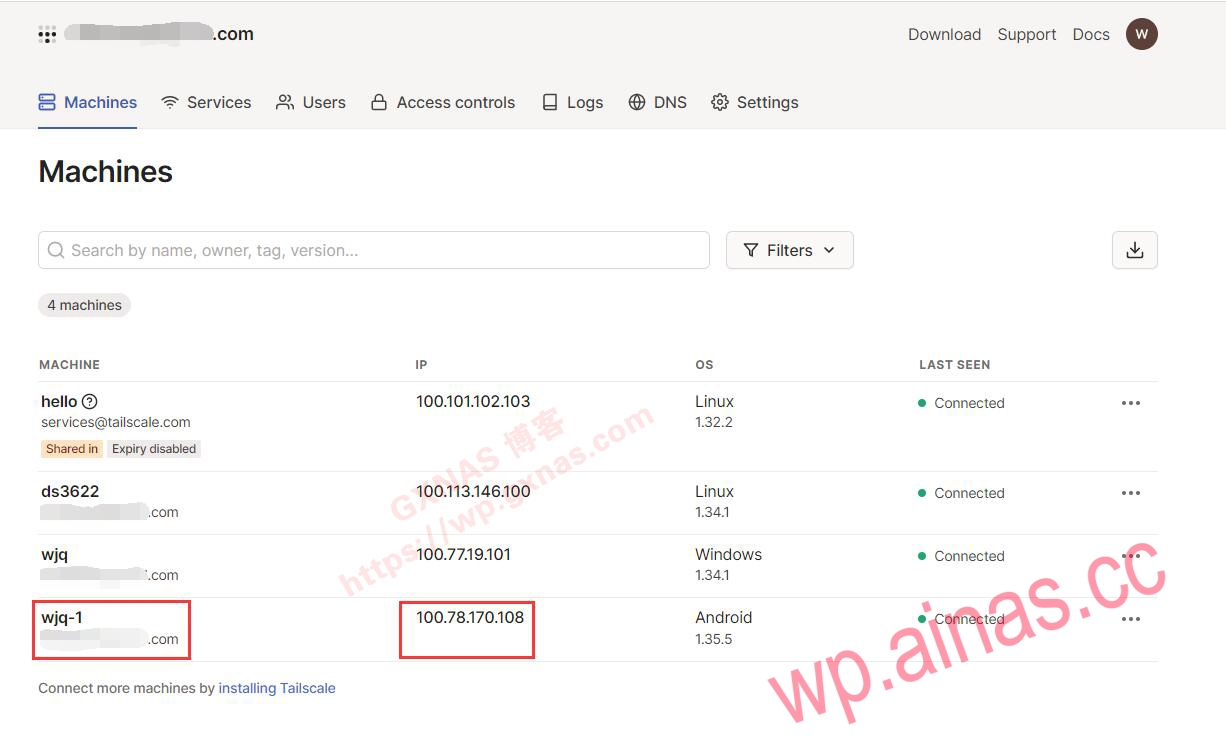 18. Open the DS File Synology APP on your mobile phone, enter Synology’s virtual IP, Synology username, Synology login password, and log in;
 19. Log in successfully and see the NAS folder;
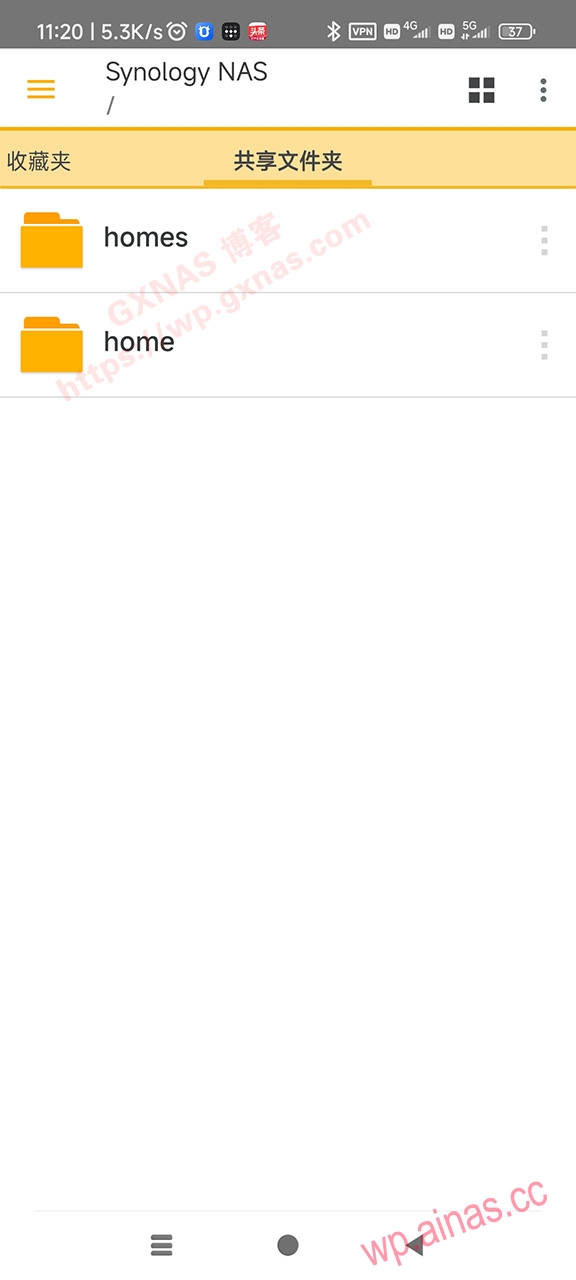 20. Look: the IP address is virtual. Only those who join the same virtual LAN can log in. The security is very reliable;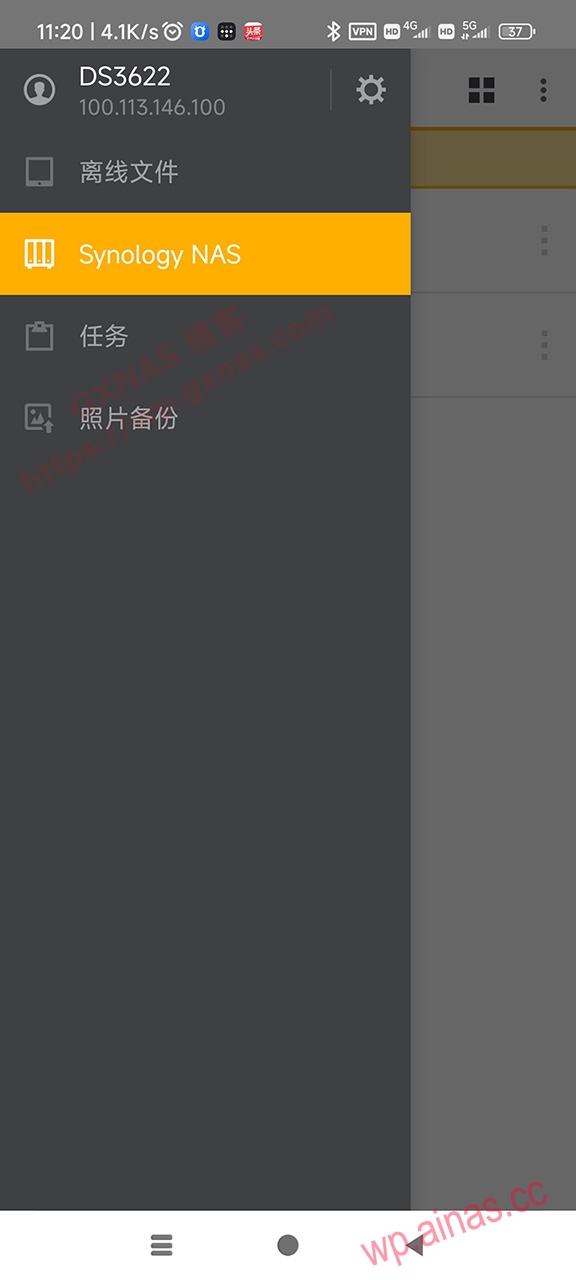
21. The operations for other accesses (such as computer browsers, Apple computers, and iPhones) are the same as usual accesses. Just change the login address to the Synology virtual IP address, which will not be described again here.
Related links:
Tailscale’s official website:https://tailscale.com/Tailscale’s github open source repository:https://github.com/tailscale/tailscaleGithub open source repository of Tailscale Synology suite:https://github.com/tailscale/tailscale-synologyGithub open source repository of Tailscale Android client:https://github.com/tailscale/tailscale-android
